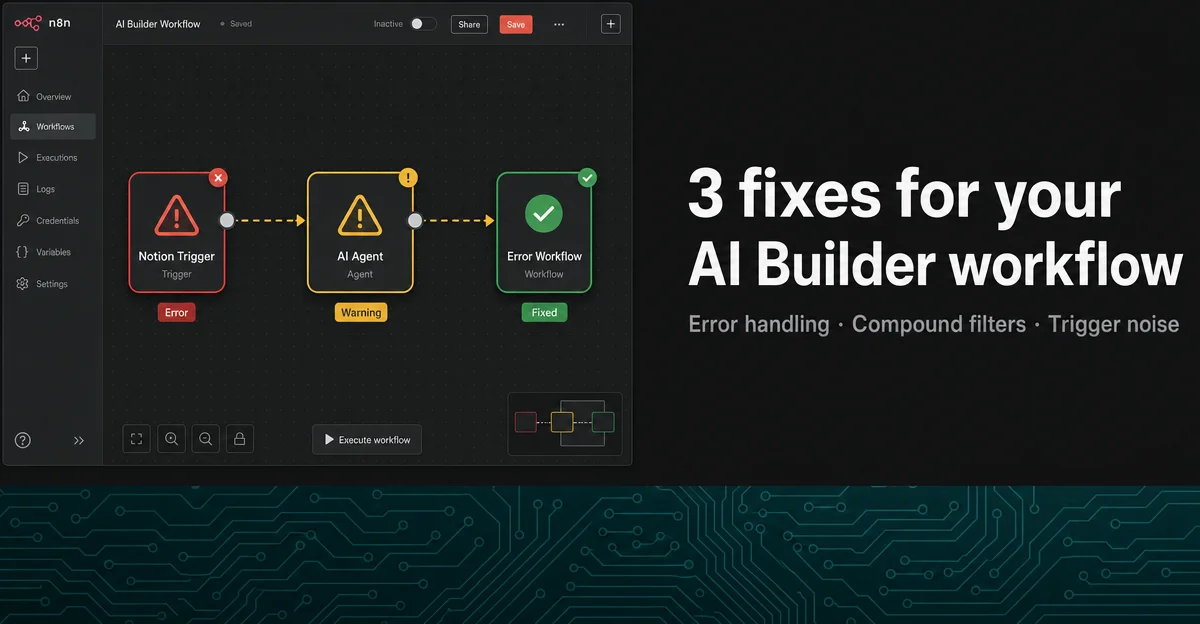
Harden your AI Builder + Notion workflow: 3 fixes the skeleton skips
AI Workflow Builder hands you a connected node skeleton — but skips three production-hardening layers that break within the first week. Covers structured error recovery for silent AI Agent tool failures, a JSON-generation workaround for `$fromAI()` compound filter errors, and how to switch Notion Trigger to webhook mode to suppress flooding from two open bugs (#30581, #30034).

| Requirement | Detail |
|---|---|
| n8n plan | Cloud Starter (50 AI credits/mo), Pro (150/mo), or Enterprise (1,000/mo) — Cloud only 1 |
| n8n version | v1.115.0 or later (Cloud only; self-hosted not supported) 2 |
| Prerequisite | A working AI Builder–generated workflow with a Notion Trigger and at least one Notion tool node (see yesterday's tip) |
| Time investment | ~25 minutes to apply all three fixes |
AI Workflow Builder hands you a connected skeleton in under a minute. What it does not add: error recovery when a Notion tool call fails, logic to handle optional filter conditions, or any defense against Notion Trigger's two active bugs that flood your error handlers with noise. These three gaps bite PMs in roughly the same order — usually within the first week of a workflow running in production.
Each fix is a targeted, manual addition to the skeleton. None requires rewriting the workflow from scratch.
Fix 1: AI Agent tool failures are silent — wire in structured error recovery
The problem. n8n's Error Workflow mechanism triggers when a node fails. When an AI Agent node's tool fails — say, a Notion API call returns a 403 or a timeout — the AI Agent node itself does not fail. 3 The agent treats the tool error as part of its reasoning loop, not as an execution failure. Your Error Workflow never fires. The workflow logs show green. Nothing happens. 4
正在加载内容卡片…
The fix: build error resilience into the tool itself. Three community-validated patterns, in order from simplest to most robust:
Pattern A — "Never Error" toggle on HTTP Request tools. If your AI Builder workflow uses HTTP Request nodes to call Notion (rather than the first-party Notion node), open each HTTP Request node → Options → Response → enable Never Error. The node stays green even on 400/500 responses; the error message is returned as a plain string to the agent. 4
Pattern B — Code node with try/catch. Wrap any tool logic in a Code node:
try {
  // your Notion API call here
  return [{ json: { success: true, data: result } }];
} catch (e) {
  return [{ json: { success: false, error: e.message } }];
}
The agent receives
{ success: false, error: "..." } as data, not a crash. 4Pattern C — System Prompt recovery instruction (use with A or B). Add this block to your AI Agent's System Prompt:
If any tool returns { "success": false }, do not stop.
Read the "error" field, attempt to correct the input, and retry the tool once.
If the retry also fails, respond with the exact error text.
Use Pattern B + C together for the most reliable result. Pattern A alone is sufficient for simple HTTP integrations.
Fix 2: $fromAI() breaks on partial filter input — use the JSON-generation workaround
The problem. AI Builder generates Notion tool nodes that use
$fromAI() expressions to populate filter conditions dynamically. A typical generated expression looks like this:$fromAI('conditions0_Title', 'Project Name to search for', 'string')This works when the user provides all filter values. When you build a compound filter — say, "find tasks matching both a client ID and a project ID" — and the user only supplies one of the two, the tool errors because the second required input is missing. 5
The fix: teach the agent to construct the JSON filter itself. This is the approach recommended by jabbson, an n8n team moderator:
"The way to build a dynamic filter which takes zero or no filters would be either to teach [the] AI agent to make JSON filters from natural language by explaining what operations are, what the format is, and how to combine them etc OR to get all records and explain the logic of filtering to the [AI] agent [...] in natural language." 5
Add a Context block to your AI Agent's System Prompt explaining the Notion filter JSON format:
NOTION FILTER FORMAT:
Single condition: {"property":"Status","status":{"equals":"In Progress"}}
AND combination: {"and":[{condition1},{condition2}]}
OR combination: {"or":[{condition1},{condition2}]}

When the user specifies only one filter, generate a single-condition filter.
When the user specifies multiple filters, generate an AND compound filter.
Pass the resulting JSON object directly to the Notion query tool's "filter" parameter.
Then change the Notion tool node's filter field from a
$fromAI() expression to a single $fromAI('filter', 'JSON filter object', 'json') call. The agent now constructs the correct filter structure before calling the tool, whether the user gives one condition or five.The alternative — fetch all records and filter in natural language — works but consumes more tokens per run and becomes slow on large databases. 5 Use the JSON-generation approach for any sprint database with more than ~200 rows.
Fix 3: Notion Trigger floods your Error Workflow with empty alerts — switch to webhook mode
The problem. Two open bugs in the Notion Trigger node affect AI Builder–generated workflows directly, since the AI Builder creates the same trigger node you'd build manually.
- Bug #30581 (open as of June 3, 2026): Notion Trigger marks ~95% of poll executions as
erroredwhen the poll finds no updated pages. The error object is completely empty —error: {},startedAt: null,executionTime: 0. If you have an Error Workflow configured, it fires every minute with a Slack DM saying "Error: No error message." 6 - Bug #30034 (open as of June 3, 2026): Notion Trigger works correctly in Test Step but crashes immediately on first poll after activation. The Error Details pane is completely empty — no status code, no message, nothing to diagnose. 7
正在加载内容卡片…
The fix: replace polling with webhook mode. The Notion Trigger node supports a Webhook delivery method that pushes events rather than polling on an interval. Switch to it:
- Open the Notion Trigger node in your workflow.
- Change Trigger Type from Polling to Webhook.
- Copy the generated webhook URL from n8n.
- In Notion, open your database → ... (top-right) → Connections → select your integration → confirm that the integration has the webhook permission scope.
- Activate the workflow and run a test update — the trigger should fire within 2–3 seconds, with no polling cycle and no spurious errors.
If you need polling for a specific reason (e.g., Notion's webhook delivery is unreliable for your workspace), keep polling but add a conditional guard in your Error Workflow: check whether
{{ $json.error }} is an empty object before sending any alert. This suppresses the noise from #30581 while preserving real error notifications.Gotchas
Bug #30034 gives you no diagnosis path. The empty error details pane means you cannot see what Notion's API actually returned. If webhook mode also fails, check: (a) your integration token has
Read content + Update content capabilities on the database; (b) the database is shared with the integration (Settings → Connections, not just a page share); (c) n8n Cloud is on v2.19.4 or later — earlier versions had a separate moment.js serialization bug that also caused silent activation failures. 8Notion Trigger's v2.21.0 fix only covers moment.js, not the polling bug. n8n v2.21.0 (released May 5, 2026) fixed the
staticData serialization issue (#28445) and the 100-item pagination ceiling (#29690). 9 Bugs #30581 and #30034 are newer and remain open.AI Builder Pro plan gives 150 credits/month — no add-on purchase. Applying all three fixes via the AI Builder chat interface costs roughly 6–10 additional interactions. If you are near your monthly limit, make the fixes manually in node configuration panels rather than through prompts to avoid spending credits on what are ultimately mechanical edits.
Agent overloading degrades tool selection accuracy. Matt Payne at Width.ai measured that "an agent with 15 tools will struggle to choose the right one. An agent with 2–3 well-described tools will select correctly almost every time." 10 If you have added error-recovery tools, filter tools, and notification tools in one agent, consider splitting into a lean agent (2–3 Notion tools only) and routing output to a separate Slack notification workflow.
System Prompt retry instruction needs a retry ceiling. "Retry the tool once" is important in the Pattern C prompt. Without a ceiling, an agent that hits a persistent 403 (wrong token, revoked access) will loop indefinitely, consuming credits until the workflow times out.
Cover: AI-generated illustration
参考来源
- 1n8n Plans and Pricing
- 2AI Workflow Builder — n8n Docs
- 3n8n Error handling docs
- 4n8n Community: Setting up error workflow upon AI agent tool failure
- 5n8n Community: N8n AI agent filter specific informations for notion api request
- 6GitHub n8n issue #30581
- 7GitHub n8n issue #30034
- 8GitHub n8n issue #28445
- 9Releasebot: n8n Release Notes
- 10Width.ai: n8n AI Agents Tutorial 2026
围绕这条内容继续补充观点或上下文。