Figma Design Agent: the Thread-as-Artifact pattern
A teardown of Figma Design Agent (closed beta, May 20, 2026) focused on the chat sidebar interaction layer — the piece the May 26 on-canvas teardown left unexplored. Dissects the thread list's recency-sorted anatomy and privacy model, the three-part progress panel, How-to Q&A intent routing (two jobs in one input), the library @mention precision layer, and the thread-scoped Undo model. Named pattern: Thread-as-Artifact.

Research Brief
Yesterday's teardown covered the on-canvas prompt box — the floating UI that appears when you select a layer and press
Cmd+Enter. 1 That surface is Figma's bet on keeping AI invocation inside the canvas rather than pulling designers into a separate panel. Today goes one layer deeper: the chat sidebar that lives in the left navigation rail, and all the interaction states that only show up there.This is where thread management, execution monitoring, How-to Q&A, and Undo live. And it turns out those four things share a single underlying design decision that's worth naming.
The thread list: conversations as first-class objects
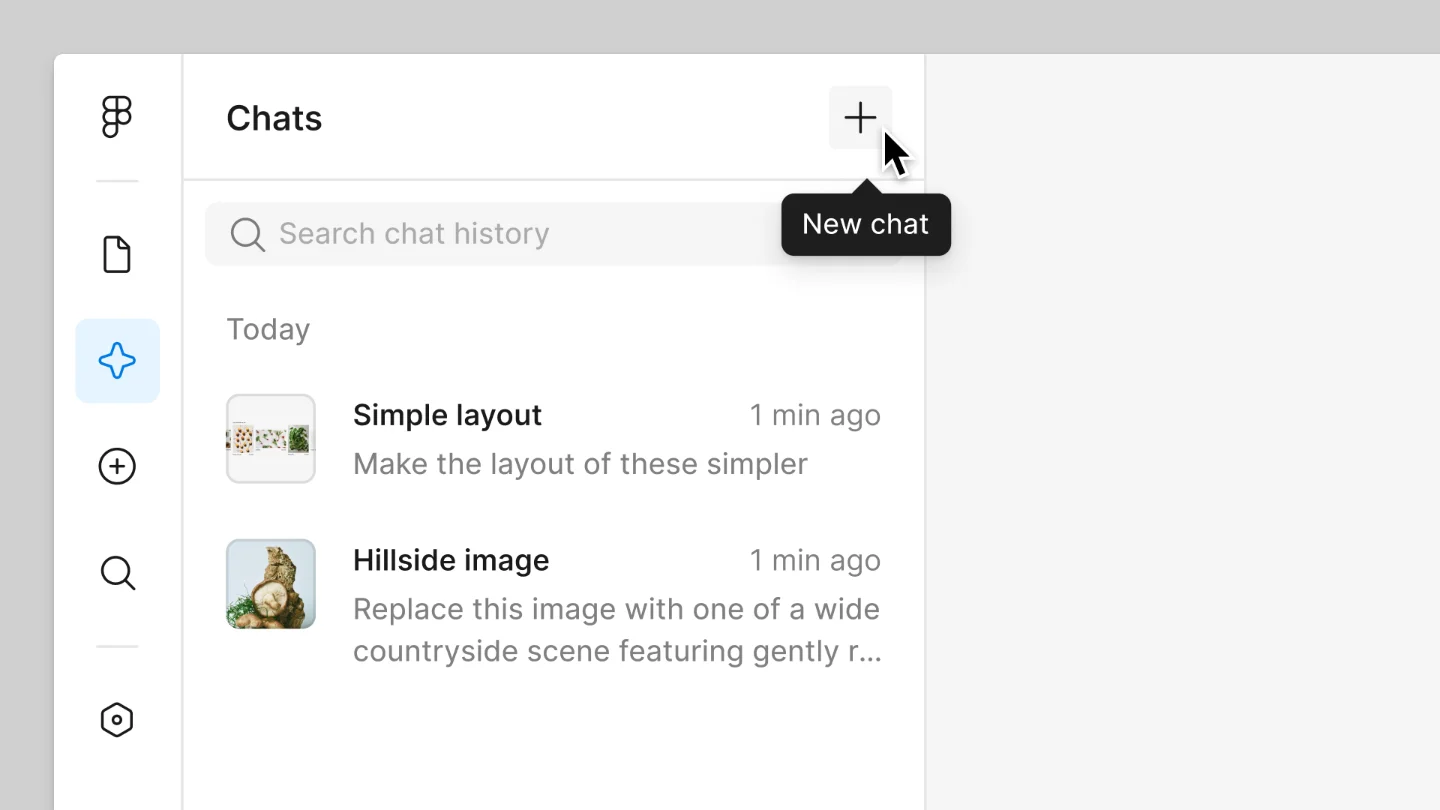
Click the Agents icon in Figma's left navigation rail and the sidebar opens to a list of all your past and active conversations, sorted by most-recently-updated. 2 Each row shows the thread's last message as a preview snippet. A "New chat" button sits at the top. Inside any thread, a "Back" button collapses the conversation and returns you to the list.
The recency sort is a deliberate information hierarchy call. The most useful thread is almost always the one you were just in, or the one that just finished running. Alphabetical sort would be dead weight for an AI assistant — thread names are typically whatever the first message happened to be. Recency puts the right thread within two clicks in almost every workflow pattern.
One structural detail that's easy to overlook: chat history is private. Other collaborators in the same Figma file cannot see your threads. 2 Figma's own Help Center suggests keeping separate threads for separate workflows, so each conversation stays focused on a specific change set. The privacy choice is doing two jobs here: it prevents social friction (nobody wants their prompting experiments visible to the whole team), and it reinforces the mental model that a thread belongs to one designer's work session, not to the file.
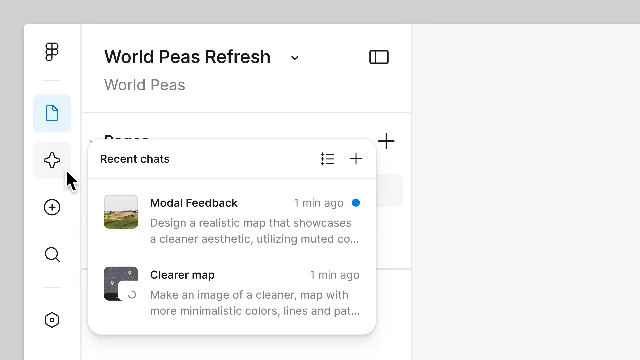
The sidebar also has a lightweight preview mode. Hover over the Agents icon in the left rail without clicking, and a tooltip surfaces the most recent thread status — a quick-check that lets you confirm whether a background job finished without fully opening the panel. 2 This is the same "ambient status without context-switching" instinct that drives notification badges — but scoped to a single tool rather than broadcast across an entire app.
The progress panel: making the black box legible
When the agent is running, click its animated canvas indicator to open the chat window and you get a three-part progress view: what the agent is currently doing, the list of steps it has already completed, and the final result once it finishes. 2
Most AI chat UIs collapse execution state into a spinner. Figma's approach narrows the uncertainty window significantly: you can see that the agent applied an auto layout rule, then updated the component fill, then is now resolving a variable reference — rather than watching a loading animation and guessing whether it is halfway done or 10 seconds from finishing.
The Figma Help Center describes the chat window as supporting "back-and-forth interactions so you can keep riffing as you go." 2 That phrasing captures something important about the interaction model: the user is not locked out while the agent executes. You can type a new instruction mid-run. You can also press Stop to halt the current task entirely. The agent is not an isolated batch process — it is a conversation that happens to have observable side effects on the canvas.
How-to Q&A: two jobs, one input
Inside the same chat thread where you'd type "Redesign this card using the brand library," you can also type "How do I use auto layout?" and the agent switches modes. 2 Instead of executing a design action, it pulls from Figma's Help Center and returns an explanation. The agent "draws from Figma's Help Center to give you accurate, up-to-date answers." 2
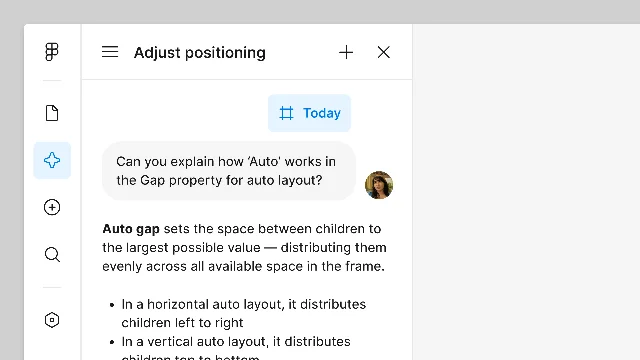
There is no Help tab, no documentation icon, no mode toggle. You ask a question in the same box you use to issue commands, and the agent routes your intent.
The design principle here is one Rodrigo Davies, Figma's product manager for the agent, articulated in the launch blog post: "Figma's agent is embedded where the work already happens. There's no toggle tax, no context switching, no learning curve." 1 The How-to Q&A mode is a direct application of that principle to documentation. The alternative — keeping the Help Center as a separate browser tab — creates a 5–10 second overhead every time a designer needs to clarify how something works. Multiply that by the number of times a day a designer working in unfamiliar territory has a quick procedural question, and the context-switch cost accumulates.
The @mention layer: precision steering
Also living in the chat input — though technically part of both the on-canvas prompt box and the sidebar — is the library @mention mechanism. Once you connect a library via "Add context," typing
@ in the prompt opens a picker showing components, variables, and styles from that library. 2 You can reference specific tokens (@ButtonPrimary, @ColorSemanticError) directly in the instruction.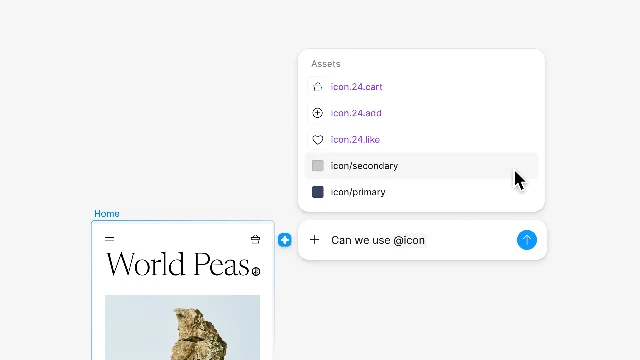
Davies described this as "a key command for your design system." 1 The analogy is precise: like a keyboard shortcut, it reduces a multi-step operation (open the library panel, find the component, copy its exact name, paste into prompt) to a single gesture. More importantly, it makes the design system a searchable vocabulary inside the AI interaction rather than a separate reference system the designer has to hold in their head.
The agent defaults to the most frequently and recently used components when no explicit @mention is given. 1 Explicit @mention is the precision path; defaults handle the common case. This two-tier model — inference for routine work, explicit override for precision — appears throughout Figma's existing search and component behaviors.
Undo in the chat thread
Each agent-generated action in the chat thread has an inline Undo button. 2 The standard
Cmd+Z / Ctrl+Z canvas shortcut also works. Figma's FAQ is direct about this: "You can always undo any changes the agent makes. It is designed to support your craft — you remain in control of all design decisions." 2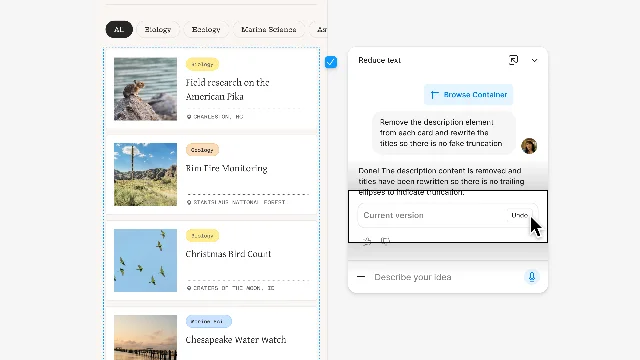
The fact that the Undo control is in the thread rather than only accessible via the canvas's global undo stack is worth examining. Agent edits can span many layer operations — it might adjust 40 components in a single prompt run. A standard
Cmd+Z that undoes one operation at a time would require 40 presses to get back to baseline. Thread-scoped Undo collapses that into a single action, because the agent's entire prompt execution is treated as one atomic operation from the user's perspective.For side-by-side comparison before committing to a revert, Figma's recommended workflow is: duplicate the AI-updated frame as a backup, then Undo on the original. This workaround exists because the sidebar has no native before/after diff view — comparing states requires manual frame duplication.
The reusable pattern: Thread-as-Artifact
Named pattern for today: Thread-as-Artifact.
Thread-as-Artifact is the design decision to persist AI interaction history as a first-class navigable object — stored, sorted, privately owned, and actionable (you can return to any thread and continue the conversation, or undo from within it) — rather than treating AI sessions as ephemeral, single-use dialogs that vanish when dismissed.
The sidebar's thread list is the physical expression of this pattern, but it shows up in four other decisions that all reinforce the same model:
Recency sort over alphabetical. Threads are sorted by when they were last active, not by name. This only makes sense if threads are expected to be returned to — a thread you finished yesterday might still be relevant today if the canvas work is ongoing.
Privacy per-person, not per-file. Threads belong to the individual designer, not to the shared file. This treats the AI conversation as part of a designer's personal working memory — the same way local annotations or personal draft pages work — rather than as collaborative file content.
Inline Undo scoped to the thread. Reverting an agent action happens from within the thread, not from a global history panel. This keeps the cause (the prompt) and the remedy (the Undo) co-located, consistent with treating the thread as the authoritative record of what the agent did.
Intent routing within a single input. How-to Q&A and design execution share the same prompt field. The thread accumulates both types of response — "here's how auto layout works" alongside "here's the auto layout I just applied to your frame." The thread becomes a mixed log of learning and doing, which is how design work actually proceeds.
Three conditions make Thread-as-Artifact worth implementing in your product:
The AI action has duration and multiple steps. Figma's agent can take a noticeable stretch of time to execute a complex prompt, touching dozens of layer properties across a frame. That's long enough that the user will switch attention elsewhere and need to return. A thread with a step log is a legible re-entry point; a dismissed chat bubble is not.
The user will need to revisit, not just react. If the AI interaction is pure generation — user sends a prompt, AI returns a result, user accepts or discards — a non-persistent session is fine. Thread-as-Artifact earns its complexity when the user returns to a previous state, extends a prior conversation, or needs to audit what the agent did two hours ago.
Actions are reversible at the interaction level, not just the operation level. Undo inside the thread works because the thread is the unit of action. If agent operations were not atomic from the user's perspective — if 40 layer changes were 40 separate undo steps — the thread-scoped Undo couldn't exist. The artifact model requires defining the interaction boundary clearly so that "undo the last agent action" has a determinate meaning.
Where the pattern fits: Any product where AI generates changes that take time, affect multiple objects, and leave behind a state the user may want to revisit — code editors with AI refactors, document editors with AI restructuring passes, data tools with AI-generated transforms. The thread becomes the audit log and the control surface simultaneously.
Where the pattern breaks: Single-shot generation tools where the output is self-contained and discarding it has no downstream consequence. If the user's mental model is "generate, pick, discard," persistent thread history is overhead, not value. The pattern also struggles when threads become too numerous to scan — Figma's sidebar has no search, no tagging, and no archival; recency sort works now because the feature is in closed beta with limited usage, but at production scale, navigation may require more structure.
PM takeaway: When you are deciding how to surface AI interaction history in your product, the question is not "should we show a history panel?" The question is: do your users treat AI sessions as single events or as ongoing work artifacts? If a designer would be frustrated to lose the context of last Thursday's prompt run, that session is a work artifact and it deserves to be stored, searchable, and actionable. If users never look back, a session log is organizational debt. The right answer depends on whether your AI actions are atomic (single-shot) or compositional (part of a longer series of decisions).
Loading content card…
Cover image from Work with the AI agent in Figma Design — Figma Help Center
Add more perspectives or context around this Drop.