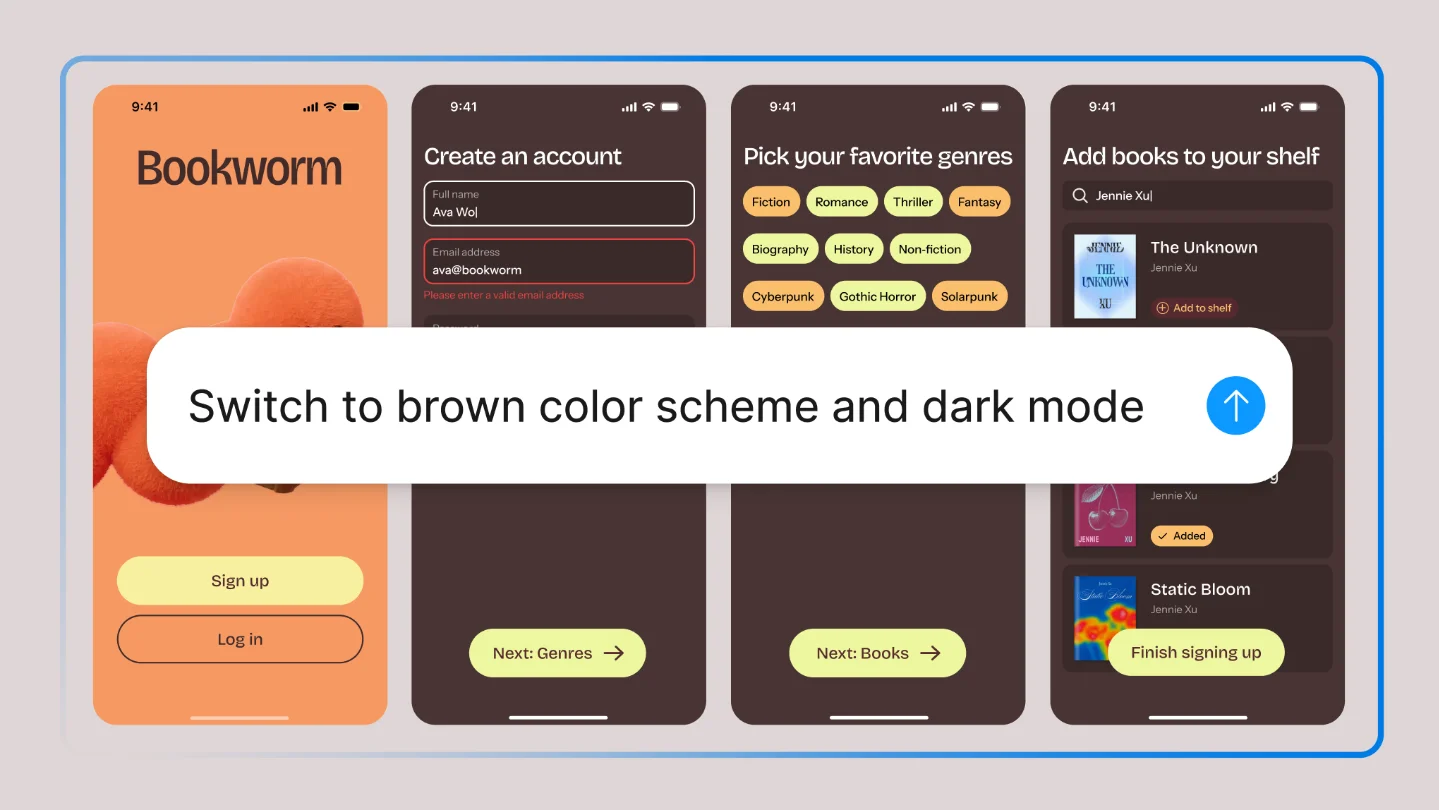
Figma Design Agent: the Cursor-Scoped Delegation pattern
A teardown of Figma Design Agent (closed beta, May 20, 2026) focused on the on-canvas prompt box — the floating UI anchored to the selected layer. Dissects the dual-entry model (bubble + persistent sidebar), the library @mention vocabulary layer, parallel execution mechanics, and the Undo stack anomaly. Named pattern: Cursor-Scoped Delegation.

Research Brief
Figma launched its first native AI agent on May 20, 2026, in closed beta. 1 The announcement got the usual wave of demos and YouTube walkthroughs. Most coverage focused on what the agent can do — generate screens, apply design system tokens, run batch edits. But the more interesting question is where the interface for all of that lives, and why Figma put it there.
This teardown focuses on the on-canvas prompt box: the floating UI that appears when you select any layer in the Figma canvas. It is the primary interaction surface for the agent, and it is where Figma made its most deliberate design bet.
What the on-canvas prompt box actually looks like
Select a layer — any layer — and a small Agents button floats in the upper-right of your selection handle. 2 Click it, or press
Cmd+Enter on Mac / Ctrl+Enter on Windows, and a compact prompt box opens in-place. The box contains three controls: a text input, a Dictate button for voice input (requires microphone permission on first use), and a Send button.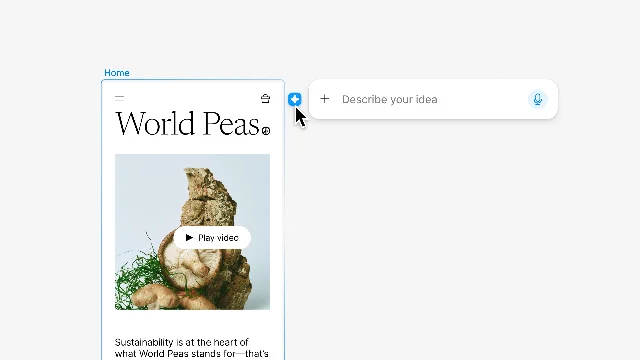
The keyboard shortcut is doing more work than it looks like.
Cmd+Enter is Figma's existing "submit" shortcut in several other contexts — rename, comment, prototype link. Reusing it here avoids teaching a new hotkey; more importantly, it keeps the agent invocation inside the same muscle memory as other lightweight layer-level actions. You don't leave the canvas. You don't switch to a chat panel. The agent opens where your hands already are.There is a second entry point: a persistent chat sidebar accessible from a new Agents icon in the left navigation rail. 2 The sidebar shows all threads, sorted by recency, each displaying its last message preview. A "New chat" button starts a fresh thread; a "Back" button collapses the thread back into the list. The two entry points — layer-scoped bubble and sidebar — share the same thread store, so a conversation started from the canvas continues naturally in the sidebar.
This is a two-speed architecture. The bubble is for fast, scoped asks ("Restyle this card to use our primary palette"). The sidebar is for longer sessions, reviewing history, and running threads while working elsewhere in the file.
The layer-selection lock: why the bubble is tied to the selection
Every other major AI chat interface in the design ecosystem — third-party plugins, external tools, browser-based copilots — opens as a modal or full-screen overlay. You leave your canvas, describe what you want in abstract terms, then return and apply the output. Figma's on-canvas bubble inverts this. The selection is the context. When you open the prompt box on a selected component, the agent already knows the layer tree, the applied styles, the component properties, and any linked variables. You don't describe the component; you talk to it.
Rodrigo Davies and Tammy Taabassum, the PM and designer who built the agent, framed this explicitly. Davies described the goal as seamless switching between AI and direct manipulation — not AI replacing design, but AI acting on the canvas where design happens. 3 Figma CEO Dylan Field's launch announcement called it "an agent that's fluent in Figma and purpose-built for design — on the canvas, where your team works and design context lives." 4
The implication for the UI is that the prompt box has no "describe your design system" preamble. Context is acquired through selection, not narration.
There is a real tradeoff here, flagged by community reviewer TD in a hands-on walkthrough: the Agents bubble sits in the same zone as the layer resize handle. 5 Grabbing a corner to resize and accidentally opening the agent prompt is a friction point. TD described it as "a bit annoying on the page because it means that anytime you have an element, if you want to try and grab its corner, you will get this guy instead." 5 The
Cmd+Enter path sidesteps this entirely, and users can disable the canvas bubble through Preferences. But the default state creates a collision between two high-frequency interactions — resize and prompt — that Figma will almost certainly revisit before GA.The library @mention: narrowing the agent's vocabulary
Below the text input, an "Add context" button opens a library picker. 2 Connect a library and the agent can produce output that uses your team's actual components, variables, and styles. Once a library is connected, you can
@mention specific elements — @ButtonPrimary, @ColorSemanticError, @SpacingScale-4 — directly in the prompt.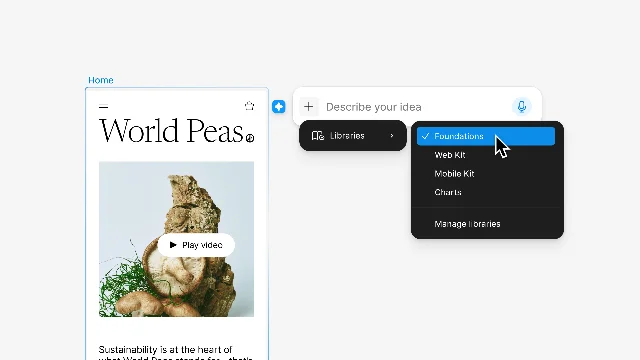
Tammy Taabassum described
@mention as "the key command for your design system" — the mechanism that makes the agent a participant in the team's design language rather than an outside generator. 3 When DesignCourse demoed this, they connected the Material 3 design library and prompted the agent to convert an existing app screen to Material Design — it applied the component tokens without touching the original images. 6The design choice worth noting is that the library picker is optional at each session. Figma defaults to the most frequently used and recently used components, which means a designer who has been working in the file all day gets reasonably relevant defaults without configuring anything. The explicit
@mention is available for precision; the defaults handle the common case. This two-tier model (defaults + explicit override) is the same logic Figma uses in component search — search is fast because the list is pre-filtered by relevance, and exact-match is one more character away.Parallel execution and the Undo anomaly
The prompt box supports firing multiple prompts in sequence without waiting. 2 Each running prompt places an animated agent icon on the canvas near its target. Clicking the icon opens a progress panel showing which steps the agent has completed, what it is doing now, and the result when it finishes. A red dot on the sidebar icon indicates that a background thread has completed while you were working elsewhere.
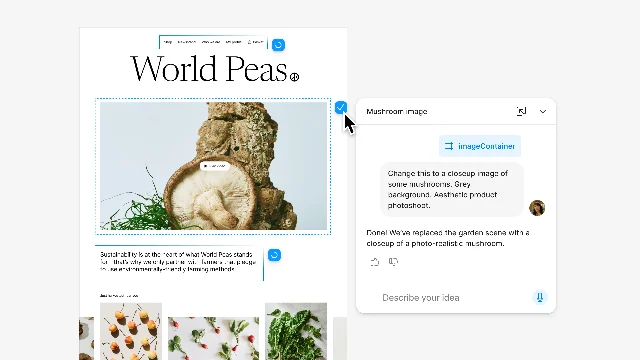
TD documented the speedup: two layout variants generated in 6 minutes, with parallel threads running while working on other parts of the file. 5 The parallel model treats agent prompts as background jobs rather than blocking operations — a correct framing for a task that can take 30–90 seconds per run.
The Undo behavior is where the system breaks its own metaphor. Standard
Cmd+Z on the canvas does not undo agent changes. 2 The only path to reverting an agent edit is the Undo button inside the chat thread. TD's summary: "Don't try to undo on the canvas. The only way is to undo it inside of the chat." 5This is a beta-era seam between two undo stacks — the canvas's local history and the agent's action log — that Figma has not yet unified. The practical workaround is to run agent prompts on duplicated frames, so the original is always retrievable. The design implication is that agent actions currently live in a parallel history, not inside the same undo chain as direct manipulation. For a product that frames itself as making AI and direct manipulation "seamlessly interchangeable," this is the most visible place where that framing has not yet been realized.
The reusable pattern: Cursor-Scoped Delegation
Named pattern for this teardown: Cursor-Scoped Delegation.
Cursor-Scoped Delegation is the design decision to surface an agent's action interface at the layer of precision the user is already operating at, rather than in a separate panel, modal, or application. The agent inherits context from the user's current selection or cursor position — it does not ask for context to be re-described.
Three conditions must hold for this pattern to work:
The product has a meaningful selection model. Figma's layer-selection mechanic is the foundation. Because every layer carries structured metadata (type, properties, styles, parent hierarchy, component source), selecting a layer produces a rich implicit context object. A product with only a freeform canvas and no discrete selection units has nothing for a Cursor-Scoped agent to anchor on.
The agent action is scoped to the selected object. If the agent action can affect any part of the file regardless of selection, attaching it to the cursor position is misleading — the user expects a scoped action and receives a global one. Figma's current capability set (edit this component, apply this style to this layer, restructure this frame) stays close to this constraint. The "Coming Soon" features — prototype linking, applying effects — will test whether the pattern holds as the action surface expands.
The ambient interaction (resize, link, type) must not conflict with the agent invocation. This is the condition Figma is currently failing. The resize handle collision documented above is a real UX cost. The keyboard shortcut path (
Cmd+Enter) is a graceful workaround, but the default hover bubble puts the pattern in conflict with itself. A stable implementation of Cursor-Scoped Delegation requires the invocation target to be spatially distinct from adjacent high-frequency actions.Where the pattern fits: Any product where users operate on discrete, selectable objects that carry structured context — code editors (cursor position in a function → agent with scope of that function), document editors (selection of a sentence → rewrite scoped to that sentence), spreadsheets (cell selection → formula agent scoped to that cell's data type). The pattern is most valuable when the ambient selection already carries enough context to make re-narration unnecessary.
Where the pattern breaks: When the selected object is too coarse to scope the action usefully — selecting an entire page to "redesign the page" is no more specific than a text prompt saying "redesign the page." Cursor-Scoped Delegation trades on precision; if the selection model can't express precision, the pattern collapses back into generic chat.
PM takeaway: When you are evaluating where to place an AI feature in your product, the question is not "should this be a chat panel or an inline button?" The question is: does a meaningful selection already exist at the point of use, and does that selection contain enough structured context to scope the agent's action without the user re-describing it? If yes, put the agent invocation at the selection. If no, a panel or modal is the honest answer — because you don't have scoped context to offer, and pretending you do by placing the button inline just creates a confused interaction.
Loading content card…
Cover image from The Figma Design Agent is Here — Figma Blog, May 20, 2026
Add more perspectives or context around this Drop.