Container Tools — choose which services to start
Container Tools (ms-azuretools.vscode-containers) v2.4.5 is Microsoft's VS Code extension for Docker and Podman — the direct successor to the legacy Docker extension (51M+ installs). Today's tip: right-click any compose.yaml → Compose Up - Select Services → pick exactly the services you need. The article covers the full 4-step workflow, Compose Group panel, Dockerfile scaffolding for 6 languages, Podman setup, and known limitations.

If you run a multi-service Docker Compose stack, you've hit this: you're working on the frontend, but every
docker compose up also starts the database, a background worker, and a Redis cache you don't touch for hours. Container Tools (formerly the VS Code Docker extension) has a fix built in, and it's a single right-click away. 1Extension ID:
ms-azuretools.vscode-containers · Publisher: Microsoft (Verified) · Version: v2.4.5 (released 2026-05-29) · Minimum VS Code: 1.105.0 · Install on VS Code Marketplace · GitHubWhat Container Tools is (and where it came from)
In April 2025, Microsoft reorganized its container tooling: the original Docker extension (
ms-azuretools.vscode-docker), which had accumulated 51M+ installs since 2015, became a thin "Docker Extension Pack" that now bundles Container Tools. 2 Container Tools carries all of the original functionality — container and image management, Dockerfile scaffolding, debugging, registry management — and adds Podman support on top. 1The current install count is 14.3M with an average rating of 3.79/5 (19 ratings). The GitHub repo (
microsoft/vscode-containers) has 124 stars and 1,824 commits as of June 7, 2026. 3 The modest star count reflects the repo's age (public since April 2025), not adoption — most installs came in through the legacy Docker extension pack upgrade path.Today's trick: Compose Up - Select Services
When a
compose.yaml defines several services, the default Compose Up starts all of them. Compose Up - Select Services lets you pick a subset. 1Microsoft describes it this way:
"WhileCompose Upallows you to run all of your services at once, our new featureCompose Up - Select Serviceslets you select any combination of the services you want to run." 4
Here's how to use it on a three-service stack (web + api + db):
Step 1 — Make sure you have a
compose.yaml in your workspace root. The file should define your services. If you don't have one yet, jump to the scaffolding section below.Step 2 — Trigger the command. Two ways:
- Right-click
compose.yamlin the Explorer sidebar → Compose Up - Select Services - Open the Command Palette (
F1orCtrl+Shift+P) → typeCompose Up - Select Services→Enter
Step 3 — Pick your services. A checklist appears listing every service defined in the file. Check
web and api, leave db unchecked. Confirm.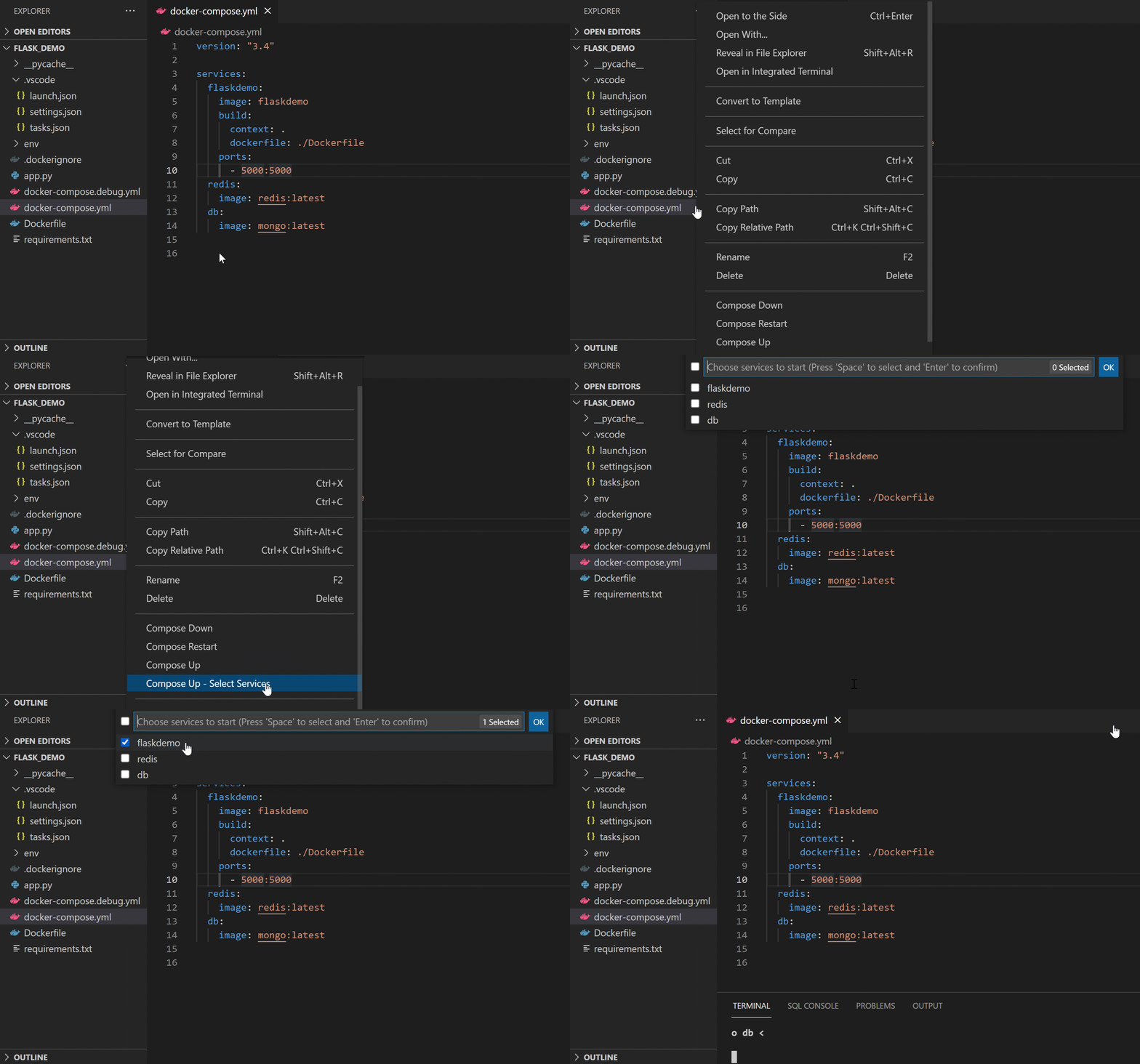
compose.yaml — select the subset you want to start and confirm. 1Container Tools builds and starts only the selected services. In the Container Explorer sidebar, they appear under a Compose Group named after your project directory.
Step 4 — Work from the Compose Group. Right-click the group node to get
Compose Logs, Compose Start, Compose Stop, Compose Restart, and Compose Down. Each individual service inside the group also has its own context menu: View Logs, Attach Shell, Open in Browser, Stop, Restart. 4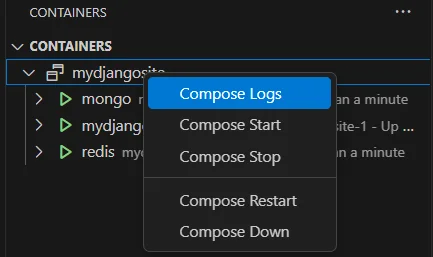
When you later need the
db service, repeat the right-click → Compose Up - Select Services → check only db. Already-running services (web, api) won't restart. Run Compose Down on the group to stop everything and clean up the network.Three more things worth knowing
Dockerfile scaffolding for six languages. Open the Command Palette →
Containers: Add Docker Files to Workspace. Choose your language — C#, Node.js, Python, Ruby, Go, or Java — and Container Tools generates a Dockerfile, .dockerignore, and a Docker Compose file. 1 For the three first-class debugging languages (Node.js, Python, .NET), it also writes the tasks.json build/run tasks and launch.json debug config so you can step through code running inside the container with a single F5. 5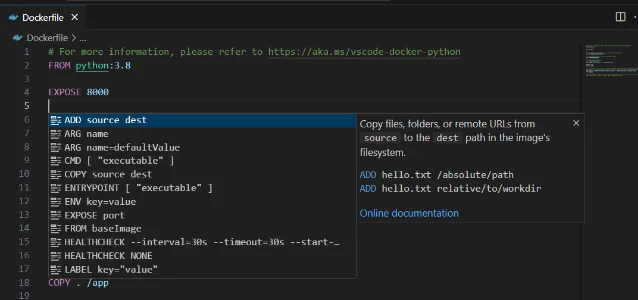
Ctrl+Space in any Dockerfile triggers a completion list with inline documentation for each instruction. 1Podman support (since v2.1.0). If you use Podman instead of Docker, set
containers.containerClient to Podman and containers.orchestratorClient to Podman Compose in VS Code settings, then restart the editor. 3 Auto-detection also works: if Docker isn't running, Container Tools checks the DOCKER_HOST environment variable and falls back to Podman. 6 Note that Docker DX — the companion extension for advanced Dockerfile IntelliSense — does not support Podman; it requires Docker Engine. 1Copilot integration (since v2.3.0). With GitHub Copilot installed, context menus on containers and images surface an "Ask Copilot" option, letting you query or interact with containers through chat. 3
Feature and compatibility reference
| Extension ID | ms-azuretools.vscode-containers |
| Latest version | v2.4.5 (2026-05-29) |
| Publisher | Microsoft (Verified) |
| Installs | 14.3M |
| Rating | 3.79/5 (19 ratings), weighted 4.02/5 |
| Minimum VS Code | 1.105.0 |
| Runtime support | Docker CE/EE, Podman (v2.1.0+) |
| OS | Windows, macOS, Linux (amd64, arm64) |
| Scaffolding languages | C#, Node.js, Python, Ruby, Go, Java |
| Debuggable languages | Node.js, Python, .NET (C#) |
| License | MIT (free, open source) |
Known limitations
Debugging scope is narrow. Container Tools supports one-click container debugging for exactly three languages: Node.js, Python, and .NET (C#). 7 Go, Ruby, and Java get Dockerfile scaffolding but no debug-configuration generation. .NET 7 and below lost scaffolding and debugging support entirely in v2.4.0 — Microsoft's release notes recommend upgrading to the latest .NET versions. 8
Open bug: extension crash (#442). A language-server crash introduced in v2.4.1 has been open since April 12, 2026, and is tracked in the v2.5.0 milestone. 7 If you hit the crash, downgrading to v2.4.0 is one workaround while the fix ships.
No Docker Swarm support. Swarm management (feature request #472) is planned but not yet in scope. 7
IntelliSense is basic by default. Container Tools ships "basic IntelliSense" for
Dockerfile and compose.yaml. For BuildKit lint warnings, best-practice suggestions, Bake file editing, and vulnerability scanning, install Docker DX (docker.docker) alongside it. 1 Be aware that Docker DX has a poor Marketplace rating from community reports of auto-installation without consent; you can skip it and rely on Container Tools' built-in completions for everyday use.WSL/SSH/Tunnel sessions. When attaching VS Code to a container via a remote session (WSL, SSH, Dev Tunnels), the "Attach Visual Studio Code" action asks you to pick the container a second time — a known UX rough edge. 9
Cover image: AI-generated illustration.
References
- 1Container Tools — VS Code Marketplace
- 2Major Updates to VS Code Docker: Introducing Container Tools
- 3GitHub — microsoft/vscode-containers
- 4VS Code Docs — Containers overview
- 5VS Code Docs — Debug containerized apps
- 6Podman Desktop — Supercharge Your Container Development in VS Code
- 7GitHub — microsoft/vscode-containers — Issues
- 8Releases — microsoft/vscode-containers
- 9VS Code Docs — Developing inside a Container
Add more perspectives or context around this Post.