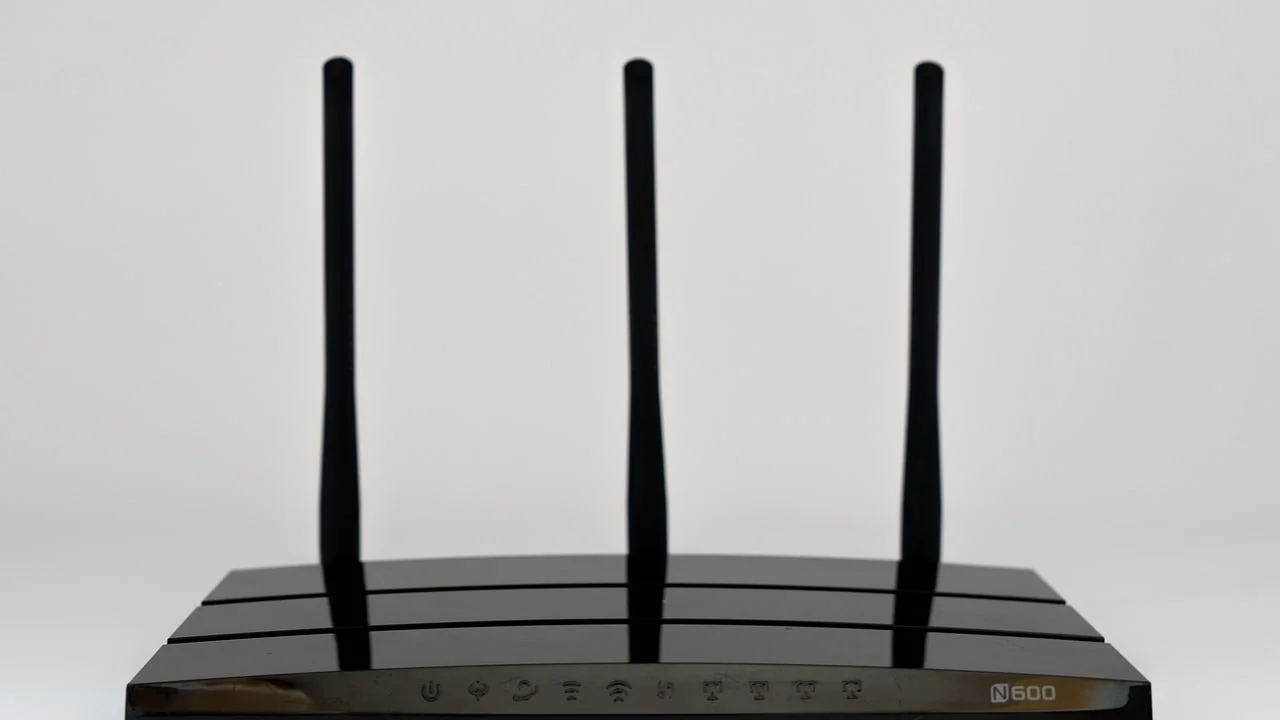
Your Wi-Fi is not a mystery: 7 free fixes for a steadier connection
Seven no-buy Wi-Fi fixes for finding the bottleneck, moving the router, reducing interference, testing wired, and keeping the network maintained.

Slow Wi-Fi is often a placement problem first
A slow connection does not automatically mean you need new hardware. Router placement, wireless congestion, firmware, and the path between one device and the router can each change what you experience. Lifehacker's home Wi-Fi guide puts an open, central router location and wired Ethernet ahead of more elaborate tweaks, while a Dell troubleshooting guide points to congestion and physical obstacles as common interference sources. 1 2
Start with the cheap tests below. Keep the same device and location while you compare results, so you do not mistake a different room or a different laptop for an improvement.
1. Reboot the network before diagnosing it
A restart is a useful first pass when the connection has become erratic.
Steps
- Save anything that is uploading or downloading.
- Use the router's normal reboot option if it has one. Otherwise, unplug the router, wait briefly, and reconnect it.
- Wait until the usual status lights and Wi-Fi name return.
- Repeat the same connection test that showed the problem.
Why it works
Lifehacker recommends rebooting the router as the first basic check for inconsistent download speeds. It clears a temporary state before you spend time changing channels or settings. 3
Watch out
Do not press the recessed reset button unless you intend to restore factory settings. A reboot should restart the device without erasing your network configuration.
2. Move the router out of hiding
A router inside a cabinet or at the far end of the apartment has to push the signal through more material and distance than necessary.
Steps
- Take the router out of a cabinet, closed shelf, or entertainment unit.
- Put it in an open spot as close to the home's center as your cable allows.
- Raise it onto a shelf or another stable surface instead of leaving it on the floor.
- Keep the antennas in their normal upright position unless your model's instructions say otherwise.
- Test the slow room again from the same place.
Why it works
Lifehacker specifically recommends an open, elevated, central position rather than a corner or the far edge of the home. Fewer walls, cabinets, and large objects sit between the router and the devices it serves. 1
Watch out
Do not bury the router in a basket, stack things on top of it, or move it so far from the modem that the connection becomes impractical. A shorter cable run is not useful if the new location blocks the signal.
3. Separate 2.4 GHz and 5 GHz for one clear test
If both bands use the same network name, your devices may move between them without making the choice visible. Temporarily giving each band its own name makes comparison easier.
Steps
- Open the router's wireless settings.
- Give the 2.4 GHz and 5 GHz networks distinct names, such as
Home-2.4andHome-5. - Connect the problem device to one band at a time from the same room.
- Note which band is steadier for that device and location.
- Keep the split only if it makes everyday use easier; otherwise restore the original setting.
Why it works
Lifehacker notes that 5 GHz can provide higher 802.11ac speeds, while 2.4 GHz can be more crowded. Testing the bands separately turns an invisible handoff into a simple comparison. 1 3
Watch out
A 5 GHz signal is not automatically better in every room. Distance and walls still matter, and some older devices may support only 2.4 GHz. Do not disable a band before checking which devices depend on it.
4. Change the channel only when congestion points to it
Neighboring networks can compete for the same wireless space, especially on 2.4 GHz.
Steps
- Look in the router settings for a wireless channel or channel-scan option.
- If the router reports a crowded channel, use its automatic selection first.
- If you must choose manually on 2.4 GHz, test channel 1, 6, or 11 one at a time.
- Save one change, reconnect the device, and repeat the same test.
- Keep the setting that is more stable, not merely the one that shows a brief peak.
Why it works
Lifehacker recommends checking for less crowded channels, and Dell's guide identifies 2.4 GHz congestion as a source of wireless problems. Dell lists channels 1, 6, and 11 as the usual 2.4 GHz manual choices. 1 2
Watch out
Do not change channels at random every few minutes. Each change can disconnect devices, and a crowded channel is only one possible cause. If the router's automatic choice is stable, leave it alone.
5. Use Ethernet as a control test
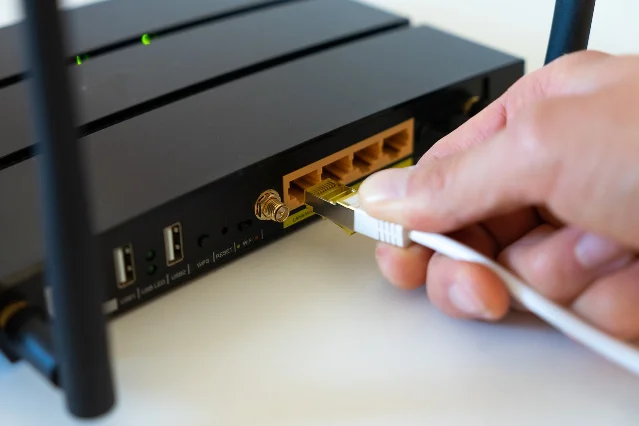
A temporary wired test tells you whether the trouble is the internet connection itself or the wireless path to one room.
Steps
- Connect a laptop or desktop directly to the router with an Ethernet cable.
- Run the same test you used over Wi-Fi.
- Compare the wired result with the result from the same device over Wi-Fi.
- If wired is stable but Wi-Fi is not, return to placement, bands, and interference.
- If wired is also poor, test another device and check the modem or ISP connection before blaming Wi-Fi.
Why it works
Lifehacker recommends Ethernet where possible and suggests testing devices separately to distinguish a router problem from a device problem. A wired comparison gives you a simpler baseline because it removes the wireless hop. 3
Watch out
This is a diagnostic, not a promise that every device can run wired. Use a cable and port that you know work, and do not interpret one old laptop's result as a verdict on the whole network.
6. Update the firmware and replace the admin password
Router maintenance is free, and it also closes an easy security gap when the device still uses its original login.
Steps
- Open the router's administration page or companion app.
- Check the exact model and install an update only from the manufacturer's official update path.
- Change the router's admin password to a long, unique password that you do not reuse elsewhere.
- In the wireless security menu, choose WPA2 if that is the strongest option your router provides; do not use an open network or WEP.
- Turn off WPS if you do not need it, then reconnect a device to confirm the network still works.
Why it works
Lifehacker's router-security guide recommends current firmware, replacing default admin credentials, using WPA2 instead of WEP or an open network, and disabling WPS. The home Wi-Fi guide also connects firmware maintenance with fewer security and performance problems. 4 1
Watch out
Router menus differ by model. Do not upload firmware meant for another device, and keep a record of the new admin password before logging out. The Wi-Fi password and the router admin password are separate credentials.
7. Test the extender before adding another fix
An extender can help a dead zone, but a badly placed one can add another weak wireless link and make the network feel slower.
Steps
- Unplug the extender temporarily and test the problem room from the main router.
- If the room improves, the extender or its location deserves attention.
- If you still need it, place the extender between the router and the weak area, where it can still receive a decent signal.
- Test again before adding a second extender or changing the main router's settings.
- If your home allows it, compare the extender with a direct Ethernet connection to an access point.
Why it works
Lifehacker warns that a poorly positioned extender can slow the connection and that a same-band wireless hop can cut the maximum speed substantially. The same guide says an old router used as a wired access point is generally a better-performing alternative when Ethernet is available. 3 1
Watch out
Do not place the extender at the edge of the dead zone and expect it to repair the signal from there. If unplugging it leaves the room without coverage, you have found a coverage limit, not proof that the main router is broken.
The useful order is simple: reboot, move the router into the open, compare the bands, test congestion, run one wired comparison, update the router, and only then judge an extender. Those checks cost nothing and tell you which part of the network is actually worth changing.
Contenido relacionado
- Inicia sesión para comentar.