Helm Visualizer at a glance
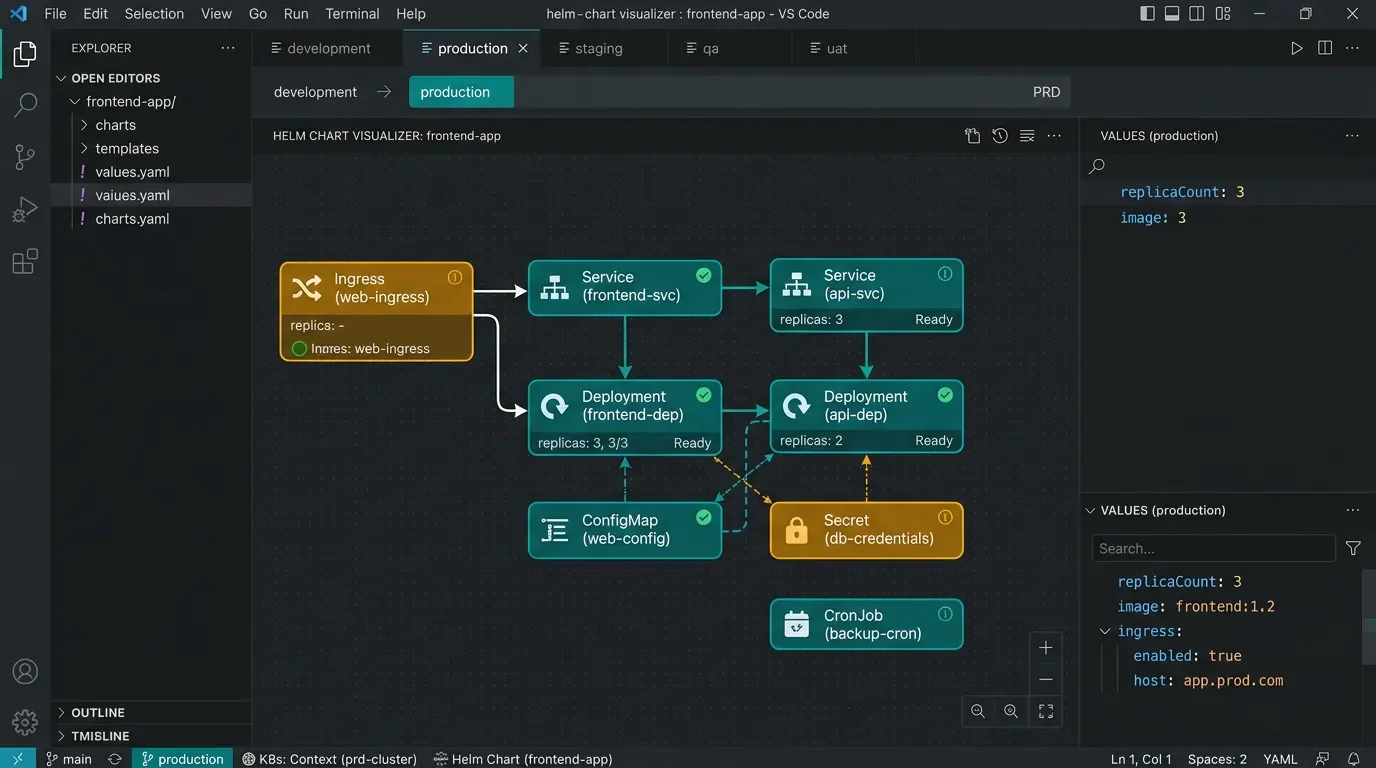
Helm Visualizer: browse your Kubernetes resources as a graph inside VS Code
Helm Visualizer (Beta) is a VS Code extension (v1.0.4, Apache 2.0) that renders Helm charts as interactive Kubernetes resource graphs with multi-environment diffing, a static Security Scanner across 7 vectors, and a Live Cluster Diff — all without requiring cluster access for most features. The June 6 v0.2.0 release adds the Security Scanner and Live Cluster Diff, marking the tool's expansion from a pure visualization aid into a delivery-verification tool. The main caveat: the VS Code panel currently requires a manually started `npm run dev` server, unlike typical plug-and-play extensions; the `helm viz` CLI plugin sidesteps this for terminal users.

Reading a Helm chart cold is reading a pile of YAML. Helm-Visualizer renders it as an interactive node graph directly inside VS Code — Ingress at the top, Deployments and CronJobs fanning out below, relationship edges labeled "routes to" and "mounted by" — without touching your cluster.
Plugin: Helm Visualizer (Beta) (
unrealandychan.helm-visualizer) · Version: 1.0.4 (preview) · IDE: VS Code ≥ 1.85.0 · Language/Platform: Kubernetes / Helm (YAML) · Category: Visualization / DevSecOps · License: Apache 2.0 · Price: Free · Install from VS Code Marketplace 1What it does
The project's own description is straightforward: "An interactive, browser-based Helm chart renderer and Kubernetes resource graph — uses Helm CLI when available, falls back to pure-JS renderer, no cluster access required." 2
Load any Helm chart from your workspace, upload a
.tgz archive, or paste an Artifact Hub / OCI URL. The renderer resolves Go templates in-browser (no helm binary needed) and draws an interactive React Flow canvas. Every node is clickable: clicking a Deployment or ConfigMap opens its full rendered YAML in a side panel.Multi-environment rendering is a standout capability. The extension auto-detects every
values.*.yaml file in the chart, shows an environment tab strip (dev / prd / sit / uat / default), and highlights nodes whose values differ between environments in amber — a diff mode that works without touching kubectl. 2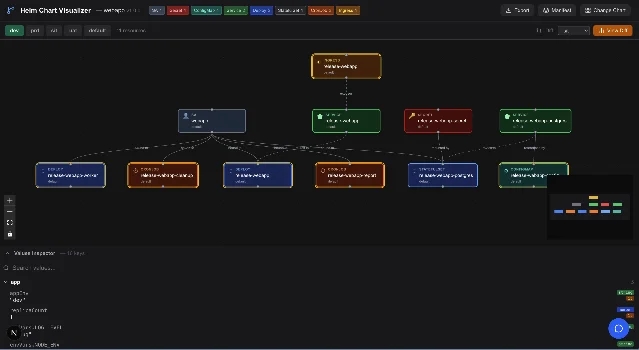
Core features
18 features in the README, organized into functional groups: 2
- Chart loading: workspace auto-load,
.tgzdrag-and-drop, Artifact Hub / OCI URL, live search against Artifact Hub API, one-click quickload for nginx / grafana / cert-manager - Relationship graph: directed edges labeled
routes to,exposes,bound to,mounted by,referenced by; RBAC graph with ClusterRole / ClusterRoleBinding / Role / RoleBinding as first-class nodes - Values Inspector: tree view of all chart values with hover-to-highlight that lights up nodes using a specific key; click any node for its full YAML
- Export: PNG, SVG, JSON, Markdown
- Chart validation: structural validation with inline warnings and errors
Two capabilities added in v0.2.0 (June 6, 2026) move the tool toward active-delivery use: 3
Security Scanner performs static analysis across 7 vectors — privileged access, root context, resource constraints, reliability probes, service mapping, and
:latest tag detection. Flagged resources get Red (High) or Yellow (Medium) visual indicators on their graph nodes, with copy-paste YAML remediation snippets in a side panel. No cluster connection required.Live Cluster Diff compares the locally-rendered Helm YAML against what's actually running in a connected cluster via
kubectl. Each resource gets one of four sync states: In Sync, Diff Detected, Local Only, or Orphaned. A git-style line-by-line diff panel shows exactly what changed. This one requires an active kubeconfig.正在加载内容卡片…
Usage demo
Two paths to open the visualizer:
- Command Palette (
Ctrl+Shift+P/Cmd+Shift+P) →Helm Visualizer: Open - Command Palette →
Helm Visualizer: Open in Browser(opens in your default browser instead)
Take a minimal chart with
values.dev.yaml and values.prd.yaml:# values.dev.yaml
replicaCount: 1
image:
tag: "dev-latest"
# values.prd.yaml
replicaCount: 3
image:
tag: "v2.4.1"The environment tab strip shows both environments. Switch to
prd and any node whose YAML differs from dev gains an amber highlight — in this case the Deployment node, since replicaCount and image.tag both changed. Click the Deployment node to see the rendered YAML side-by-side in the Values Inspector. 2The Helm CLI plugin is also available if you prefer the terminal. Install it once, then run
helm viz ./my-chart from any directory — the plugin validates the chart, starts the Next.js server automatically, and opens your browser at the correct URL. 2# Install the Helm CLI plugin (one-time)
git clone https://github.com/unrealandychan/Helm-Visualizer
cd Helm-Visualizer && npm install
helm plugin install ./helm-plugin
# Use it
helm viz ./my-chart
helm viz --port 8080 ./my-chartCompatibility and requirements
正在加载统计卡片…
Known limitations
The VS Code extension requires a running local server. Unlike most VS Code extensions, this one does not bundle its own backend. Before the panel will show anything, you need to run the Next.js dev server separately: 2
git clone https://github.com/unrealandychan/Helm-Visualizer
cd Helm-Visualizer
npm install
npm run dev   # must stay running
Open the extension panel after the server is up. The extension polls
http://localhost:3000 with an 8-second timeout; a blank panel with an error banner means the server isn't running. The README's own troubleshooting entry confirms it: "Blank or loading panel? Ensure the server is running at http://localhost:3000 (see Step 1)." 2The architecture documentation mentions a future mode where the extension starts a bundled Next.js server automatically — but the current README consistently points to the manual workflow. Treat that as aspirational until the manual step disappears from the setup guide. 6
Other friction points worth knowing:
- Zero community adoption as of June 2026 — 2 GitHub stars, no Reddit or Hacker News discussion, no independent reviews 2
- The VS Code Marketplace install count and user rating are not publicly accessible
- AI Chat Assistant requires an
OPENAI_API_KEYenvironment variable; supports any OpenAI-compatible endpoint viaOPENAI_BASE_URL2 - Version numbering is split: the extension's
package.jsonsays1.0.4while GitHub Releases tops out atv0.2.0— the two version tracks appear to be managed independently
Who should try this
The
npm run dev prerequisite makes Helm-Visualizer a higher-friction install than the typical VS Code extension. If you can accept that step and work regularly with Helm charts, the multi-env diff and the v0.2.0 Security Scanner give you two views that have no direct equivalent in the VS Code Kubernetes tooling ecosystem today. The Helm CLI plugin (helm viz) sidesteps the manual server issue entirely for terminal-first workflows.Developers who want a zero-setup experience should wait for a future release that bundles the server. The
helm viz CLI path is a workable alternative in the meantime.Install:
code --install-extension unrealandychan.helm-visualizerCover image: AI-generated illustration
围绕这条内容继续补充观点或上下文。