Run Swift tests in VS Code with coverage and debug in one right-click
The official Swift extension for VS Code (`swiftlang.swift-vscode` v2.16.5, 640,700+ installs, 5.0 rating) gives SPM project developers full language server support via SourceKit-LSP, LLDB-based debugging, and a Test Explorer with five execution modes — including run-with-coverage and run-until-failure. The article walks through prerequisites, a complete Package.swift + XCTest/Swift Testing code demo, the coverage instrumentation workflow, a `launch.json` debug config example, and an honest breakdown of the three hard limits: SPM-only (no `.xcodeproj`), Windows debugging bugs, and 12 open issues.

If you're writing Swift outside Xcode, the official
swiftlang.swift-vscode extension (v2.16.5, 640,700+ installs, 5.0 rating) is the only extension you need. It ships SourceKit-LSP (Apple's Swift language server, bundled with the toolchain), LLDB-based debugging, a full Test Explorer, and SPM project management — all wired together with zero manual LSP configuration. 1The extension replaced its predecessor
sswg.swift-lang at v2.0.0 (February 2025). If you still have the old one installed, it now shows as "Swift (Deprecated)" — remove it and install under the new publisher. 2What you need before opening VS Code
- VS Code ≥ 1.88.0 — the minimum required version
- Swift ≥ 5.9 — 5.8 support was dropped in v2.16.0
- A Swift Package Manager project — a folder containing
Package.swift; the extension auto-activates on detection
The extension automatically installs
llvm-vs-code-extensions.lldb-dap (the LLDB Debug Adapter Protocol extension from the LLVM project) as a required dependency. You don't install it separately. 3Swift Testing — Apple's newer macro-based test framework — requires Swift 5.11 or later. If you're on Swift 5.10 or older, XCTest still works; Swift Testing tests won't appear in Test Explorer.
Setting up a project: SPM only
The extension works best when your project has a
Package.swift in the root folder. Open that folder in VS Code and the extension loads the package graph, populates the Swift Packages panel in the sidebar, and generates launch configurations for every executable target automatically.Creating a new SPM project from inside VS Code: open the Command Palette (
Cmd+Shift+P / Ctrl+Shift+P) and run Swift: Create New Project. A picker offers Library, Executable, Tool, System Module, and Plugin templates.Swift 6.0 and earlier: SourceKit-LSP indexes your code lazily. Code completion and go-to-definition may not work until you run a build. Open the integrated terminal and runswift buildonce — the language features activate immediately after indexing completes. Swift 6.1+ introduced background indexing that handles this automatically. 4
The Test Explorer: five ways to run a test
This is where the extension goes beyond "syntax highlighting plus a build command." The Test Explorer (the flask icon in the Activity Bar) discovers every
XCTestCase and @Test function in your package automatically, with no configuration file required.Right-click any test suite, class, or individual test to get the full menu:
| Mode | What it does |
|---|---|
| Run Test | Runs the selected test(s), reports pass/fail in the sidebar |
| Debug Test | Starts LLDB and pauses at any breakpoint you've set in the test or source code |
| Run Test with Coverage | Instruments the run and opens an inline coverage view afterward |
| Run Multiple Times | Runs the selected test N times — useful for flaky test detection |
| Run Until Failure | Keeps running until the first failure — for reproducing intermittent bugs |
Code lens buttons (
▶ Run | Debug) appear inline above each test function in the editor too. Toggle them off with swift.showTestCodeLenses: false if you find them noisy. 2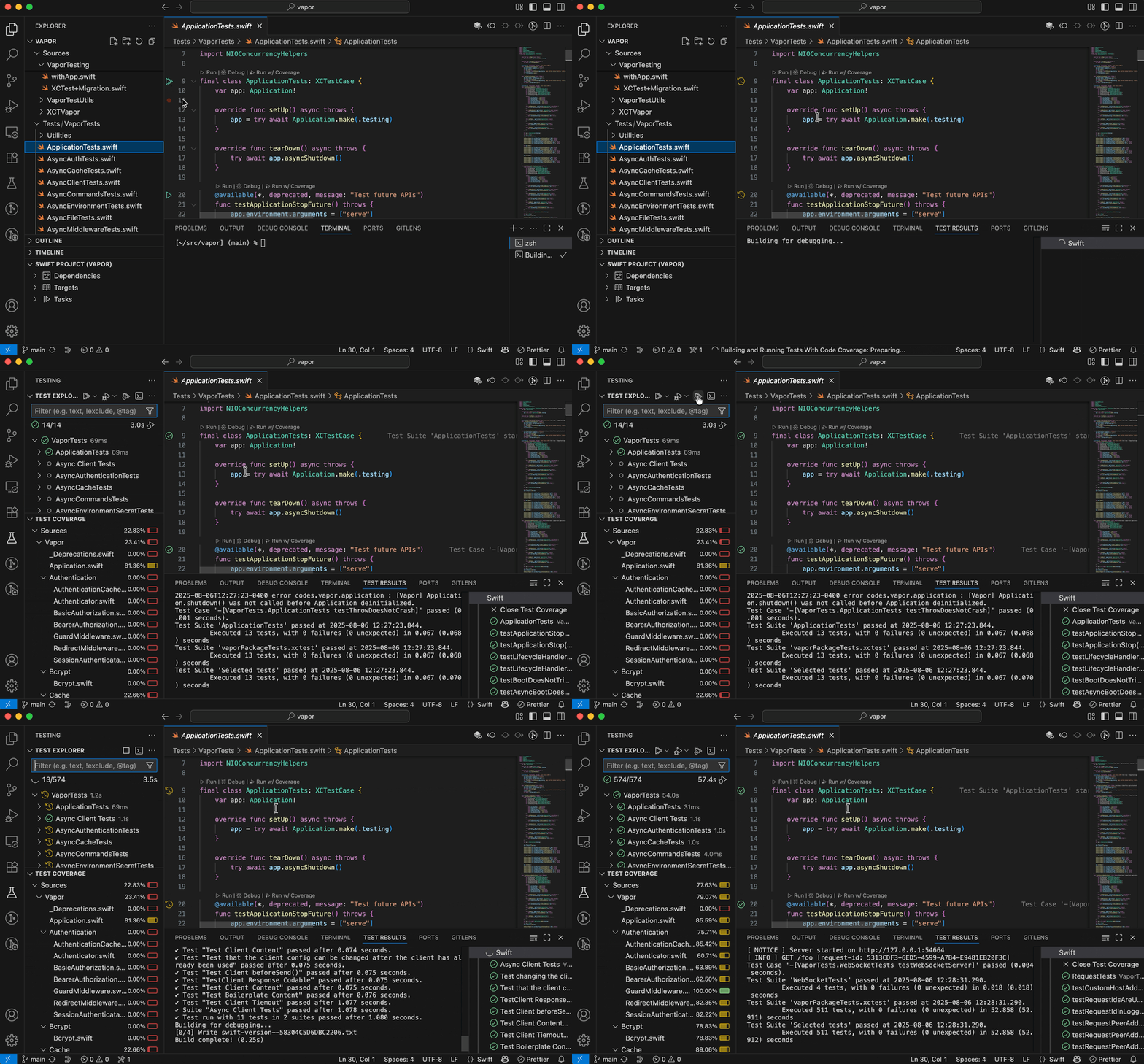
Concrete demo: XCTest and Swift Testing side by side
Here's a minimal
Package.swift that declares both a library target and a test target:// swift-tools-version: 6.0
import PackageDescription
let package = Package(
name: "MySwiftTool",
targets: [
.executableTarget(name: "MySwiftTool"),
.testTarget(
name: "MySwiftToolTests",
dependencies: ["MySwiftTool"]
),
]
)Place test files under
Tests/MySwiftToolTests/. The extension discovers them automatically on save.XCTest style (works with Swift 5.9+):
import XCTest
@testable import MySwiftTool

final class MySwiftToolTests: XCTestCase {
    func testAddition() throws {
        XCTAssertEqual(1 + 1, 2)
    }
}
Swift Testing style (requires Swift 5.11+, uses the
Testing module):import Testing
@testable import MySwiftTool
@Suite struct MySwiftToolTests {
@Test("addition works correctly", .tags(.critical))
func addition() {
#expect(1 + 1 == 2)
}
}Both styles appear in the same Test Explorer tree. Tag-based filtering works for Swift Testing: type
@TestTarget:critical in the Test Explorer search box to run only tests tagged .critical. 4Coverage: what gets colored and what doesn't
Run a test with Run Test with Coverage. After the run completes, VS Code overlays the source file with inline coverage markers: green gutters for executed lines, red gutters for lines the test never reached. Hover over any line number to see the exact execution count.
Switch between showing and hiding the overlay with Test: Show Inline Coverage from the Command Palette. This is per-file — you can open a heavily-covered file and a zero-coverage file side by side.
One thing to know: coverage works on the
testTarget's sources, meaning the library or executable the test target imports. Coverage data for the test file itself (the assertions) is not the useful part. 6Debugging: set a breakpoint, right-click, done
The extension generates a launch configuration for each executable target in
Package.swift — they appear in the Run and Debug dropdown immediately on project open. For a custom configuration, .vscode/launch.json takes type: "swift":{
"configurations": [
{
"type": "swift",
"name": "Debug MySwiftTool",
"request": "launch",
"program": "${workspaceFolder}/.build/debug/MySwiftTool",
"args": [],
"cwd": "${workspaceFolder}",
"preLaunchTask": "swift: Build Debug MySwiftTool"
}
]
}v2.16.4 added a
${binPath} variable that resolves to the build output directory automatically, so you can write "program": "${binPath}/MySwiftTool" instead of hardcoding the .build/debug path. 2For debugging tests specifically, set your breakpoint in the source code (not the assertion itself — breakpoints in
#expect() / XCTAssertEqual() rarely fire at a useful location), then use Debug Test from the right-click menu in Test Explorer.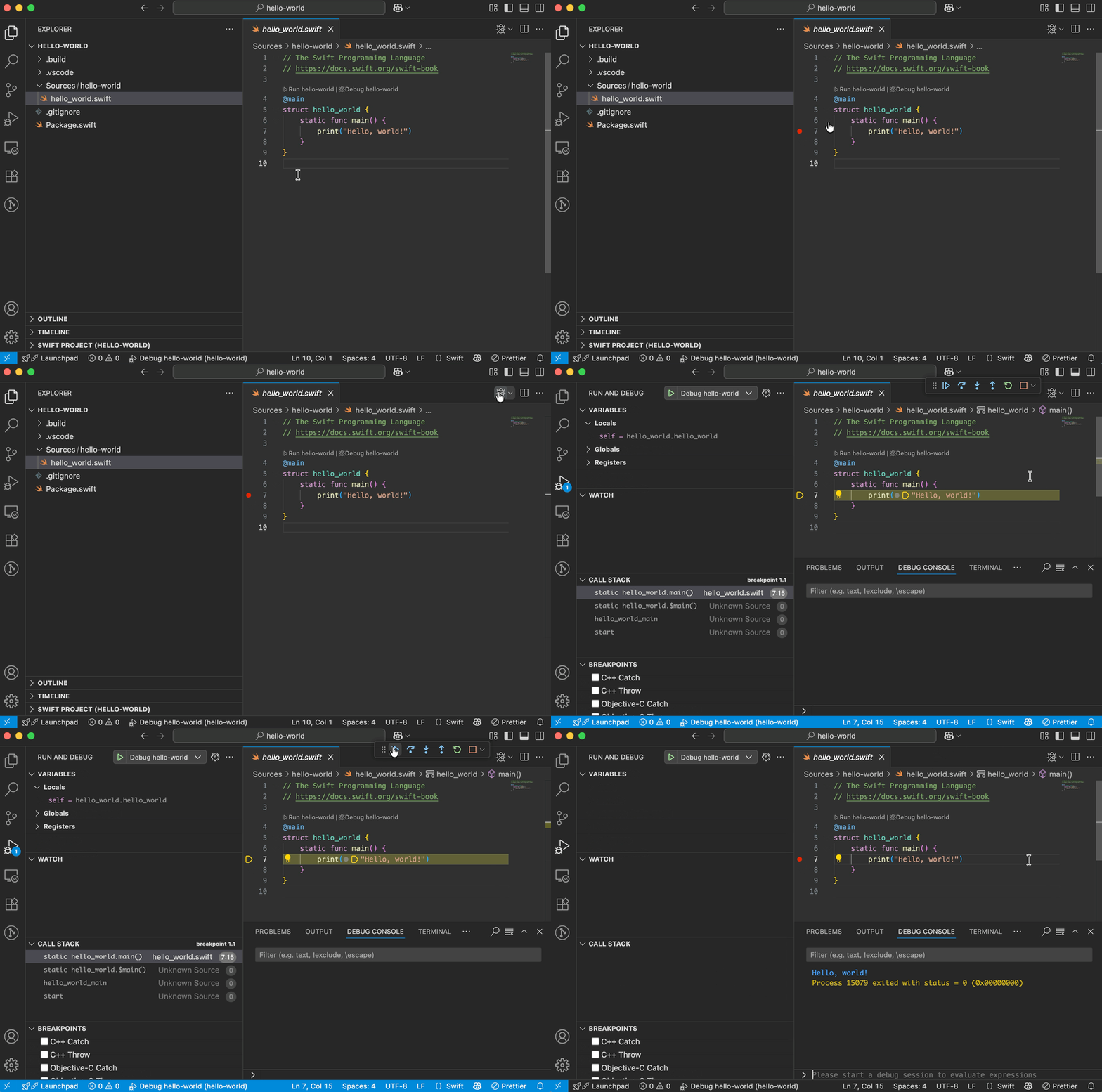
Hard limits to know upfront
SPM-only. The extension's README states directly: "Most features only work with projects that build with Swift Package Manager." Xcode projects (
.xcodeproj) get limited support at best. 5 If you're building iOS or macOS apps in Xcode and want VS Code integration, look at SweetPad (1.8k stars) instead — it wraps xcodebuild, uses CodeLLDB, and supports simulator management and device deployment.Windows debugging is partially broken. On Windows with Swift ≥ 6.2.3 toolchains,
lldb-dap requires Python 3.10 to be installed separately. When it's missing, the debugger fails with an unhelpful error (open bug #2054). Breakpoints also have a separate open bug (#1871) where they may not install correctly in Swift Testing tests. If you're doing Swift on Windows, keep a terminal open for swift test and treat the debugger as best-effort. 712 open bugs as of May 29, 2026, including XCTest parallel test result parsing (#2218). The extension is production-quality for macOS SPM development; Linux is solid for server-side Swift; Windows is usable but requires workarounds. 8
What v2.16.5 changed (released May 27, 2026)
The latest release added one setting worth knowing:
swift.sourcekit-lsp.includeDeclarationInFindAllReferences— when set totrue, Find All References includes the declaration site itself in results (default isfalse, matching LSP standard behavior)- Swift Testing warnings — the extension now surfaces warnings emitted by the Swift Testing framework (SE proposal testing/0013)
It also fixed
swift-build multi-target test timeouts, swiftly/xcrun toolchain execution paths, and a bug where swift.buildPath was ignored by plugin tasks. 2Install
正在加载内容卡片…
Plugin: Swift · Publisher: swiftlang (Apple/Swift, verified) · Version: v2.16.5 1
Language: Swift · IDE: VS Code ≥ 1.88.0 · Swift runtime: ≥ 5.9 · License: Apache-2.0 · Installs: 640,700+ · Rating: 5.0/5
Use cases: Language server (SourceKit-LSP), LLDB debugging, Test Explorer (XCTest + Swift Testing), SPM project management
Install: swiftlang.swift-vscode on VS Code Marketplace · GitHub
参考来源
- 1Swift — Visual Studio Marketplace
- 2CHANGELOG.md — swiftlang/vscode-swift
- 3swiftlang/vscode-swift — package.json
- 4Swift in Visual Studio Code — VS Code Docs
- 5swiftlang/vscode-swift — README
- 6Configuring VS Code for Swift Development — Swift.org
- 7Issue #2054 — swiftlang/vscode-swift
- 8Open bugs — swiftlang/vscode-swift
围绕这条内容继续补充观点或上下文。