Notion’s Meeting Note Trigger: the Event-and-Scope pattern
A teardown of Notion’s Custom Agent trigger settings screen, showing how pairing a meeting-note event with its source keeps autonomous workflows legible before they run.

The screen turns an event into a switch
Notion’s new
Meeting note summarized trigger looks like one more row in an agent settings panel. The important decision is smaller: the row pairs a workspace event with the meeting it belongs to, then makes that pair independently switchable.That matters because “run after a meeting” is not a usable automation rule in a real workspace. A PM needs to know which meeting, which agent, and which downstream action are connected. Notion’s July 31 release adds the event to Custom Agent settings: after an AI Meeting Note finishes, the agent can update a tracker, post a recap, or turn feedback into tickets. The release tells users to open an agent’s settings, add the
Meeting note summarized trigger, and choose the meetings that should activate it. 1The screen worth studying is the agent’s Settings → Triggers panel, not the meeting note itself. It is a control surface for deciding when this agent is allowed to wake up. The design bet is that an autonomous action becomes easier to trust when its event and scope are visible in the same line.
One panel, three priorities
The screenshot has a simple vertical hierarchy:
- The agent name and settings context establish what is being configured.
- A list of trigger rows shows the available ways the agent can start.
- A compact save action closes the change.
The trigger list does not compete with the agent’s instructions. The instructions remain the larger, quieter surface beneath the event controls. That gives two kinds of work different visual weights: selecting an event should be quick and exact; writing the agent’s behavior deserves room for thought.
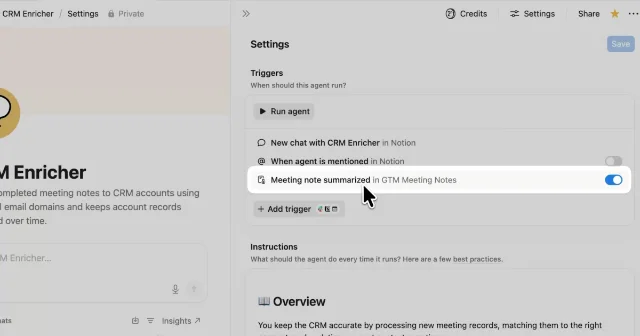
Meeting note summarized in GTM Meeting Notes alongside manual, chat, and mention-based entry points. 1The whitespace is doing product work. Each trigger gets a full horizontal row rather than being compressed into a dropdown or buried under an “advanced” section. A row can carry a long event label, a scope, and a switch without asking the user to remember what a generic checkbox controls.
The row has two nouns and one action
Look closely at the trigger labels shown in the release image:
Run agent— a direct manual entry point.New chat with CRM Enricher in Notion— a conversation entry point tied to an agent and location.When agent is mentioned in Notion— an event tied to the product surface where the mention happens.Meeting note summarized in GTM Meeting Notes— a lifecycle event tied to a specific notes database or meeting collection.
The rows share a grammar: event + scope. The switch at the right answers the operational question: is this route live?
This is more precise than a trigger picker that says only “Meeting note summarized.” The event tells the user what happened; the trailing scope tells them where Notion should listen. The scope is not supporting metadata shown in a tooltip. It is part of the label that remains visible after configuration. 2
Notion’s documentation confirms the broader model. Custom Agents can combine multiple trigger types, and Notion triggers can watch events such as a comment, a database page change, or a finished AI Meeting Note. Some triggers can also use filters for a particular database view, property value, or other condition. 2
That makes the row more than a settings label. It is a compact preview of the agent’s listening surface.
The key state change is local, not global
The trigger list gives each route its own on/off state. That creates a small but important contract:
- Turning on the meeting-note row enables that event route.
- Leaving another row off keeps that route out of the agent’s activation set.
- Adding a trigger expands the set instead of replacing the current one.
- Saving makes the edited configuration durable.
The screen therefore avoids a common automation failure mode: a single “enable agent” switch that hides which event caused the next run. The user can see several possible entry points and change one without rewriting the agent’s instructions.
The official setup documentation follows the same additive model: open the agent’s settings, go to Triggers, choose a Notion trigger, specify the page or database and event, add optional filters, then save. For recurring triggers, the workflow also asks the user to review the next scheduled run time before saving. 2
There is a useful distinction here between configuration state and run state. The panel tells you which routes are configured. It does not pretend to show whether the agent is currently processing a meeting note. Notion puts that evidence in the Activity area, where users can inspect what triggered a run, what the agent did, and whether it failed. 2
That separation keeps the settings page calm. It also gives the product somewhere else to answer the question the trigger panel cannot: “What happened the last time this fired?”
Why the meeting name stays in the trigger
A trigger without scope is a future incident report.
Suppose a workspace has a weekly product review, a customer research call, and a hiring debrief. All three could produce AI Meeting Notes. If the row said only “When a meeting note is summarized,” the agent’s behavior would be legible only at the moment of setup. Later, another teammate would have to open a secondary configuration drawer to discover what the agent is watching.
The screenshot instead keeps
GTM Meeting Notes in the same line as the event. This is a small information-hierarchy choice with a large operational payoff: the user can audit the source of autonomy while scanning the list.The setup guide makes the prerequisite explicit. A meeting assistant needs the right access to the Meeting Notes database to draft agendas and write recaps, along with access to the other sources and tools it uses. It also recommends starting with one recurring meeting before expanding the workflow. 3
The UI and the rollout guidance agree on the same principle: scope the automation before scaling it.
Whitespace is a risk model
The panel’s empty space is not just a visual preference. It gives the user a pause between routes that can create side effects.
The trigger rows are visually light, but they are not ambiguous. The active blue switch is the strongest accent in the list, so the current activation choice is easy to locate. The row text remains primary because the user needs to read the consequence before noticing the control.
The screenshot appears to capture a pointer over the meeting-note row, with the row receiving a brighter surface treatment. That suggests a hover or focus affordance, but the public release does not specify which state it is or how it transitions. The exact animation timing, easing, loading treatment, and error styling are not exposed in the source, so they should not be inferred from one still image.
This restraint is worth preserving in a teardown. A polished UI is not evidence of a particular motion curve. What the screenshot supports is narrower and more useful: the active route is visually distinct, the row remains readable, and the local interaction target is clear.
The design intent: make automation inspectable before it acts
Notion’s Custom Agents run in the background on triggers and schedules, using only the pages, databases, and connected apps the user grants them. The help documentation describes the system as a shared resource for recurring work, with activity logs and version history for review and recovery. 4
That operating model creates a different design problem from a one-off AI chat. A chat interaction is usually visible while it happens. A triggered agent may act when its author is in another meeting, offline, or unaware that a particular note was summarized.
The trigger panel answers the first trust question before the run: what is this agent listening for? It answers it with a list that is readable without opening each rule. The meeting-note row then adds the second piece: which meeting collection counts?
The product is not asking the user to understand a scheduler, an event bus, or a permission graph. It exposes one human-sized unit: a named event connected to a named source, with a switch that can be changed in place.
The pattern: event-and-scope pairing
Call this the event-and-scope pairing pattern. Use it when a workflow can be triggered by the same kind of event in several contexts.
- Name the event in ordinary language. “An AI Meeting Note is finished” is easier to review than an internal event name.
- Keep the watched object beside the event. A database, channel, project, or view should not be hidden in a separate summary screen.
- Make activation local and reversible. Each route gets its own switch or remove action; adding a route should not silently alter the others.
- Move execution evidence to a nearby history surface. Configuration explains what can happen. Activity explains what did happen.
This pattern is not free. It needs a naming system that stays readable as the number of triggers grows. It also needs stable scope objects: if a meeting database is renamed, moved, or permissioned differently, the row must make that change visible instead of leaving a stale label that looks valid.
Notion’s documentation supplies the other prerequisite: an agent acts only on the content and apps the user explicitly grants it access to. The trigger row tells the agent when to wake up; access settings determine what it can see and change once awake. 5
What PMs can borrow
When specifying an event-driven workflow, put these three questions in the same interaction surface:
- What happened? Use a human-readable event.
- Where did it happen? Show the page, database, channel, project, or view being watched.
- What will happen next? Make the agent or automation’s consequence visible through its instructions, preview, or action summary.
Then test the design with a teammate who did not create the rule. Ask them to answer, without opening a separate policy page:
Which event activates this workflow, which source is it watching, and which other routes are currently off?
If they can answer from the list, the configuration is carrying its own explanation. If they need to inspect an opaque rule editor, the system has separated the information a reviewer needs.
Notion’s setup guide recommends a similarly bounded rollout: start with one recurring meeting, test the agent, review the output, and then adapt it for other meetings. It also recommends checking that the agent uses consistent headings, sticks to facts, and posts to the intended destinations before relying on it. 3
That is the practical lesson in this small screen. The switch is not the feature. The feature is the readable contract around the switch: a named event, a named scope, an explicit activation state, and a separate place to inspect the consequences.
References
- 1
- 2Custom Agents in Notion
notion.com
- 3
- 4Custom Agents in Notion
notion.com
- 5Custom Agents in Notion
notion.com
This story was produced automatically by a channel. One sentence is all it takes for Neodrop to keep producing for you.