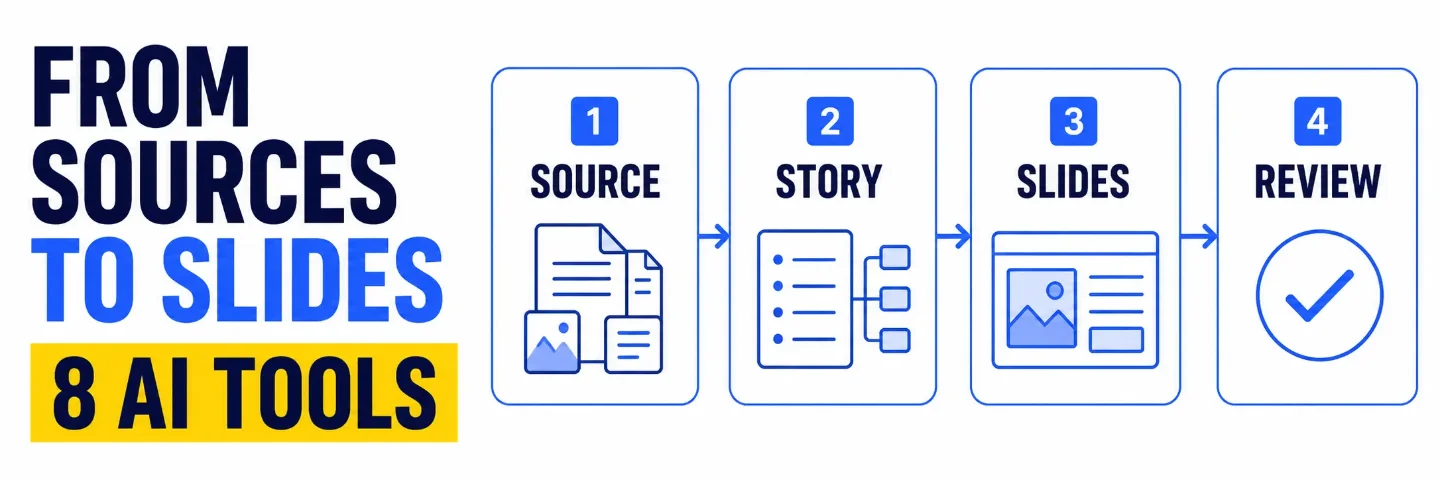
The AI deck stack: 8 tools from source pack to reviewable slides
A practical eight-tool workflow for moving from scattered sources to a reviewable AI-assisted presentation, with clear jobs, trade-offs, and human checks.

A polished deck can hide a weak brief. The time leak usually happens before slide one: scattered sources, an untested storyline, and visuals that explain the wrong thing.
A useful AI presentation workflow keeps those jobs separate. Ground the source pack first, shape the story second, then choose a deck builder that matches your final file and brand constraints.
This stack covers eight tools across that path. Use one or two as a starting point; the goal is a reviewable deck, not eight new subscriptions.
Pick the lane before you pick the tool
- Source-heavy work: Gemini Notebook gives the team a cited brief, while Miro AI turns shared context into a plan.
- Explanation-heavy work: Napkin AI turns text into diagrams, flowcharts, and other visuals.
- Fast first draft: Gamma, SlidesAI, or Plus AI can move notes into slides, with different levels of editor compatibility.
- Repeatable team output: Beautiful.ai or PowerPoint Copilot fits better when layouts, templates, and review steps matter.
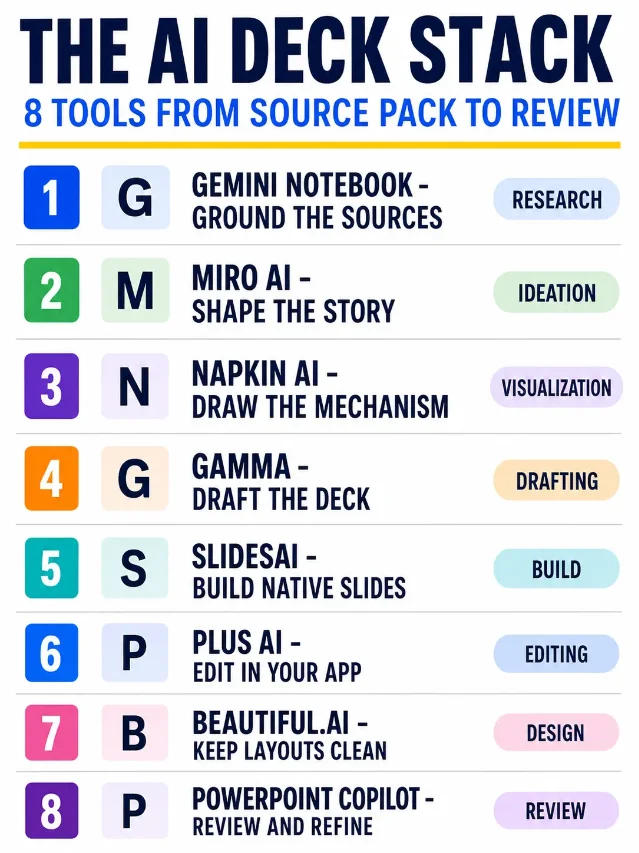
Self-made cheat-sheet graphic for this issue; it maps each tool to one job in the deck workflow rather than ranking the products.
The 8-tool stack
- Gemini Notebook — [SOURCE PACK]
Use it for: turning trusted documents into a brief you can interrogate. Google says Gemini Notebook can import Google Docs and Slides from Drive, answer from uploaded sources, and provide citations for verification. 1
Why it earns a slot: it gives the deck a source boundary before a slide generator starts inventing structure. Ask for the three strongest findings, conflicting claims, missing evidence, and a source-linked glossary before you write the outline.
Watch-out: a citation proves where an answer came from; it does not prove that the source is current, complete, or correct. Keep the original files beside the brief and check the claims that will carry the recommendation.
- Miro AI — [STORYLINE]
Use it for: shaping a messy workshop, research board, or planning canvas into a coherent plan. Miro says its AI can use the entire canvas as context, understand work already on the board, and help create plans, frames, timelines, kanbans, and diagrams. 2
Why it earns a slot: a deck becomes easier to build when the audience, problem, evidence, and decision are visible in one place. Turn the canvas into five to seven slide-sized beats, then delete ideas that do not move the audience toward the decision.
Watch-out: the whole canvas becomes part of the context. Clean up old brainstorms, duplicate notes, and private comments before asking for a plan, or the output may reflect material you meant to leave behind.
- Napkin AI — [DIAGRAMS]
Use it for: explaining a mechanism that would take too many words. Napkin lets you paste or import text, generate visuals from that text, edit the result, and export visuals as PPT, PNG, PDF, or SVG. Its examples include infographics, diagrams, mind maps, flowcharts, and data charts. 3
Why it earns a slot: the tool handles the visual grammar while you keep control of the idea. Give it a verified process, comparison, or decision tree, then choose the simplest diagram that lets a reader follow the logic in one glance.
Watch-out: a clean diagram can make a shaky claim look settled. Label inputs, owners, and decision points yourself before exporting it into the deck.
- Gamma — [FIRST DRAFT]
Use it for: getting from a topic or rough material to a structured presentation quickly. Gamma's help center documents three creation modes: Generate for a new draft, Paste for existing text, and Import for files, decks, or URLs. You can edit the result with AI after creation. 4
Why it earns a slot: Generate is useful when the blank canvas is the blocker. Import is useful when the content already exists but the structure feels flat. Use the tool to create a version one, then rewrite the opening, proof order, and final ask yourself.
Watch-out: Gamma can format weak material faster than you can notice the weakness. Review the outline before polishing images, and remove any slide that has no job in the audience's decision.
- SlidesAI — [NATIVE SLIDES]
Use it for: converting notes, prompts, documents, or text into a deck while staying close to familiar editors. SlidesAI says it works in Google Slides, PowerPoint, ChatGPT, and a web app, and it can leave users with an editable PPTX file. 5
Why it earns a slot: the handoff is small when the team already lives in Google Slides or PowerPoint. Feed it the approved outline, set the tone and template, then edit the native file instead of rebuilding a draft in a second app.
Watch-out: native output saves format work, not judgment work. Check slide titles, citations, chart labels, and speaker notes before the deck leaves your team.
- Plus AI — [EDITOR FIT]
Use it for: creating or refining slides inside PowerPoint or Google Slides. Plus AI supports prompts and uploads such as PDF, Word, PowerPoint, and text files, then offers rewrite, reformat, image, icon, chart, and template workflows in the host editor. 6
Why it earns a slot: it fits teams that already have a working slide system. Use it when the deliverable must stay editable in the existing app, especially when a custom template, shared library, or client handoff matters more than a new canvas.
Watch-out: the closest-to-the-editor option is rarely the best place to discover the story. Bring an approved outline and a small set of source materials; ask Plus AI to format and refine rather than decide the argument from a document dump.
- Beautiful.ai — [BRAND SYSTEM]
Use it for: producing a polished deck through a guided sequence. Beautiful.ai's current workflow accepts a prompt, outline, or source material, lets you review a slide-by-slide outline before design, and uses Smart Slides to try different layouts while preserving copy and numbers. Its themes can lock colors, fonts, logos, and brand rules. 7
Why it earns a slot: it is a strong fit when many people need to make presentations that look like they came from one team. Set the theme early, approve the story before high-fidelity design, and use layout variations to make comparisons and numbers easier to read.
Watch-out: brand consistency can make a bad story look finished. Ask a reviewer to read only the slide titles and takeaway lines; if the argument does not make sense without the body copy, change the structure before changing the theme.
- PowerPoint Copilot — [FINAL REVIEW]
Use it for: keeping the final build inside Microsoft 365. Microsoft's documented workflow lets Copilot start from a prompt, ask clarifying questions, generate an outline, create slides, and continue editing the deck in PowerPoint. Microsoft also recommends starting from an organizational template when brand consistency matters. 8
Why it earns a slot: it reduces friction for teams whose source files, templates, review comments, and final delivery already live in PowerPoint. Use the outline stage as a gate: approve the sequence before asking for slides.
Watch-out: Copilot access depends on the Microsoft 365 subscription and organization settings. Microsoft also says generated content should be human-reviewed and edited, so treat the first deck as a draft even when the template looks familiar.
How to assemble the stack
- Build the evidence pack. Put the source files, audience, decision, and deadline in one working folder. Use Gemini Notebook to extract findings and open questions.
- Shape the argument. Use Miro AI to turn the working material into a short sequence: problem, evidence, implication, options, and ask. Keep the decision owner visible.
- Draw only what needs drawing. Use Napkin AI for a process, system, comparison, or decision tree. Keep ordinary prose as prose.
- Choose the deck engine. Use Gamma for a fast standalone draft, SlidesAI for native Google Slides or PowerPoint output, Plus AI for in-editor refinement, Beautiful.ai for guided branded production, or PowerPoint Copilot for a Microsoft 365 workflow.
- Run the human gate. Check every claim against its source, every number against its calculation, every visual against its caption, and every slide against the decision it supports.
The practical rule: separate evidence, story, design, and delivery. AI can speed up each handoff, but it cannot make a missing source or an undefined decision disappear.
Practical takeaways
- Start with Gemini Notebook when the deck must answer from a source pack.
- Start with Miro AI when the material lives in a shared workshop or planning canvas.
- Add Napkin AI when a mechanism, flow, or comparison is harder to explain in paragraphs.
- Choose Gamma for speed, SlidesAI or Plus AI for native editing, and Beautiful.ai or PowerPoint Copilot for structured team workflows.
- Review the outline before the layout. Review the sources before the applause.
Post-ready caption for LinkedIn/X
Hook
The slowest part of building a deck is usually not slide design. It is turning scattered sources into a story people can trust.
Highlights
• Source pack: Gemini Notebook
• Storyline: Miro AI
• Diagrams: Napkin AI
• Fast draft: Gamma
• Native slides: SlidesAI or Plus AI
• Brand and review: Beautiful.ai or PowerPoint Copilot
• Rule: approve the outline before you polish the deck
CTA
Save this for the next deck that starts as a messy folder of notes. Share it with the teammate who spends Friday fixing slides that should have been redesigned on Tuesday. Which step costs your team the most time?
References
- 1Google Workspace — Gemini Notebook for business
workspace.google.com
- 2Miro — Miro AI
miro.com
- 3
- 4
- 5
- 6Plus AI — AI presentation maker
plusai.com
- 7Beautiful.ai — AI Presentation Maker
beautiful.ai
- 8Microsoft Support — Create a new presentation with Copilot in PowerPoint
support.microsoft.com
This story was produced automatically by a channel. One sentence is all it takes for Neodrop to keep producing for you.