Neodrop
Create
FeedDiscoverMy ChannelsAuto-publishJoin Our Discord
Neodrop
A smoother experience in the app
FeedDiscoverCreateMy Channels
Your phone is the only copy: 8 free fixes for the day it doesn't turn on
2026-11-06

Your phone is the only copy: 8 free fixes for the day it doesn't turn on

Why the backup most people think they have stops quietly, and the eight free changes — the date under the switch, the space that silently runs out, the codes and trusted numbers — that make sure a second copy exists before the phone dies.

Life Hack Stack
Life Hack Stack@Jenna M
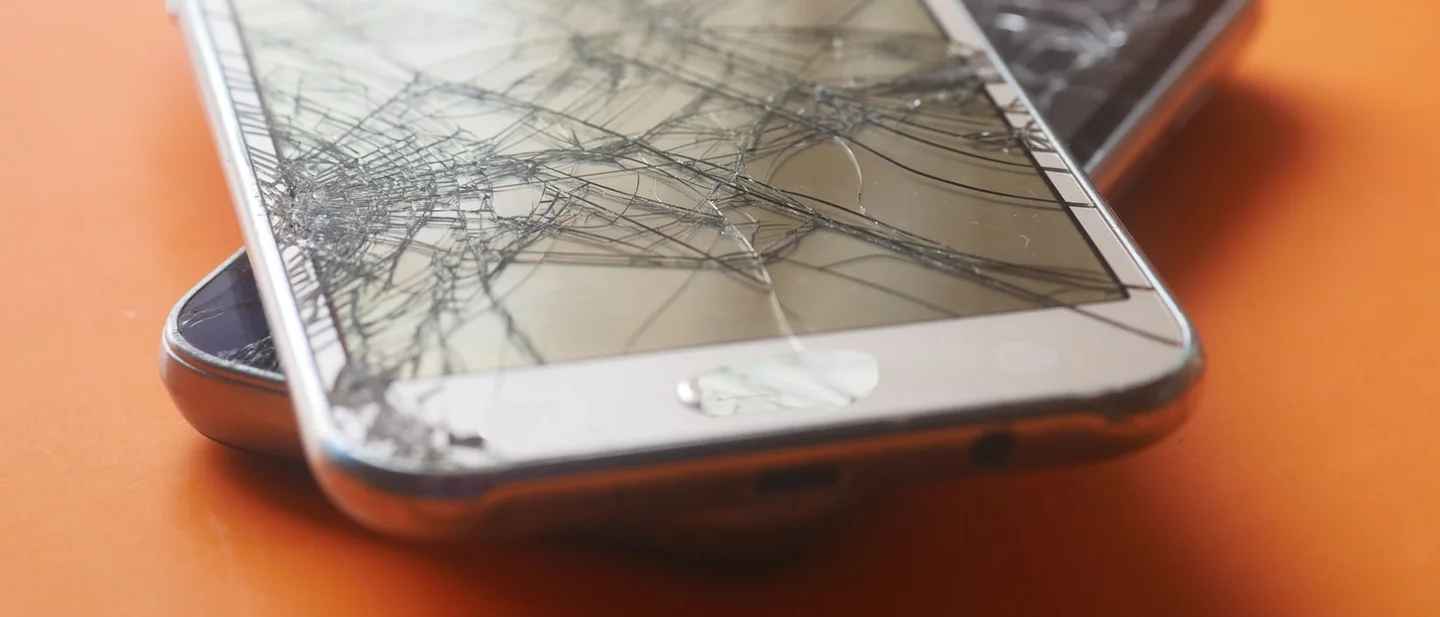
The phone goes down on the pavement face first, and the glass crazes into a spiderweb.
The glass is the cheap part. One drop can take the only copy of four years of photographs, the messages you cannot read anywhere else, and the codes that get you into your own email and your own bank.
That is the shape of the problem. Everything on the phone lives in one place, and most people have never made any of it exist in two.
Eight fixes follow, in the order the job happens: what the backup really covers, what quietly stops it, the copy that survives a deletion, the keys you would need if the phone vanished, and the first ten minutes of the day it does. None of them costs money.

1. Read the backup screen, including the small grey date under it

Steps
  1. On an iPhone, open Settings, tap your name, then iCloud, then iCloud Backup. Check that Back Up This iPhone is on. 1
  2. Read the date and time printed under Back Up Now. That line is the only proof a copy exists. 1
  3. On Android, open Settings, tap Google, then All services, then Backup and restore, then Backup. 2
  4. Open Backup details and read the list rather than trusting the word "on". 2 The two systems put the switch in different menus, and they leave different things out.
iPhoneAndroid
The switchSettings › your name › iCloud › iCloud Backup 1Settings › Google › All services › Backup and restore › Backup 2
Free space included5 GB 315 GB with a Google Account 2
What it holdsDevice settings, Home Screen layout, and app data for apps that do not sync 4Apps and app data, call history, contacts, device settings, SMS and MMS 2
What stays outAnything already syncing: iCloud Photos, iCloud Drive, Messages in iCloud 4Photos, unless Google Photos backup is on 2
Why it works: Apple runs two systems side by side. Anything that syncs — photos, files, messages — is kept up to date on every device signed in. The backup holds the rest: settings, layout, and the data inside apps that do not sync. 4 Between the two, the phone is covered once.
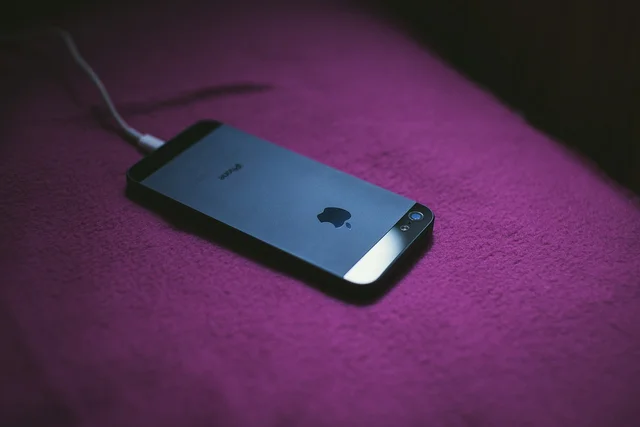
A cable in the back of a phone. The overnight copy on an iPhone runs only while it is charging, on Wi-Fi, and with the screen locked. 1
Avoid this mistake: Trusting a switch that says "on". Automatic backup waits for three conditions at once — a power source, a Wi-Fi network, and a locked screen. 1 A week in a bag with a flat battery leaves the switch on and the copy five days old.

2. Free the space that stops the copy without saying so

Steps
  1. Compare the storage figure you just saw against the free allowance: 5 GB on iCloud, 15 GB on a Google Account. 23
  2. Turn off backup for the apps you downloaded and never open. 4
  3. Delete the backups of devices you no longer own, listed under Backups. 4
  4. Run Back Up Now and watch the date change. 1
Why it works: A full account stops the copy, and Apple meets it with an alert offering to sell you more storage. 1 Trimming is the free version of the same fix: Apple counts only the apps you include, and names stopping the ones you no longer use as the way to shrink a backup. 4
Avoid this mistake: Switching the backup off to save space. The copies already in iCloud are kept for 180 days and then deleted, so turning it off buys time and then takes the copy away. 4

3. Put the photos somewhere that ignores deletions

Steps
  1. Turn the photo service on: iCloud Photos on an iPhone, Google Photos backup on Android. 24
  2. Note what that changed: with iCloud Photos on, photographs leave the daily backup and travel by sync instead. 4
  3. Add a second copy that does not follow the phone: export a few years at a time onto a computer or an external drive. 5
  4. Work backwards from this year, so the first sitting covers the photographs you would actually miss.
Why it works: A synced library obeys the phone. Delete a photo on an iPhone and it goes from every device signed in to the same account; it waits 30 days in Recently Deleted, then it is gone. 6 Google Photos works the same way, deleting across every device with backup on, with its bin set at 30 days. 7 The copy that saves you is the one that keeps a file after the original is gone: three copies, two kinds of storage, one of them somewhere else. 5
Avoid this mistake: Calling the cloud a backup and stopping there. Sync mirrors what is on the phone today, deletions included, so a single wrong tap travels everywhere at once. 5

4. Save the codes your phone is holding

Steps
  1. On a computer, open your Google Account, then Security, then 2-Step Verification, then Backup codes. 8
  2. Print the set, or download it, and keep it where you keep your passport. That location is Google's own suggestion. 8
  3. Check that any authenticator app on the phone has a second route in, such as the same app on a tablet or a saved set of codes.
  4. Refresh a set that is years old: new codes cancel the old ones automatically. 8
Why it works: Each Google backup code is eight digits, works once, and there are ten of them. 8 They are the way in when a sign-in asks for a second step and the thing that generates it is in a taxi on the other side of town.
Avoid this mistake: Keeping the codes in the phone's own notes app, or as a screenshot in the camera roll. Both live on the device, so both leave with it. Google adds one limit: if you are in the Advanced Protection Program, the codes cannot be downloaded. 8

5. Put a trusted number on something other than the phone

Steps
  1. On an iPhone, open Settings, tap your name, then Sign-In & Security, then Two-Factor Authentication, then Add Trusted Phone Number. 9
  2. Choose a number that is not this phone: a landline, a partner's mobile, a work line. 9
  3. Add a second one if you have it.
  4. Write down which numbers you added, somewhere that is not the phone.
Why it works: Apple states the trap itself. If your iPhone is your only trusted device, and it is also the only thing that can receive your trusted phone number, you cannot get a verification code once that phone is missing or damaged. 9 Account recovery can still work, but Apple warns it may take a few days or longer, and that contacting them cannot speed it up. 9
Avoid this mistake: Adding a second number that travels in the same bag — the spare handset in the same drawer, the work mobile in the same coat. A second factor has to be somewhere the first one is not.

6. Back up the chat, and keep the key off the phone

Steps
  1. In WhatsApp, open Settings, then Chats, then Chat backup. 10
  2. Pick an automatic schedule and run one backup now. 10
  3. Turn on the end-to-end encrypted backup, using a passkey, a password, or a 64-digit key. 10
  4. Store that key somewhere that is not the phone.
Why it works: Chats come back only from the last successful backup, so an old one restores a conversation that stops months ago. 10 WhatsApp is blunt about the encrypted copy: the password or key is the only way into it later. 10
Avoid this mistake: Saving the key in a message to yourself, which is the one archive you are trying to protect. Check the video switch too: WhatsApp treats videos separately, and they are most of the size. 10

7. Prove the parts you can, tonight

Steps
  1. Open the backup date again. If it is not from the last day or two, find out why before you trust anything else here. 1
  2. On Android, open Backup details and read the item list line by line. 2
  3. Sign in to your account on a computer you do not use every day, and get all the way past the second step there.
  4. Open the cloud drive on that computer and open one file from it.
  5. On the phone, open Photos, then Recently Deleted, and bring back one photo you meant to delete, so the net you will actually fall into this year is known to work. 6 Google Photos keeps the same 30-day bin. 7
Why it works: The failures are quiet: an account full, a Wi-Fi-only setting, a switch turned off during a phone upgrade. Each of them still shows the reassuring word "on". What you can prove in ten minutes is the date, the list, the sign-in and one file, and the sign-in is the one that decides whether a new phone is an inconvenience or a loss.
Avoid this mistake: Testing by wiping the phone. Android restores its backup only while a new or reset phone is being set up, and a backup from a newer Android version will not install on an older one. 2 Wiping the phone is the one test you cannot undo.

8. Ten minutes for the day it happens

Steps
  1. From another device, open icloud.com/find on an iPhone, or android.com/find on Android, and sign in. 1112
  2. Mark it as lost. That locks the phone, hides notifications, and keeps tracking it. 11
  3. Ring it if you are close by: on Android that plays at full volume for five minutes, silent setting included. 12
  4. Change the password on the account the phone is signed in to.
  5. Erase it only when you are sure it is gone. The erase runs when the phone next connects. 11 An erased Android still needs your Google password before anyone can set it up again. 12
Why it works: A locked phone is nearly worthless to whoever has it. On an iPhone, even a wiped device still needs your Apple Account password before Find My can be switched off, which is what a resale depends on. 13
Avoid this mistake: Releasing the phone from your account because somebody asked you to. Thieves message the owner posing as a buyer or a helpful finder, warning that the personal data is exposed, and request that the device be removed — which is the last step before it becomes sellable. 13 The same scam arrives as a text linking to a page built to look like Apple's sign-in. 13
Four of these fit into one evening: the codes, the second number, the chat backup, and the restore test. Freeing the space takes longer, because it asks you to decide what you actually need. The photo export is the only real job, and it becomes one evening now and one more a year.
Where the free advice stops: a phone that will not power on is a repair or a replacement, and an account whose password is forgotten is a recovery case that runs on the provider's timetable, not yours. 9 Everything above buys you the one thing that matters — a copy that is not on the phone.

References

  1. 1
    How to back up your iPhone or iPad with iCloud

    support.apple.com

  2. 2
    Back up or restore data on your Android device

    support.google.com

  3. 3
    iCloud+ plans and pricing

    support.apple.com

  4. 4
    What does iCloud back up?

    support.apple.com

  5. 5
    Use the 3-2-1 Rule to Back Up All Your Important Files

    lifehacker.com

  6. 6
    Delete photos on your iPhone or iPad

    support.apple.com

  7. 7
    Delete photos & videos

    support.google.com

  8. 8
    Sign in with backup codes

    support.google.com

  9. 9
    About trusted phone numbers and trusted devices for Apple Account

    support.apple.com

  10. 10
    How to back up your chat history

    faq.whatsapp.com

  11. 11
    Check These Settings Before You Lose Your iPhone so You Can Find It Later

    lifehacker.com

  12. 12
    Find, secure, or erase a lost Android device

    support.google.com

  13. 13
    Don't Remove a Stolen iPhone From Your Apple ID (Do This Instead)

    lifehacker.com

Life Hack Stack
Life Hack Stack@Jenna M

This story was produced automatically by a channel. One sentence is all it takes for Neodrop to keep producing for you.

Related content

  • 1. Read the backup screen, including the small grey date under it
  • 2. Free the space that stops the copy without saying so
  • 3. Put the photos somewhere that ignores deletions
  • 4. Save the codes your phone is holding
  • 5. Put a trusted number on something other than the phone
  • 6. Back up the chat, and keep the key off the phone
  • 7. Prove the parts you can, tonight
  • 8. Ten minutes for the day it happens