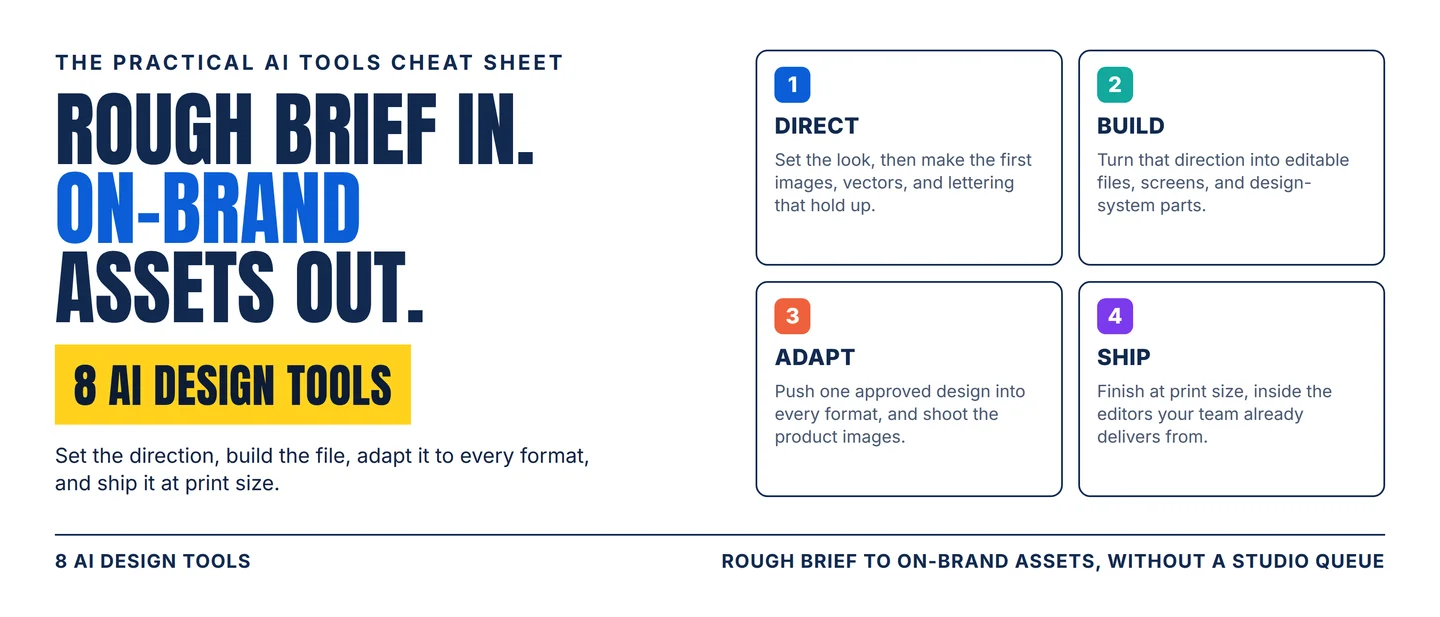
The AI design stack: 8 tools from rough brief to on-brand assets
A practical eight-tool workflow for turning a rough brief into finished, on-brand visuals, with the plan gates, credit meters, and licence terms that decide whether each tool works at your desk.

The brief lands on Tuesday. The assets are due Friday. A hero image, a logo mark, a product shot, and the same campaign in nine formats. The work that used to sit in a studio queue now sits in one decision: which tool to open first.
The question that picks your tool is which part of the job is stuck? Direction, production file, format count, or finish. Find the stage that is blocking you, buy for that stage, and keep one person on the final check.
Pick your lane
- Need imagery a client campaign can legally run? Start with Adobe Firefly.
- Need a poster where the headline is actually legible? Start with Ideogram.
- Need an icon or an illustration you can edit as vector? Start with Recraft.
- Need the first draft to live inside your design system? Start with the Figma agent.
- Need one approved design in every format by Friday? Start with Canva Magic Resize.
- Need 200 product photos that look shot in a studio? Start with Photoroom.
- Need app screens before the wireframe review? Start with Uizard.
- Need that last asset at print size without a reshoot? Start with Magnific.
The jobs overlap at the edges. What separates the tools is the constraint each one carries: a plan gate, a credit meter, a licence term, or a hard ceiling on output. Those constraints decide whether the tool reaches your desk at all, so every entry below names its own.
The 8-tool stack
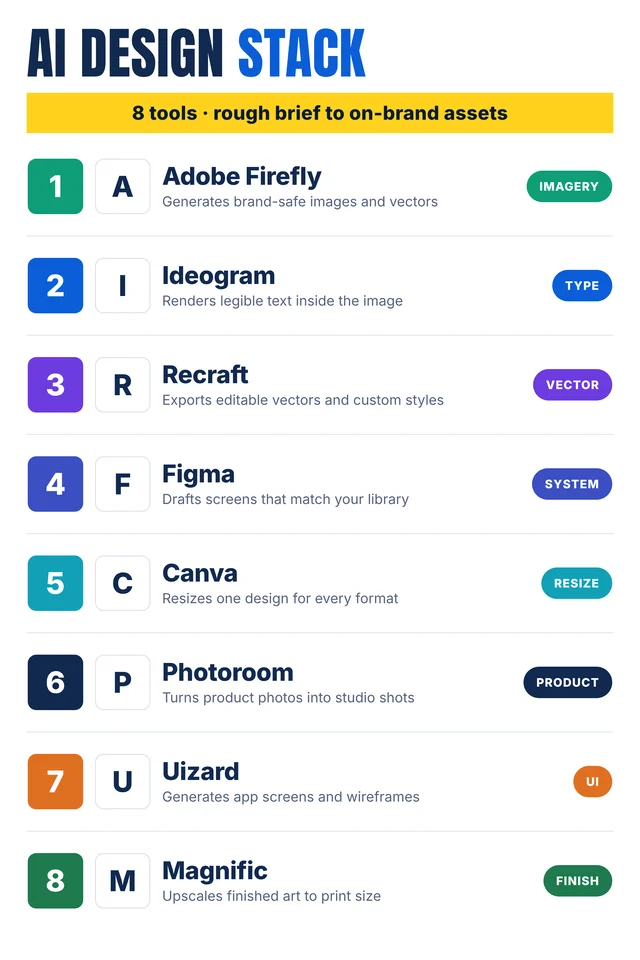
Self-made cheat-sheet graphic: the eight tools in the order they join a design job. Capabilities, limits, and human checks are sourced below.
1. Adobe Firefly
Category: Imagery
Use it for: Campaign images where the client will ask what the model learned from and what the file carries.
Why it earns a slot: Firefly generates images from text prompts, adds or replaces objects with Generative Fill, expands a frame past its original crop, and turns text prompts into vectors. 1 Adobe trains the commercial Firefly model on Adobe Stock, openly licensed content, and public-domain material, and states that outputs from features without a beta label can be used in commercial projects. 1 Certain exports pick up a Content Credential automatically, tamper-evident metadata recording that an AI tool was used. 1 Teams can share a Style Kit, train custom style and subject models on their own assets, and run batch work such as background removal, cropping, colour grading, and resizing across a folder of images. 1
Watch-out: Generative features draw on generative credits, and a Creative Cloud plan includes a monthly allocation whose size depends on the plan; premium features also need a plan that unlocks them. 2 Adobe's FAQ allows commercial use of beta features unless the product page says otherwise, which makes that page the one to read before an asset leaves the building. 1
Human check: Look at what the export carries. Content Credentials tell a client that AI touched the file, and one person should own that call.
2. Ideogram
Category: Type
Use it for: Designs where the lettering is part of the artwork — a poster, a title card, packaging, a social graphic.
Why it earns a slot: Ideogram 4.0, the company's current model, promises sharper prompt fidelity and readable type in every layout, and the vendor lists typography, logos, branding, and print-on-demand among its strengths. 3 Background Control removes a background to a transparent cutout or replaces it with a generated scene, and the same models are reachable from the web app, the API, and MCP clients such as Claude and Cursor. 34 Custom models train on assets you approve, so later generations follow a given style, art direction, and typography. 4

Watch-out: A custom model is training work rather than a setting: it learns from a set of approved assets you supply before it holds a house style. 4 Reaching the model through the API or an MCP client moves authentication and billing into that surface. 4
Human check: Read the lettering at full size before it ships. Legible type is the reason to pick this tool, and it is also the first thing a client reads.
3. Recraft
Category: Vector
Use it for: Icons, logo marks, and illustrations that a printer or a developer will need to scale.
Why it earns a slot: Recraft generates images directly in vector format, and editable vector graphics are a headline capability on its site; the studio also covers mockups, image editing, and vector editing. 5 Dropping reference images in builds a custom style that the platform reuses across later generations. 5 The API reaches image and vector generation, editing, background removal, inpainting, outpainting, batch jobs, and asynchronous processing. 6
Watch-out: Images made on the free plan are Recraft's property, appear in a public gallery, and carry commercial rights only once you pay; a paid plan grants ownership and private output. 6 Subscription credits reset at each billing cycle and unused ones expire, while separately bought top-up credits carry over. 6 API units are prepaid, separate from subscription credits, and non-refundable. 6
Human check: Open the vector in a real editor before print. A path that looks clean in a thumbnail can still need work at the node level.
4. Figma
Category: System
Use it for: The first draft of a screen or a page that has to end up inside your team's own design system.
Why it earns a slot: Figma's agent runs inside Figma Design, takes prompts on the canvas or in a sidebar, generates and remixes designs, and runs several prompts in parallel. 7 The library connection decides the production value: with a library attached, output is generated to match the team's components, styles, and variables, and typing @ in the prompt references a specific component. 7 Designs, images, files, and connected-app content can be attached as context, and any change can be undone from the chat. 7 The agent is available on all plans and free to try while in beta, while the older First Draft entry point it replaces sits on paid plans and builds from Figma's own libraries rather than yours. 78
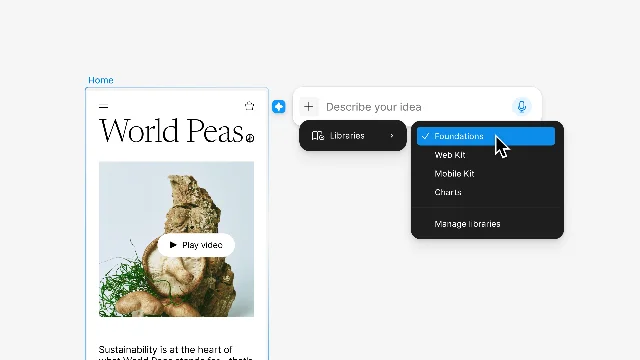
Watch-out: The agent is in beta, and Figma's feature table marks part of it as paid-plan only. 7 Your seat decides what the agent may touch: a Full seat with edit access can have it change the file, while View, Dev, and Collab seats can chat without editing. 7 New agent chats are visible by default to anyone holding a Full seat with edit access to that file. 7
Human check: Duplicate the frame before letting the agent rewrite it. Figma's own tip is to keep a copy when you want a side-by-side comparison. 7
5. Canva
Category: Resize
Use it for: The morning after approval, when one design has to become every size the campaign runs in.
Why it earns a slot: Magic Resize takes a design to other sizes and dimensions from suggested sizes, a category browse, or your own measurements, and fans one design out to several sizes in a single action; bundles group formats such as a set of social posts or vertical videos. 9 A Brand Kit holds logos, colours, fonts, and custom assets, and Brand Controls can restrict a team to the colours and fonts that live in the kit. 10
Watch-out: Resize sits on Pro, Business, Enterprise, Education, and nonprofit plans, and every use draws on the monthly AI usage allowance. 9 The ceilings matter in a rush: up to 50 designs per run, up to 5 new sizes for each design, 250 outputs in one bulk action, and dimensions from 40×40 to 8000×3125 pixels. 9 Magic Resize is unavailable inside Canva Docs, where Magic Switch takes a document to a presentation instead. 9 Brand Kit creation belongs to admins and brand designers. 10
Human check: Read the resized copies rather than the original. A headline drops to a second line when the canvas narrows, and that file is the one the audience sees.
6. Photoroom
Category: Product
Use it for: Product and people imagery at catalogue scale — marketplace listings, ad variants, seasonal scenes.
Why it earns a slot: The core tools — background remover, retouch, product fixer, AI shadow presets, AI fill, expand and resize, image enhancer — come with every paid plan and cost nothing against the credit pool. 11 Above those sit credit-metered tools: video generator, AI fashion models, AI Backgrounds Studio, and Edit with AI. 11 Batch Edit runs AI edits across thousands of images through the web app or the API, Brand Kit locks colours, logos, and layouts on every paid plan, and Instant Resize covers the formats marketplaces ask for. 1112
Watch-out: Two meters run at once. A monthly AI credit pool pays for the generative tools, and a separate export allowance counts every image you save, including saves from Batch and a marketplace sync. 11 4K output, adjustable AI shadows, and visual QA sit on the top plans, Shopify sync starts at Max, and API or MCP usage draws its own allowance. 11
Human check: Put one finished product photo beside the real item. Convincing shadows and generated backgrounds are good at hiding a wrong colour or a missing part.
7. Uizard
Category: UI
Use it for: Getting a screen in front of a stakeholder before anyone opens a design tool properly.
Why it earns a slot: Autodesigner 2.0 generates projects, screens, and themes from a text prompt, and iteration works by selecting a component and describing the change you want. 13 The Screenshot Scanner turns a screenshot into an editable mockup, and the Wireframe Scanner turns a hand-drawn sketch into a digital design. 14 A Pro plan adds developer handoff in CSS and React components. 15
Watch-out: The free tier allows three AI generations a month on the older Autodesigner 1.5 engine, with two projects, five screens each, and exports at 1× resolution. 15 Brand kits, unlimited projects, and 500 or 5,000 monthly generations sit above it. 15
Human check: Read the placeholder copy as copy. Generated labels are the fastest thing to ship by accident.
8. Magnific
Category: Finish
Use it for: The asset that has to survive a print run or a large screen after it was made small.
Why it earns a slot: The Image Upscaler takes a low-resolution image and returns a sharper, larger one in two modes: Creative adds AI-generated detail and accepts a prompt plus Creativity, HDR, and Resemblance sliders, while Precision scales photos, products, and print faithfully. 16 Precision reaches 16× with the Sublime model, Magnific's own model reaches 10K output for Premium+ users, and bulk processing takes one image or many. 1617 The platform also runs inside Figma, Photoshop, Illustrator, After Effects, Premiere Pro, InDesign, DaVinci Resolve, Final Cut Pro, and Microsoft Office, and carries a stock library of 250M+ assets licensed for commercial use. 18
Watch-out: The brand changed: Freepik is now Magnific, so older tutorials, invoices, and plan names describe a different storefront even though the credits carried across. 18 Creative mode reimagines detail, which suits illustration and concept work; a product shot belongs in Precision. 16
Human check: Compare the upscaled file with the original at 100%. Creative mode invents texture that a product team never approved.
Assemble the stack
Four stages, one owner each:
- Direct. Firefly for campaign imagery and vectors with a clean provenance trail, and Ideogram wherever lettering is part of the artwork. The look you set here is what every later stage inherits.
- Build. Recraft for vectors and brand marks; the Figma agent for screens that have to borrow your design system; Uizard when a stakeholder needs to see a screen before the design system matters.
- Adapt. Canva Magic Resize for the format fan-out, held together by a Brand Kit, and Photoroom when the products themselves need shooting.
- Ship. Magnific for final size, working inside the editor your team already delivers from.
The practical rule: fix one stage at a time. Run a month with the same four stages and change the stage that stays slow. Two subscriptions covering one stage is a bill you can cancel.
Practical takeaways
- Write the constraint down before you open a tool: commercial use, print size, brand font, or export count.
- Check the plan gate first. The feature that sold you the tool often sits on the top tier.
- Count what the meter charges for. Credits, exports, and AI generations are three different currencies.
- Read the licence before the free trial. One vendor's free plan keeps ownership of the output and withholds commercial rights.
- Start the draft inside the system you already run, so the file needs less finishing.
- Keep a person on the last look: lettering, product colour, and print size are where generated work shows.
- Cap the stack at one tool per stage.
Copy-ready LinkedIn/X caption
Hook
Rough brief in. On-brand assets out.
Highlights
8 AI design tools, mapped by the job each one does:
- Adobe Firefly — campaign imagery with a provenance trail
- Ideogram — lettering that stays legible inside the image
- Recraft — editable vectors and a reusable house style
- Figma — first drafts that borrow your own design system
- Canva — one approved design, every format by Friday
- Photoroom — catalogue-ready product shots without a studio
- Uizard — app screens before the wireframe review
- Magnific — the same asset at print size
The rule that works: find the stage that is stuck, buy one tool for that stage, and keep a person on the final check.
CTA
Save this for your next campaign brief. Send it to the designer who is about to resize forty files by hand.
References
- 1Adobe Firefly FAQ | Adobe Help Center
helpx.adobe.com
- 2Generative credits overview | Adobe Help Center
helpx.adobe.com
- 3Ideogram | AI apps and models in one platform
about.ideogram.ai
- 4API Overview | Ideogram Documentation
developer.ideogram.ai
- 5
- 6Pricing and plans | Recraft
recraft.ai
- 7
- 8Use First Draft with Figma AI | Figma Help Center
help.figma.com
- 9
- 10
- 11Photoroom Pricing: Plans, Prices & Free Trial
photoroom.com
- 12
- 13
- 14
- 15
- 16Image Upscaler | Magnific Docs
magnific.com
- 17
- 18
This story was produced automatically by a channel. One sentence is all it takes for Neodrop to keep producing for you.