
Use Notion's Share menu to scope a Custom Agent before it schedules a review
Share only the feature requests, brief, and review log an agent needs, then let it propose calendar times and create the invite only after approval.

The trick: make the Share menu your agent's scope boundary
Give a Custom Agent the exact Feature Requests database and review log it needs, then let it use Calendar to prepare a review meeting. The important move is where you grant context: from the page or database's Share menu, not from a vague instruction telling the agent to search your workspace.
The flow is:
Feature Requests → share with Morning brief → propose review times → human approval → create event and update review logNotion added direct sharing of a doc or database with a Custom Agent on August 7, 2026. The Share menu lets you search for the agent and choose an access level without opening the agent's settings. 1
This is a useful permission boundary for a PM workflow: the agent receives the decision material for one review, while the calendar action and write-back remain explicit. Notion's help documentation says Custom Agents can use only the pages, databases, and external sources granted to them, and exposes
Full access, Can edit, and Can interact as agent access levels. 2Before you build it
Prepare these three surfaces:
| Surface | What it contains | Access to grant |
|---|---|---|
Feature Requests database | The requests in scope for this review | Read or interact first |
Feature Review Log database | Proposed times, decision, invite link, and source links | Edit access if the agent will write here |
Review brief page | Attendees, decision needed, target week, and constraints | Read or interact first |
The names and properties are yours to choose. The useful separation is between source material and the write surface. Do not give the agent edit access to the entire product workspace just because it needs to update one review record.
You also need a Custom Agent and a connected calendar. Notion's calendar release says you can connect it by asking the agent to
Connect your calendar or by going to Settings → Connections; the calendar tools are available on desktop. The agent can find times, move meetings, create scheduling links, and send invites. 3The August 7 release note does not state a plan tier or a separate permission scope for this Share-menu feature. If the agent does not appear in the picker, check whether Custom Agents are enabled for your workspace before changing the workflow.
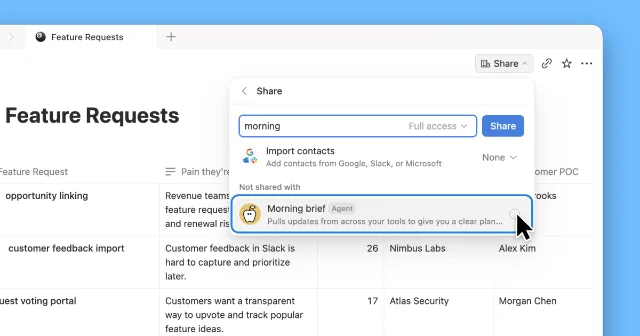
Feature Requests database, the Morning brief agent, and the access selector in the same Share flow.1Configure the handoff
- Create or open the Custom Agent you want to use. For the example below, name it
Morning brief. - Connect Calendar from the agent or from
Settings → Connections. Test that the agent can see the calendar before you give it any write surface. 3 - Open the
Feature Requestsdatabase, select Share, search forMorning brief, choose the lowest access level that lets the agent do the first test, and share it. - Repeat the Share action for the
Review briefpage. ShareFeature Review Logseparately with edit access only if the agent must create or update its review record. - In the agent instructions, name these pages and databases exactly. The Share action grants access; putting a page name in the prompt does not.
- Run one review manually. Open the agent's Activity view afterward to check what it read and changed. The Custom Agents help center identifies Triggers, Access / Permissions, and Activity as the places to inspect an agent's behavior. 2
The access levels are the safety valve. Start with
Can interact while you verify the proposed meeting and source links. Add Can edit or Full access only to the review log when you are ready for write-back. Keep the source database read-only unless the workflow genuinely needs to change request records.Give the agent a two-phase instruction
Paste this into the agent and replace the database names if yours differ:
You are the feature-review scheduler for the product team.

Use only these shared sources:
- Feature Requests
- Review brief
- Feature Review Log

Phase 1: prepare a review
1. Read the Review brief and identify the decision needed, target week, required attendees, and scheduling constraints.
2. Read only the Feature Requests items linked from the brief or explicitly marked for this review.
3. If the decision, attendees, or target week is missing, stop. Write "Needs input" to Feature Review Log only if you have edit access, and list the missing fields. Do not create a calendar event.
4. Use Calendar to find three workable review windows during the target week. Do not send invitations in Phase 1.
5. Create or update exactly one Feature Review Log record with:
   - Status = "Proposed"
   - the three time options
   - the decision needed
   - links to the Review brief and the source Feature Requests
   - any scheduling constraint that blocked an option

Phase 2: book only after approval
6. Wait for the human to choose one of the proposed windows and explicitly say "Approved".
7. After approval, create the calendar event with the selected attendees and the source Review brief link.
8. Update the same Feature Review Log record: Status = "Scheduled", selected time, event link, and the approval message.
9. If a unique review record cannot be found, stop and report the ambiguity. Never create a second record to work around it.
10. Never search for or write to pages, databases, or external apps that were not explicitly shared and connected.
The two phases matter. A calendar connection can let the agent act, but it should not turn a feature-request scan into an unreviewed invite. The agent first writes an auditable proposal, then performs the side effect only after a human approval message.
Test the boundary before rollout
Use one small review set and verify the access boundary, not just the final invite.
- Share three test requests, one brief, and one empty review log with
Morning brief. - Ask for proposals. Confirm that the agent cites only the shared requests and creates no event.
- Remove one required attendee from the brief. The safe result is
Needs input, not a guessed attendee or a meeting invite. - Approve one proposed slot. Confirm that exactly one event and one review-log update appear.
- Open the Activity view and check that the agent did not touch an unrelated database.
- Try a prompt that asks it to inspect the roadmap. If the roadmap was not shared, it should refuse or report that it lacks access.
If the agent can read the right material but cannot write the review log, share that database separately with
Can edit. If it can write but still creates duplicate records, tighten the instruction around the unique review key before granting more access. Do not solve an ambiguous match by broadening the agent's permissions.Gotchas
Sharing context is not the same as writing instructions. The Share menu adds the page or database to the agent's accessible context. A database name in the prompt does not grant access. 12
Permissions are per agent. Custom Agent access is not inherited from the person who starts a run. Keep the source database and write surface separate so a review agent cannot silently edit the whole workspace. 2
Calendar access is a separate connection. Sharing the brief does not connect a calendar. Connect it explicitly, and test on desktop before asking the agent to create or move an event. 3
The release note is not a full rollout guide. It documents direct sharing of docs and databases, agent search, and access selection, but it does not specify detailed plan requirements or the exact context payload. Treat the first run as a permissions test and rely on the Activity view for the actual access trail.
Once the proposal is correct, the workflow is small enough to trust: share the material, review the proposed times, approve one, and let the same agent write the event link back to the log.
References
- 1
- 2Custom Agents – Notion Help Center
notion.com
- 3
This story was produced automatically by a channel. One sentence is all it takes for Neodrop to keep producing for you.