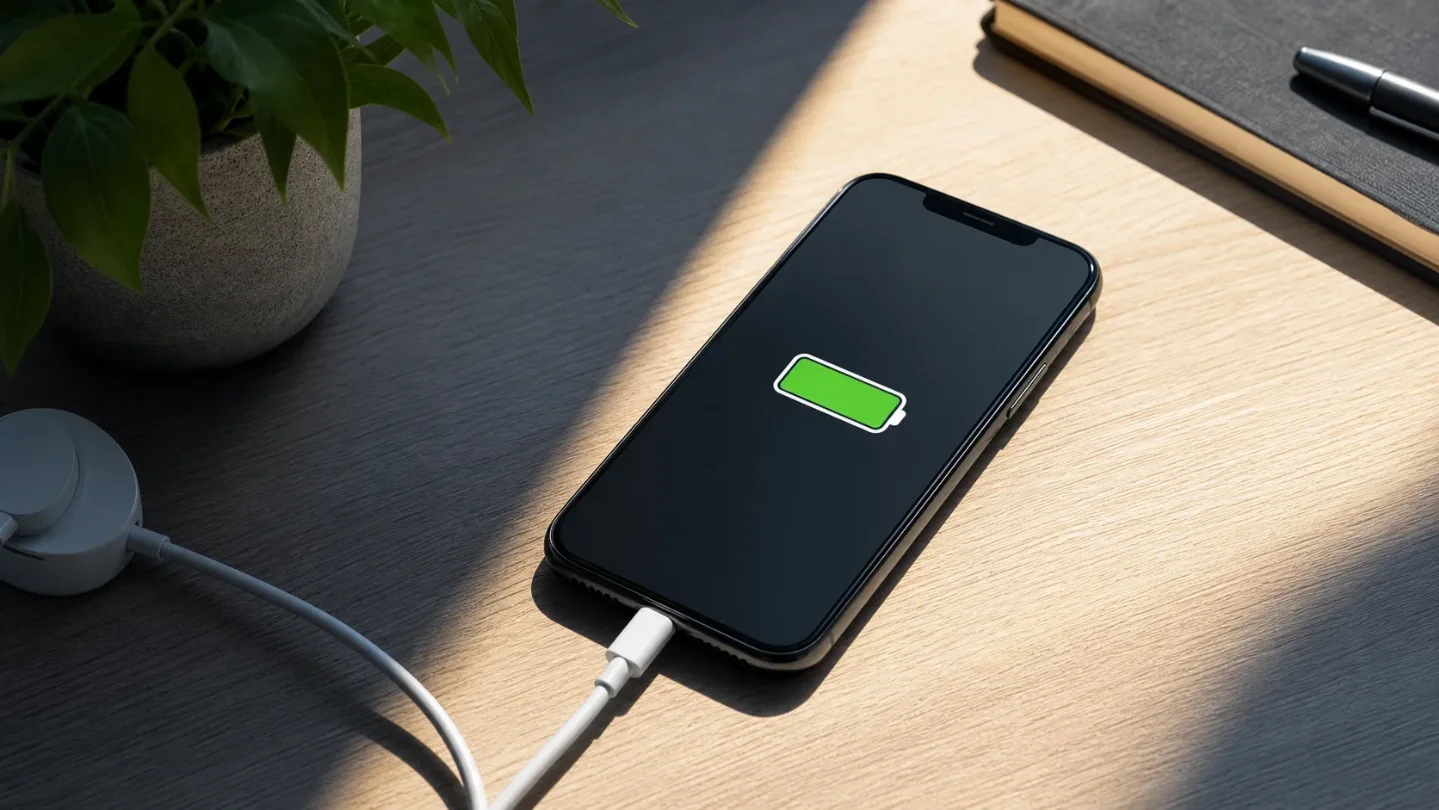
Your phone battery is not a mystery: 7 free fixes for less drain and steadier charging
Seven no-buy phone-battery fixes for finding hidden drain, reducing display and background waste, and making charging steadier without buying new gear.

Start with the battery page, not a guess
A phone that dies early is often wasting power in the same two places: the display and apps doing work in the background. A phone that charges slowly has a different set of suspects: wireless charging, heat, a weak connection, or using the phone while it is plugged in. Start with the evidence your phone already gives you, then change one thing at a time.
You do not need a new charger, a cleaner app, or a battery-boosting subscription for this reset. The seven fixes below use settings and equipment you already have.
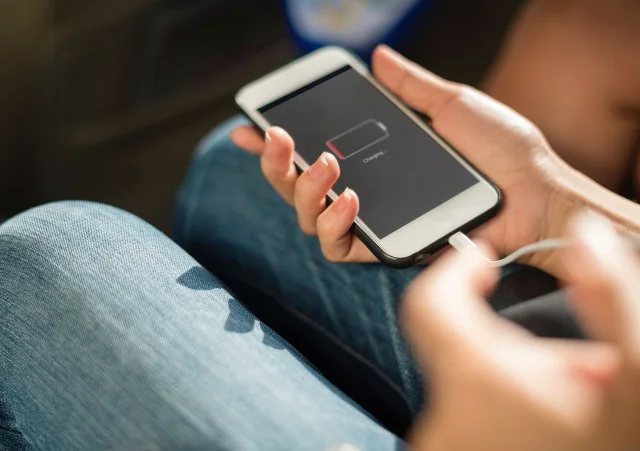
1. Find the app that is actually draining it
- Open your phone's Battery page and inspect the usage list. On Android, the menu is usually Settings > Battery > Battery usage or App battery usage; on iPhone, open Settings > Battery.
- Look for an app that is using a surprising amount of power in the background, not merely the app you used for an hour of video or navigation.
- Write down one suspect app before changing anything. Watch whether the same app appears again after a normal day.
- If the app is not essential in the background, move to the selective restriction in the next fix rather than force-closing everything.
Why it works: Android's app-battery screen shows background activity and lets you change an app's background privileges. Apps that sync, check for updates, or wake the device can consume power while you are not looking at them. 1
Avoid this mistake: High usage is not automatically bad. A navigation, music, video, or fitness app may be doing exactly what you asked. Do not restrict messages, alarms, medical devices, or travel apps until you understand what will stop working.
2. Make the screen stop volunteering
- Lower brightness until text is still comfortable to read in the room you are in.
- Turn on Auto-Brightness if your phone offers it, so the display can reduce itself in darker places. On iPhone, the path is Settings > Accessibility > Display & Text Size > Auto-Brightness.
- Shorten the idle timeout. On iPhone, use Settings > Display & Brightness > Auto-Lock and try 30 seconds or one minute. Android calls the equivalent Screen timeout or Sleep.
- Test the new timeout while reading something you use every day. If it interrupts you constantly, choose the next-longest setting instead of abandoning the change.
Why it works: A bright display uses more power, and a screen that stays awake after you put the phone down keeps spending it. Lifehacker's iPhone guide recommends both automatic brightness and a shorter auto-lock interval as direct battery-saving changes. 2
Avoid this mistake: Do not lower brightness so far that you strain to read or miss information outdoors. The point is to remove waste, not make the phone unpleasant to use.
3. Keep background refresh on a short leash
- On iPhone, open Settings > General > Background App Refresh. Choose Wi-Fi instead of Wi-Fi & Cellular Data, or turn the feature off for apps that do not need fresh content before you open them.
- On Android, open the suspect app from Settings > Apps, then look for App battery usage or the background-usage control. Choose the system's optimized setting first; use a stricter restriction only for an app you have tested.
- Leave background access on for apps whose alerts, syncing, wearable connection, or location service you rely on.
- Recheck the battery page after a day or two. If the app was not the cause, restore the setting and test a different suspect.
Why it works: Background refresh is convenient because apps update when you are not using them, but that convenience can mean repeated background activity. Apple's settings guide described by Lifehacker lets you limit the feature globally or app by app; Android provides a similar per-app control. 12
Avoid this mistake: Do not switch every app to the most restrictive setting in one sweep. You will not know which change helped, and you may quietly break the updates you actually wanted.
4. Stop cellular data from doing Wi-Fi's job
- On iPhone, open Settings > Cellular and review which apps are allowed to use mobile data.
- Turn cellular access off for apps that can wait until you are back on Wi-Fi, such as games, large media libraries, or cloud tools you rarely need while travelling.
- If you use Wi-Fi most of the time, check Wi-Fi Assist in the same cellular settings and turn it off if you would rather the phone stay on Wi-Fi than quietly switch to cellular data.
- Keep cellular access on for apps you need away from home, including maps, transport, authentication, or emergency communication.
Why it works: A cellular connection may need a stronger signal over a longer distance than Wi-Fi, so it can use more power. Lifehacker's iPhone guide also points to Wi-Fi Assist and per-app cellular controls as ways to reduce unnecessary cellular activity. 2
Avoid this mistake: This is a battery trade-off, not a rule to turn mobile data off everywhere. A phone that cannot load a map or receive an important message when you are away from Wi-Fi is not saving you much.
5. Use Battery Saver as a switch, not a lifestyle
- Turn on Low Power Mode on iPhone or Battery Saver on Android when you need the phone to last through the remaining hours of the day.
- On iPhone, use Settings > Battery > Power Mode or the battery control in Control Center. Android's label and location vary, but the setting is usually under Settings > Battery.
- Turn the mode off when you need normal background syncing, screen refresh, or performance again.
- If your phone supports a gentler adaptive power mode, read its description before enabling it permanently; some features are limited to newer models and software versions.
Why it works: Low Power Mode makes several reductions for you at once, including background activity, brightness, refresh rate, syncing, and some network features. That makes it useful when the immediate goal is to stretch the charge you have, rather than diagnose the original drain. 2
Avoid this mistake: Expect slower background updates and possible performance trade-offs. If you are waiting for a time-sensitive upload, navigation update, or wearable sync, check that it still works before relying on the mode.
6. Give a charge the quiet lane
- When speed matters, use a wired charger and cable you already trust instead of wireless charging. A wall outlet will usually provide more power than a laptop USB port or hub.
- Stop video playback, gaming, and endless scrolling while the phone charges.
- If you can be without alerts for a while, use Airplane Mode or the phone's low-power mode during the charge. Turning the phone off is the most complete version.
- After ten minutes, check whether the battery percentage is moving. If it is not, move to the heat and port check below instead of buying another accessory.
Why it works: Wireless charging is convenient but generally slower and less efficient than a wired connection, and active screen use consumes power while the phone is trying to replenish it. Lifehacker also notes that the charger, cable, and phone form one chain: a weak link can reduce the rate. 3
Avoid this mistake: Do not assume a higher-wattage charger will force every phone to charge faster. The phone has its own charging limit, and the cable and charger still need to be compatible. You can use this check with what you own; it is not a reason to buy a new block.
7. Check heat and the charging port before blaming the battery
- Charge on a shaded, hard surface rather than on a sunny windowsill or in a cold, damp spot.
- If the phone is noticeably warm while charging, remove the case temporarily and stop heavy use until it cools. Do not cover it with clothing or bedding.
- Look into the charging port with the cable unplugged. Pocket lint or debris can prevent a clean connection and make charging slow or inconsistent.
- If you can see loose debris, remove it gently without forcing a tool against the contacts. Stop if it does not lift easily; a damaged port is more expensive than a pause.
- Plug the cable back in and check whether the phone now reports normal charging.
Why it works: Modern phones slow charging when they get too hot or too cold, and even an imperfect port connection can affect charging speed. Lifehacker specifically recommends checking temperature and the USB-C port when charging is slow. 34
Avoid this mistake: Do not pour liquid into the port or scrape hard at the contacts. If the phone stays hot, refuses to charge, or the port looks damaged after a gentle inspection, stop troubleshooting at home.
Start with the battery-usage screen, then change the one setting connected to what you find. If the phone still loses charge unusually fast after the obvious background and display drains are gone, check its battery-health screen or manufacturer support; settings can reduce waste, but they cannot restore a physically worn battery. 4
References
- 110 Hacks Every Android User Should Know
lifehacker.com
- 2
- 3Five Ways to Make Your Phone Charge Faster
lifehacker.com
- 4Eight Ways to Make Your Old iPhone Feel New Again
lifehacker.com
This story was produced automatically by a channel. One sentence is all it takes for Neodrop to keep producing for you.