
Your TV arrived set up for a showroom: 8 free fixes for the screen you already own
Eight free fixes for the television you already own — the picture settings, the tracking and the slowdowns that ship switched the wrong way.

The picture on your television was set up to stand out in a shop, under lights brighter than any living room. Months later the set is still running the same oversaturated modes, and still switching on the options that promise to improve what you watch. 1
Every fix below is free: a menu toggle, a restarted set, or one screen moved down the wall. Each one carries the reason it works and the mistake that undoes it. Together they cover the picture, the tracking, the speed and the accounts.
One boundary first. The same setting carries a different name on every brand, and the manufacturers move it between software updates. 2 Where a route is named here, the job matters more than the label. When the label is nowhere in the menu, search your model with the setting's name and follow someone else's clicks. 2
1. Turn off motion smoothing
Steps
- Open the picture menu and look for anything mentioning motion, smoothness or extra frames: Motion Smoothing, TruMotion, Motionflow, Auto Motion Plus, Motion Rate, Judder Reduction, LED Motion Clarity. 3
- Switch it off, or where the set offers a cinema choice, take the cinema setting over the smooth one. 1
- Repeat it on every input you watch. The HDMI sockets and the built-in apps keep separate picture settings on most sets. 1
- Where the label is missing, search "turn off motion smoothing" with your brand and follow the steps for your model. 3
Why it works: Films and dramas are shot at 24 to 30 frames a second, and the set invents the frames in between to reach 60, 120 or even 240. 4 Those invented frames are what make a drama look like cheap video. 3
Avoid this mistake: Motion smoothing is genuinely useful for live sport, where the extra frames make a fast ball easier to follow. Leave it on for the match if that is where you like it. 3 On a set with no 24p mode, turning every motion option off can leave a film looking slightly juddery, so test it on a scene you know well. 1
2. Get out of the showroom picture mode
Steps
- Open the picture mode list and choose Movie, Cinema, Filmmaker or the calibrated mode. Leave Vivid, Dynamic, Standard and Sports for the shop floor. 1
- Turn sharpness down to where edges stop looking etched, which is zero on most sets. Switch off digital clean view, noise reduction and MPEG noise reduction. 5
- Switch off everything that adjusts the picture while you watch: dynamic contrast, auto brightness, eco or energy saving modes, live colour, flesh tone and anything labelled HDR+. 15
- Check the colour space is set to Auto or Limited, and leave it on Full only if you use the screen as a computer monitor. 1
- Run the whole pass once for each input, because the settings do not travel between them. 1
Why it works: The factory modes run the backlight hot and push the colour to survive shop lighting. The enhancement options add brightness and detail the film never carried. 15
Avoid this mistake: The neutral sharpness point sits at half scale on some sets and at zero on others, so look for the level where the halo around edges disappears. 1 Write down what you changed, and treat this as the free pass. A full calibration uses a meter and is a different job. 1
3. Put the screen where you actually sit
Steps
- Sit in your usual place and note the height of your eyes from the floor. 3
- Move the set so the middle of the screen sits near that line instead of far above it. 3
- Take it off the high shelf, or off the wall above the fireplace, wherever a lower wall is free. 3
- Sit square to the screen where the room allows it, and where the room only offers an angle, move the seat before you move the set. 3
- Check your neck at the end of a long evening, because that is the part of a high screen you feel first. 3
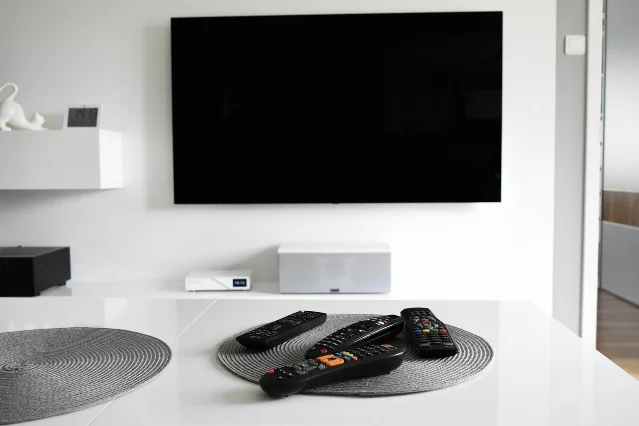
Why it works: The middle of the screen is the part the panel shows best, and most sets lose contrast and colour as you move off that centre. 3 Bringing the set down to eye level fixes the angle and the neck at the same time. 3
Avoid this mistake: A room with one free wall can leave the screen high, and there the seat facing it squarely is the thing to move. A set moved down needs the bracket checked against its weight rating before it goes back on the wall.
4. Turn off automatic content recognition
Steps
- Open the privacy or terms section of the settings menu and find your brand's label for it. Live Plus on LG, Viewing Information Services on Samsung, Samba Interactive TV on Sony, Smart TV Experience on Hisense and TCL, Automatic Content Recognition on an Amazon Fire TV. 2
- Switch each of those off, along with any "interest-based advertising" option beside it. 26
- On an LG, turn on Limit Ad Tracking under Advertisement and "do not sell my personal information" under Support. 27
- Where your model has no matching route, search the brand with "turn off ACR" and follow the clicks. 2
- Come back to the same screen after a firmware update or a factory reset. 2
Why it works: Automatic content recognition photographs what is on the screen and matches it against a library of programmes and adverts, so the set can target what you are shown. 7 The Markup counted the capability at 7,200 images an hour, roughly two a second. It covers whatever you put on the screen, from the set's own apps to a games console. 7
Avoid this mistake: These options live on the screens you clicked through when the set was new, and the makers rename them between updates, so a missing switch usually means a moved one. 2 The voice assistant and the advertising that follows you onto other devices sit behind their own agreements, and those stay on. 7
5. Take the adverts off the home screen
Steps
- Turn off personalised advertising where the set offers it. On a Roku that is Settings, Privacy, Advertising, and unticking "personalised ads". 78
- Turn on every "limit ad tracking" and "do not sell" option on the same screen. 7
- For the adverts themselves, log into your router in a browser, usually at 192.168.1.1, and find the block list under Security, Firewall or Parental Controls. 8
- Add the addresses the set fetches its adverts from: samsungads.com and samsungacr.com for a Samsung, us.ad.lgsmartad.com and ad.lgappstv.com for an LG, p.ads.roku.com for a Roku. 8
- Where the router will not take a block list, a free DNS filtering account blocks the same addresses. 8
Why it works: Smart TV makers put adverts on the home screen all year, and the set fetches them from addresses the maker publishes. Blocking those addresses leaves nothing to show there. 8
Avoid this mistake: The block works on most Samsung, LG and Roku sets and has no effect on a Vizio. 8 A dark domain can take a feature or an app with it, so add the addresses one at a time and keep what still works. 8
6. Make the home screen yours, and delete what you never open
Steps
- Press and hold an app on the home screen and move it to the front of the row. 4
- Move the apps you actually use up with it, until the first screen holds your shortlist. 4
- Remove the preloaded apps you never open, or hide the ones the set will not remove. 4
- Open the storage or apps list afterwards to see what the set kept and what still takes space. 9
- Where your model allows it, install a different launcher for a home screen without the adverts at all. 4
Why it works: The preloaded apps take the storage and memory the menu needs, so a shorter front row is a quicker one, and the order you set is the order you get. 4
Avoid this mistake: Every brand does this differently, and some models only allow hiding a preload, so expect a home screen that keeps a few apps you did not choose. 4 A launcher swap works on some platforms, such as Google TV, and is unavailable on others. 4
7. When it goes slow, restart it properly and clear the caches
Steps
- Look for quick start, instant on or a standby option in the settings and switch it off, so the set truly shuts down between sessions. 4
- Unplug the set for a minute when it starts misbehaving, which is the full restart the sleep state never gets. 4
- Open Settings, then Apps or Application Manager, choose an app and use Clear cache. 9
- Take the brand's own route where it differs: Settings, All Settings, Support, Device Care, Manage Storage on a Samsung; Home, Settings, General, Storage, Clear Cache on an LG. 9
- Clear the cache app by app for the ones that feel slow, and leave the accounts alone. 9
Why it works: A smart TV is a computer, so it builds a cache of files to open quickly, and a cache that grows stale drags on the app that reads it. 9 A full restart clears what the suspend state carries over, which is why it settles a menu that has stopped behaving. 4
Avoid this mistake: Clear cache and clear data sit next to each other, and data is the one that signs you out of every app. 9 On a set old enough that new apps outgrow its hardware, a restart buys time and the next restart comes sooner. 9 Quick start off also means the set takes longer to come on. 4
8. Lock it down: updates, a purchase PIN and the camera
Steps
- Turn on automatic firmware and app updates, and accept them when they arrive. 10
- Require a PIN or a password for purchases, so nothing gets bought from the sofa by accident. 10
- Give other people their own profiles, and keep the master account's sign-in to yourself. 10
- Switch the microphone off where you do not use voice, and put a piece of tape over the camera if the set has one. 10
- Use the remote the set came with where you can, because a phone that is compromised hands over the sign-ins stored on it. 10
Why it works: The set is a networked computer with accounts, a microphone and sometimes a camera, and updates close the holes found after it left the factory. 10 The advice to tape the camera comes from the FBI, relayed in the guide that covers the rest of this pass. 10
Avoid this mistake: A factory reset or a firmware update can put the privacy screens back in front of you, so look at the switches from fix four and fix five again afterwards. 210
Tonight, two of these take ten minutes: motion smoothing off, and the picture mode moved to Movie. 13
This week, take the privacy pass: automatic content recognition off, and the adverts limited on the home screen. Write down the route you took, because the names move between updates. 28
The order carries the rest of it: the picture first, then what the set collects, then the speed and the accounts. Every one of them uses the screen and the router you already own. 4
References
- 1
- 2How to Disable ACR to Stop Your TV From Tracking You
lifehacker.com
- 3All the Ways You're Setting Up Your TV Wrong
lifehacker.com
- 410 Hacks Every Smart TV Owner Should Know
lifehacker.com
- 5How to Make Your Smart TV 'Dumber' (and Why You Should)
lifehacker.com
- 6How to Stop Your Smart TV From Tracking You
lifehacker.com
- 7Your Smart TV Knows What You're Watching
themarkup.org
- 8How to Block Ads on Your Samsung, LG, and Roku Smart TVs
lifehacker.com
- 9
- 10How to Make Your New Smart TV as Secure as Possible
lifehacker.com
This story was produced automatically by a channel. One sentence is all it takes for Neodrop to keep producing for you.