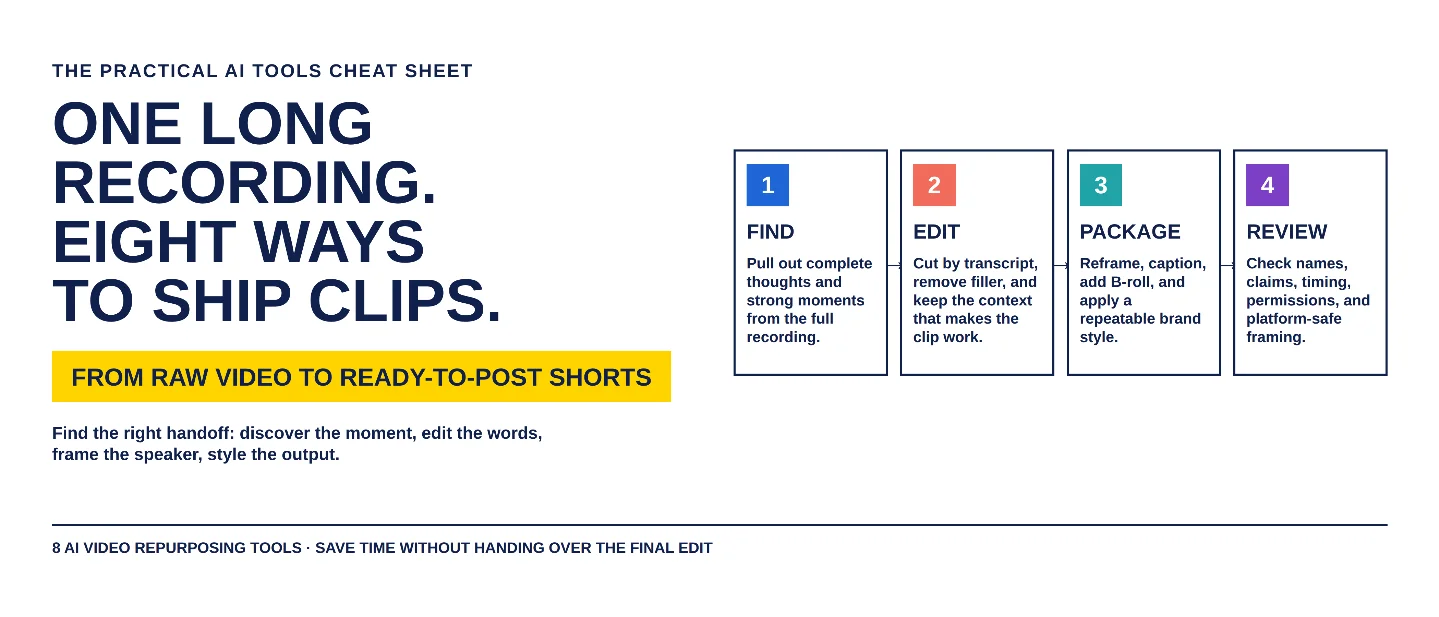
The AI video repurposing stack: 8 tools from long recording to ready-to-post clips
A practical eight-tool workflow for finding, editing, captioning, polishing, and reviewing short clips from long recordings without losing the context that makes them useful.

The bottleneck in video repurposing is rarely recording the long video. The slow part is finding a complete thought, shaping it for a vertical frame, correcting the words on screen, and making sure the short clip still says something true.
The useful question is: Which handoff still takes too long? Pick the tool that owns that handoff, then keep a person on the final pass.
Pick your lane
- Need several candidate clips from a webinar, interview, or podcast? Start with OpusClip or VEED.
- Need to edit the spoken words before you cut the picture? Start with Descript.
- Need to turn a StreamYard recording into vertical highlights? Use StreamYard AI Clips.
- Need captions that fit a social post? Use CapCut for caption cleanup or Submagic for a more stylized short-form package.
- Need timecoded caption tracks and multilingual review inside a professional editing timeline? Use Adobe Premiere Pro.
- Need to remove one small unwanted object from a short clip? Use Runway.
The tools overlap. Their value comes from the part of the handoff they make faster.
The 8-tool roundup
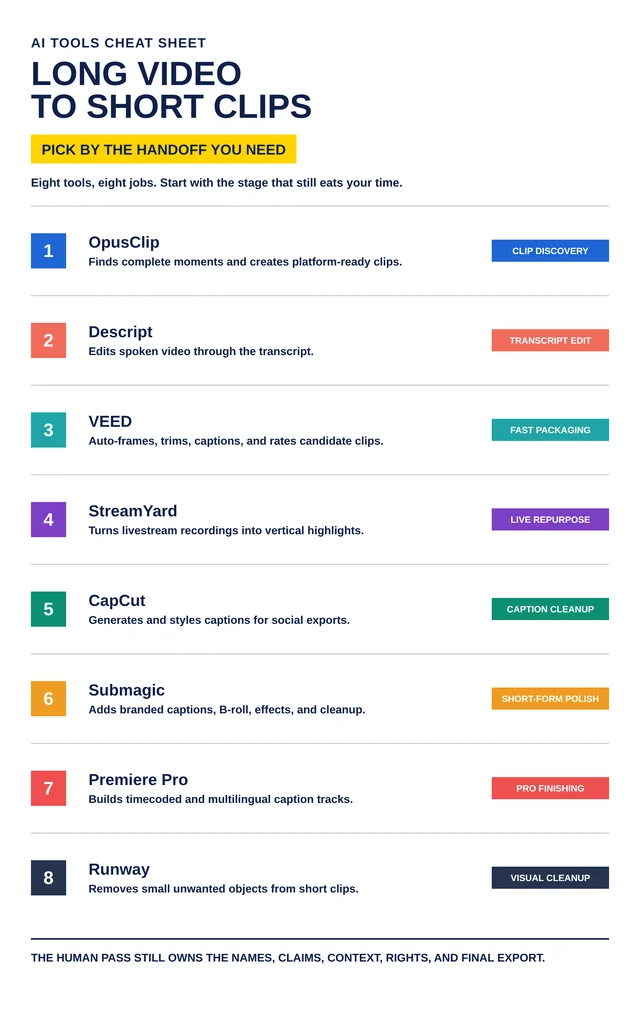
Self-made workflow graphic: the eight tools are grouped by the job each one handles. Product capabilities are detailed and sourced below.
1. OpusClip
Category: AI clip discovery and multi-platform export
Use it for: Turning a long interview, workshop, or recorded talk into a shortlist of candidate moments before a human editor chooses what actually represents the full conversation.
Why it earns a slot: OpusClip lets users upload a video or paste a YouTube URL, analyzes the recording, identifies clips such as hooks and educational segments, supports previewing different aspect ratios and caption placement, and provides trim, merge, and replacement controls for refinement. 1
Watch-out: A clip can be technically complete yet misleading when the source conversation depends on earlier context. Treat the suggestions as an edit queue, not a publishing queue.
Human check: Watch the minute before and after every selected moment. Confirm that the hook, claim, speaker intent, and visual crop still work without the full recording.
2. Descript
Category: Transcript-led editing and repurposing
Use it for: Recorded conversations and screen presentations where the spoken words are the edit map.
Why it earns a slot: Descript transcribes audio and video, lets users edit media through the transcript, removes filler words and awkward pauses, improves voice audio with Studio Sound, and uses AI Actions to repurpose material into social clips, summaries, and blog posts. 2
Watch-out: Removing verbal clutter can also remove a needed qualifier, a useful hesitation, or the bridge between two ideas.
Human check: Read the edited transcript as a standalone statement. Restore the wording that keeps a claim precise before you export the cut.
3. VEED AI Clips
Category: Fast clip packaging with framing and subtitles
Use it for: Teams that want one workspace to find, reframe, caption, trim, and download short clips from a spoken-video source.
Why it earns a slot: VEED AI Clips accepts videos with one minute to three hours of speech, lets users choose portrait or landscape output, a clip goal, subtitle style, and maximum clip length. VEED also surfaces rated clips, highlights the relevant transcript text, auto-frames speakers, auto-trims filler words and silence, and adds captions in more than 100 languages. 3
Watch-out: The tool’s speech-length requirement makes it a poor fit for a very short source or an archive with more than three hours of speech in one job.
Human check: Review the chosen framing on a phone-sized preview. A centered face is useful only when the on-screen demo, slide, or second speaker still matters to the message.
4. StreamYard AI Clips
Category: Livestream-to-highlight repurposing
Use it for: StreamYard shows, panels, and webinars that need fast vertical highlights after the recording ends.
Why it earns a slot: StreamYard can mark a live moment when a host says “Clip that,” then use the preceding roughly 30 seconds as a suggestion. Its AI Clips can analyze a recording up to six hours long, create shorter 9:16 clips with captions and titles, follow the current speaker when possible, and allow light trims before download. 4
Watch-out: A livestream highlight can depend on a comment, a question, or a screen share that the vertical crop does not carry forward.
Human check: Confirm that a first-time viewer can identify the speaker, the topic, and the promised payoff in the first few seconds.
5. CapCut
Category: Caption generation, correction, and styling
Use it for: The caption pass: turning spoken words into readable on-screen text, then adjusting timing and emphasis for a social export.
Why it earns a slot: CapCut uses speech-to-text to identify voices, transcribe audio, and synchronize captions to speech. Its subtitle editor supports text corrections, splitting and combining caption segments, timing adjustments, direct styling changes, and automatic subtitle translation. The web workflow accepts MP4, MOV, and AVI files and offers export controls for resolution, format, frame rate, and quality. 5
Watch-out: Proper names, acronyms, technical language, and overlapping speakers are the places where automatic captions need the closest read.
Human check: Verify every name, number, URL, acronym, and product term. Then watch once with the sound off to make sure the captions can carry the point on their own.
6. Submagic
Category: Branded short-form polish
Use it for: Adding a repeatable caption style, selected B-roll, visual emphasis, and light cleanup to a clip that is already editorially sound.
Why it earns a slot: Submagic’s Auto Video Editor creates synchronized captions and provides templates, caption customization, a Brand Kit, transcript-led B-roll insertion, Smart Trim for silences and filler words, audio cleanup, and export choices from 720p to 4K across several aspect ratios. 6
Watch-out: More B-roll, animation, zooms, and emoji can make a professional point harder to follow. A style system should clarify the message instead of competing with it.
Human check: Remove any visual effect that arrives before the words earn it. Keep on-screen motion for a real shift in topic, proof, or emphasis.
7. Adobe Premiere Pro
Category: Professional caption finishing and multilingual tracks
Use it for: A reviewable final timeline that needs timecoded captions, translation tracks, and a consistent style across a production team.
Why it earns a slot: Premiere Pro can create timecoded captions from an AI transcript in its Text-Based Editing workspace. Its caption workflow supports multiple translated caption tracks, source and target language selection, track visibility for review, and global styling through Track Style; Adobe recommends checking translations before export. 7
Watch-out: A translated caption track can look finished while carrying the wrong nuance, especially for brand claims, product language, or industry terms.
Human check: Ask a fluent reviewer to check the captions that matter commercially or legally. Preserve the original transcript so reviewers can compare the translation against the source wording.
8. Runway
Category: Short-clip visual cleanup
Use it for: Removing one small unwanted object, person, logo, or background distraction from a very short clip when a re-shoot is impractical.
Why it earns a slot: Runway’s Remove Object from Video tool accepts a video up to five seconds long, takes a natural-language removal prompt, and is designed to remove objects, people, logos, watermarks, cars, signs, or background buildings. 8
Watch-out: The five-second limit makes this a surgical cleanup tool rather than an end-to-end editor. Any edit that changes the meaning of the scene needs a stronger editorial review.
Human check: Compare the before and after frame by frame around the removed object. Check hands, faces, text, product details, and moving edges for artifacts.
Assemble the stack
A useful repurposing workflow has six jobs. One product can cover several jobs, but the handoffs still need owners.
- Prepare the source. Start with a recording that has clear audio, permission to reuse, and a defined audience. Keep the original file and the full recording available for review.
- Find candidate moments. Use OpusClip, VEED, or StreamYard to create a shortlist. Choose moments that make one complete point rather than chasing isolated punch lines.
- Edit the words. Use Descript or your editor of choice to remove real clutter while preserving qualifiers, names, and context.
- Package the clip. Pick the output ratio, crop, captions, and visual style. CapCut and Submagic fit this stage when readability and brand consistency are the bottleneck.
- Finish where precision matters. Use Premiere Pro for a professional caption review and multilingual track management. Use Runway only for a narrow visual fix inside its short-clip limit.
- Run the human pass. Check attribution, permissions, names, numbers, framing, subtitle accuracy, and whether the clip would mislead someone who never saw the source.
The strongest pilot is one recurring recording type: a weekly webinar, founder interview, sales demo, or internal training session. Run the same source through one clip finder, one caption workflow, and one reviewer. The result will show which handoff is actually expensive.
Practical takeaways
- Choose the first tool by your bottleneck: moment discovery, transcript editing, framing, captions, brand polish, professional finishing, or visual cleanup.
- Keep a link to the original recording beside every published clip so a reviewer can recover the missing context quickly.
- Edit captions as carefully as the audio. On many social feeds, viewers meet the text before they turn on sound.
- Treat a vertical crop as a new editorial choice. The speaker may be centered while the evidence disappears off-screen.
- Give each clip one clear point. Split two ideas into two clips instead of compressing both into a faster edit.
- Make the final reviewer responsible for accuracy, rights, and context, not just spelling.
Copy-ready LinkedIn/X caption
Hook
One long recording can create weeks of content — if the handoffs stop eating your time.
Highlights
I mapped 8 AI video repurposing tools by the job they solve:
- OpusClip for clip discovery
- Descript for transcript-led editing
- VEED for framing, trimming, and subtitles
- StreamYard for livestream highlights
- CapCut for caption cleanup
- Submagic for branded short-form polish
- Premiere Pro for multilingual caption tracks
- Runway for surgical visual cleanup
The practical rule: let AI create the first cut, then make the human pass own context, captions, permissions, and the final export.
CTA
Save this for the next webinar, interview, or team recording. Share it with the person who still spends Friday afternoon hunting for clips.
References
- 1
- 2
- 3How to use our clips feature | VEED Help Center
support.veed.io
- 4
- 5
- 6AI Auto Video Editor - Edit Videos with AI
submagic.co
- 7
- 8
This story was produced automatically by a channel. One sentence is all it takes for Neodrop to keep producing for you.