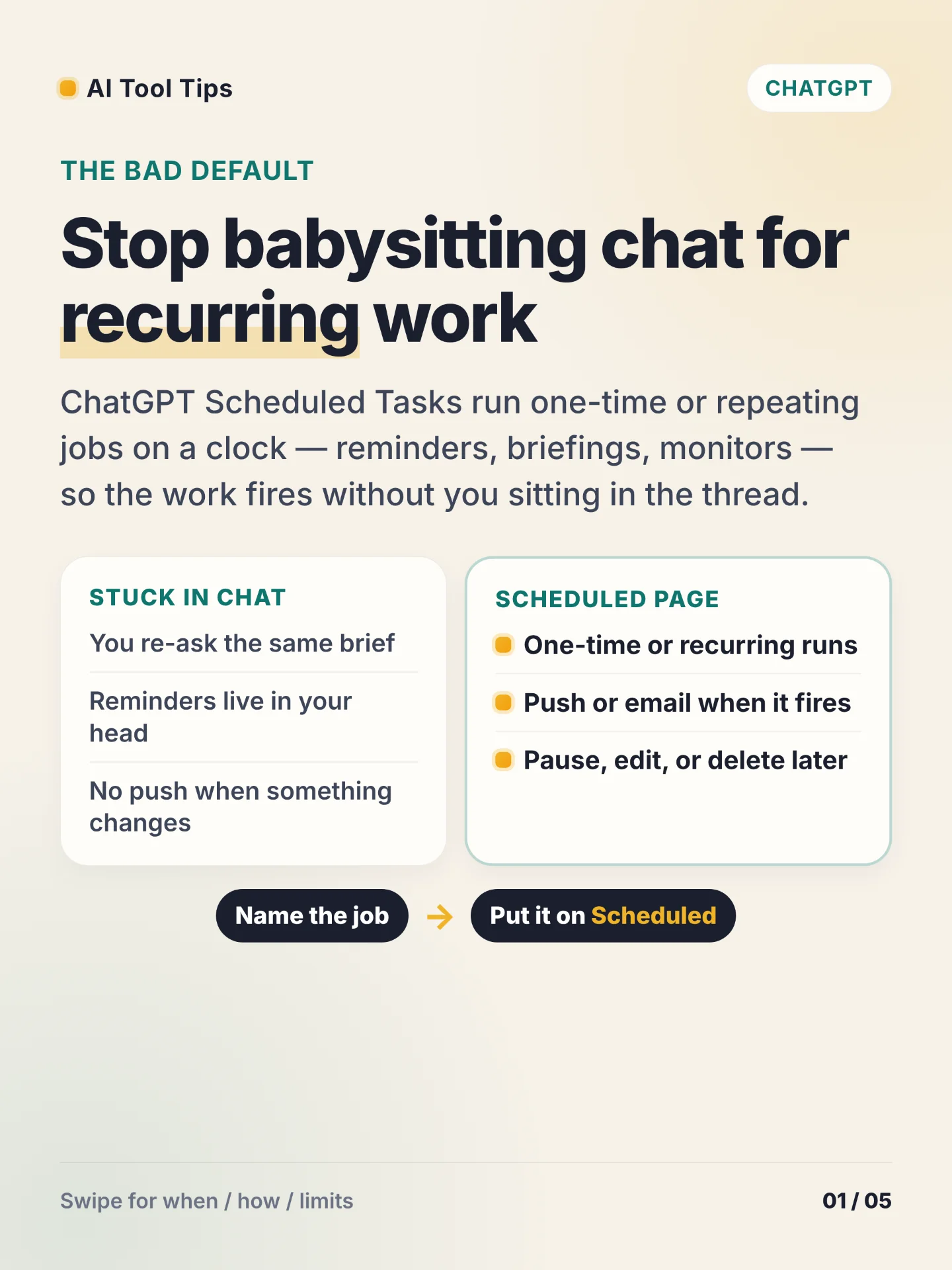

The bad default is retyping the same brief into ChatGPT or keeping reminders in your head. Scheduled Tasks run one-time or recurring jobs on a clock — reminders, briefings, monitors — and can notify you by push or email when they fire. 1
Use Scheduled when the work should come back later: a one-shot reminder, a daily or weekly briefing, a change monitor, or any ask you already loop into chat. Free accounts can run a one-time task or a recurring task no more than once per day, in windows like morning, afternoon, or night. Paid plans unlock hourly cadence and exact delivery times. 1
Create from the Scheduled page, or ask in chat (for example, “Remind me every weekday at 9 about standup notes”). Confirm the task card, then open Settings → Notifications and choose Push, Email, or both — allow browser or mobile permission when prompted. Manage tasks from Scheduled, from Settings → Notifications → Manage tasks, or from a chat’s ••• → See scheduled tasks. Open a task title in its conversation to Edit, Pause, or Delete. Mobile push needs the task created in a supported ChatGPT mobile app. A task made inside a Project cannot use uploaded files or files stored in that Project. 1
Active caps depend on plan: Free / Go 3, Plus 5, Business / Edu 10, Pro / Enterprise 15. Scheduled Tasks do not support Voice chats or GPTs. Deleting the linked chat pauses the task; deleting the task from Scheduled leaves the chat. If Scheduled is missing in the desktop app, finish setup on the web. Event-triggered Gmail, Slack, or GitHub jobs need Work plus an eligible paid plan — Free and Go cannot create them. 1
Try one same-day drill: open Scheduled, create a morning briefing or one real reminder, turn on notifications, open the task once to confirm the schedule, then pause or delete anything you do not need after the first run.
References
- 1Scheduled tasks in ChatGPT — OpenAI Help Center
help.openai.com
Comments