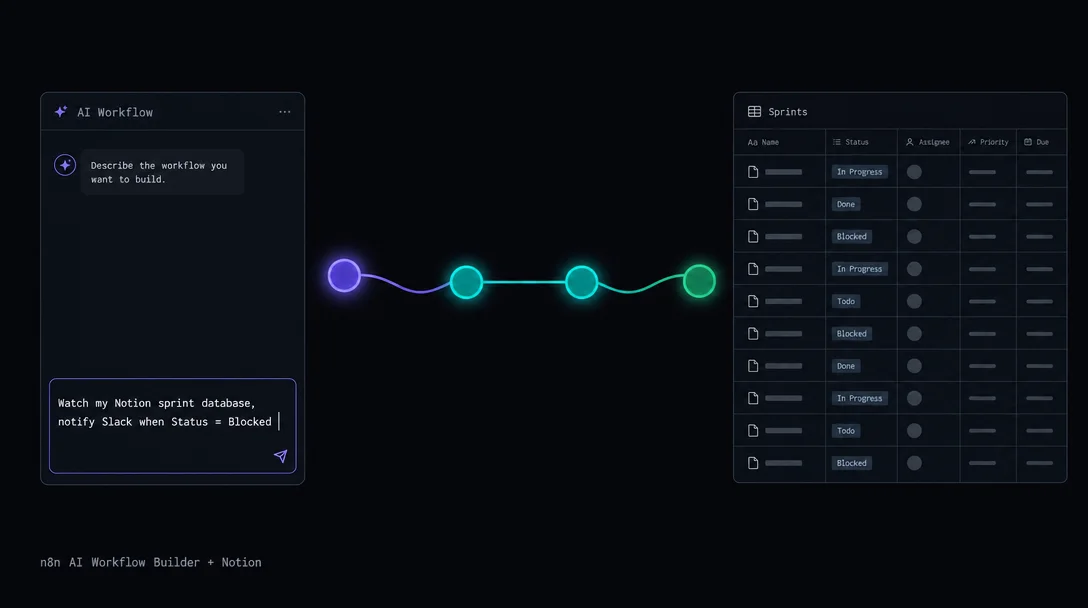
n8n AI Workflow Builder + Notion: scaffold a sprint alert in plain English
n8n's AI Workflow Builder (Cloud v1.115+, launched October 2025) lets you describe a Notion automation in plain English and receive a connected node skeleton in seconds. This tip walks through the complete flow — from writing a 950-character-or-less prompt to deploying a Notion sprint monitor that fires a Slack alert whenever a task's Status flips to "Blocked." Covers the three-phase build process, credential setup, 1–3 refinement rounds, and six Notion-specific gotchas including case-sensitive property paths, the natural-language date-parsing bug, and the credit system's no-rollover / no-add-on constraint.

| Requirement | Detail |
|---|---|
| n8n plan | Cloud Starter (50 credits/mo), Pro (150 credits/mo), or Enterprise (1,000 credits/mo) 1 |
| n8n version | v1.115.0 or later (Cloud only — self-hosted not yet supported) 2 |
| Notion setup | Internal Integration token + database shared with the integration |
| Slack setup | OAuth credential configured in n8n |
| Time to working workflow | ~20 minutes (3 prompt iterations typical) |
Manual n8n workflow assembly starts with a blank canvas, a node search bar, and the documentation open in a separate tab. That's fine once you know the system — the first dozen times, it slows you down.
AI Workflow Builder, which shipped in n8n v1.115.0 in October 2025, changes the starting point. 2 You describe what you want in plain English; the builder searches its node library, reads the full definitions for the relevant nodes, and places them on the canvas with connections drawn. The result is a 70–80% complete skeleton, not a finished workflow — you still wire up credentials and fix property-name references. But going from blank canvas to four connected nodes in under a minute changes how you prototype. 3
The tip this issue: use the AI Builder to scaffold a Notion sprint monitor that fires a Slack message whenever a task's Status property flips to "Blocked."
How the AI Builder works
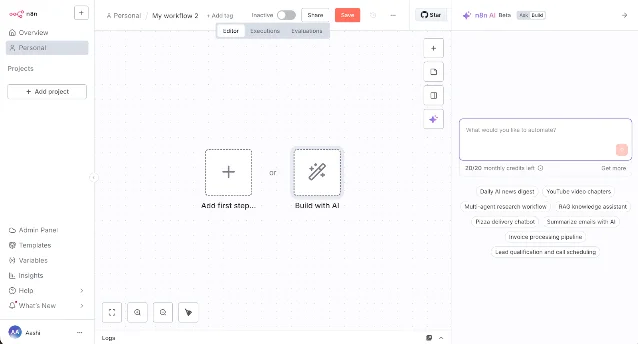
The prompt goes to an LLM that has the complete definition set for every n8n node — parameters, connection types, output shapes. It runs three internal phases: searching nodes → reading node details → placing nodes on the canvas. 4 You see the progress live in the sidebar.
Because Notion and Slack are first-party nodes with full definitions in n8n's library, the builder understands them precisely. It knows the Notion Trigger has two event types, that the Notion action node supports
Database Page: Update, and that the Slack node needs a channel ID and message body. 6 7One hard constraint: the builder has a ~950-character prompt limit (community-discovered, not documented). Write tight. 3 Each successful prompt interaction costs 1 credit — failed or manually-stopped requests do not count. 4
Step-by-step: from plain-English prompt to deployed alert
Step 1 — Open the AI Builder sidebar
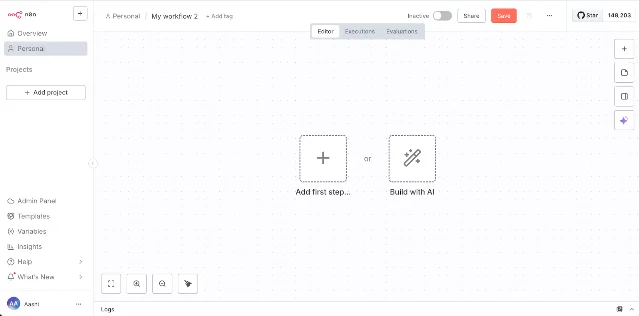
Create a new workflow in n8n Cloud. On the blank canvas, click "Build with AI". The AI sidebar opens on the right with a text field and a credit counter at the bottom.
Step 2 — Write a structured first prompt
Use this template (fits well under 950 characters):
Watch my Notion sprint database for page updates. When the Status property equals "Blocked", send a Slack message to channel #sprint-alerts with the page title and Assignee. Use Notion Trigger (Page updated in database) and the Slack Send Message action.Paul Gordon, who wrote n8n's official best-practices guide for the builder, summarizes the principle: "Be specific about integrations and nodes. Don't just say 'get my emails' or 'send results to a table' — vague prompts = vague workflows." 8
The three structural elements that matter most are: trigger (Notion, page updated), filter condition (Status = "Blocked"), and destination (Slack, specific channel). Give all three in sentence one.
Step 3 — Review the generated skeleton
The builder will typically produce a 3–4 node chain:
- Notion Trigger — event: "Page updated in database"
- IF node — condition: check Status property equals "Blocked"
- Slack node — action: Send Message
Click each node to inspect what was configured. The nodes will exist and connect correctly — the usual gaps at this stage are:
- Notion Trigger: database ID is blank (you must paste your database ID)
- Slack: channel ID is blank (use the channel's ID, not its name)
- IF node: the condition references
{{ $json.properties.Status.status.name }}— verify this path matches your database's actual property structure by clicking the Notion Trigger node and running a test fetch first
Step 4 — Configure credentials
Connect your Notion credential (OAuth 2.0 Internal Integration token). To get one: open Notion → Settings → Connections → Develop or manage integrations → New integration → copy the token → share your sprint database with that integration.
Connect your Slack credential via the n8n OAuth flow — Slack requires a proper OAuth app, not just a webhook token.
Tip: Set up both credentials in n8n's credential manager before opening the AI Builder. The builder generates the skeleton faster when it detects that credentials for the requested services already exist in your workspace.
Step 5 — Refine with a follow-up prompt (typically 1–3 rounds)
After running the initial workflow with "Execute and refine," use the builder's chat to fix specific issues. Examples of effective refinement prompts:
"The IF condition isn't matching. The Notion Status property path is {{ $json.properties.Status.status.name }}. Update the condition.""Add the Assignee name to the Slack message body using {{ $json.properties.Assignee.people[0].name }}""The Slack message should include a link to the Notion page: {{ $json.url }}"
Each refinement round costs 1 credit. Keep prompts targeted — one fix per message works better than bundling three changes. 8
Step 6 — Test with a real Blocked status change
In your Notion database, change any task's Status to "Blocked." Watch the n8n Executions tab — the trigger should fire within 60 seconds. If the Slack message arrives with the right title and assignee, activate the workflow. Done.
콘텐츠 카드를 불러오는 중…
Gotchas specific to Notion + AI Builder
Property names are case-sensitive and path-dependent. The builder generates expression references based on the node definition, not your actual database.
"Status" ≠ "status". A property named "Task Owner" in your database has a path like $json.properties['Task Owner'].people[0].name — the builder may generate $json.properties.Task_Owner.people[0].name (underscored), which returns undefined. Open the Notion Trigger test output, expand properties, and copy the exact key names. 9Don't use natural-language dates in Notion writes. Community users have confirmed a bug where AI Agent + Notion date handling misparses relative dates — a "set due date to tomorrow" instruction produced dates randomly set in October 2023. 10 For any workflow that writes date properties to Notion, hardcode ISO 8601 strings or use n8n's
$now.plus(1, 'day').toISO() expression — don't rely on the builder to resolve "tomorrow" correctly.The builder won't add retry logic. Notion's API rate limit is 3 requests per second per integration. 7 If your sprint database has high activity, the Notion Trigger can burst into 429 errors. The AI Builder does not add exponential backoff by default — add a Wait node or Error Workflow manually after the skeleton is in place.
Variable mapping requires a manual pass on every node. Reddit user automatexa2b, who tested the builder across simple, medium, and complex workflows, put it plainly: "The builder acts as a powerful templating engine, but it doesn't always assemble the pieces in a way that is logically sound or immediately functional." 3 Run the workflow once, click into each node's input/output panel, and confirm that the data flowing in matches what the node expects. Don't skip this even when the workflow reports no errors — an IF node evaluating
undefined === "Blocked" will always produce false and silently do nothing.Credits don't roll over and can't be purchased separately. Starter accounts get 50 credits per month; Pro gets 150. Once spent, you wait for the monthly reset or upgrade — there's no add-on option. 11 For a Notion sprint monitor like this one, expect to use 3–5 credits total (initial build + 2–3 refinements).
Self-hosted n8n does not have access to the AI Builder. It is Cloud-only. The Business plan (self-hosted) lists it as "coming soon" with no timeline. 1
What the builder reliably gets right vs. what needs your hands
| Aspect | AI Builder handles it | Needs manual fix |
|---|---|---|
| Node selection | ✅ Correct nodes for Notion + Slack | — |
| Node connections | ✅ Logical left-to-right chain | — |
| Trigger event type | ✅ "Page updated" vs. "Page added" | — |
| Database ID / Channel ID | — | ❌ Always blank — paste yours |
| Notion property path expressions | Partially (structure is right) | ❌ Exact key names need verification |
| IF condition logic | ✅ Usually correct operator | ❌ Value string must match your data |
| Slack message body | ✅ Generates template | ❌ Variable paths need verification |
| Retry / error handling | — | ❌ Not added — build manually |
| Date parsing for Notion writes | — | ❌ Use explicit expressions only |
The summary from n8n's own blog: think of AI Workflow Builder as "a thought partner, there to be used as a sounding board for validating ideas, a way of exploring nodes that you might not have considered, and an n8n expert ready to help fix or improve your workflows." 8 It removes the blank-canvas problem. The credential wiring, property path verification, and edge-case handling remain yours.
Cover: AI-generated illustration
참고 출처
- 1n8n Plans and Pricing
- 2Introducing AI Workflow Builder (Beta) — r/n8n
- 3I Tested n8n's New AI Agent Builder: 5 Surprising Truths — Reddit r/n8n
- 4AI Workflow Builder — n8n Docs
- 5n8n Workflow Builder Tutorial: Automate Daily Standups — DataCamp
- 6Notion Trigger node — n8n Docs
- 7Notion node — n8n Docs
- 8AI Workflow Builder Best Practices — n8n Blog
- 9Building a Lead Capture Form with n8n, Notion, and Slack — dev.to
- 10Help with n8n AI Agent + Notion: "Tomorrow" bug — n8n Community
- 11How do I get more AI Workflow Builder credits? — n8n Community
이 콘텐츠를 둘러싼 관점이나 맥락을 계속 보강해 보세요.