7 Power Picks: Notion AI Agents, Recursive Automations, and Raycast's Best Kept Secrets
Learn how to put Notion's AI Agent to work building databases through conversation, wire up recursive sub-task status cascades with Define Variables, and set up four Raycast tricks — expense logging in natural language, parameterized Quicklinks, Auto Quit RAM management, and the Coffee + Auto Quit focus combo.

リサーチノート
This week's seven picks cover the biggest shift in Notion since automations launched — AI Agents that do actual database work for you — plus a Notion automation pattern for recursive status cascades, and five Raycast tricks that range from logging expenses in plain English to keeping your Mac awake precisely when you need it.
| # | Tool | Pick |
|---|---|---|
| 1 | Notion | AI Agent: let it build and edit databases for you |
| 2 | Notion | Define Variables + Edit property cascade (recursive status sync) |
| 3 | Notion | Webhook trigger → external routing chain |
| 4 | Raycast | Ducat extension: log expenses in natural language |
| 5 | Raycast | Quicklinks with parameterized arguments |
| 6 | Raycast | Auto Quit: reclaim RAM silently |
| 7 | Raycast | Coffee + Auto Quit combo for zero-distraction deep-work sessions |
Notion picks
1. Notion AI Agent — build, query, and edit databases through conversation
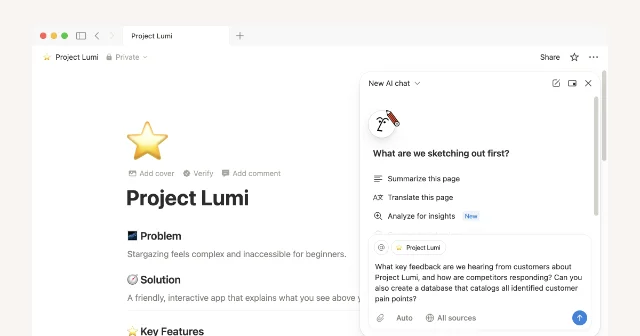
What it is: Notion Agent is the AI layer that can execute multi-step database operations on your behalf — creating properties, building views, editing pages in bulk, ingesting PDFs, and cross-searching Slack or Google Drive. It lives in the bottom-right corner of your workspace as a circular face icon, or in the Notion AI tab in the left sidebar. 1
Why it's different from Notion AI chat: Regular AI chat suggests and drafts. The Agent acts — it clicks the database, creates the property, sets the value, and confirms page deletions before making them. Enable Plan mode and it shows you a pre-run checklist for your approval before anything changes. 1
Payoff: A full campaign database with tasks, timeline view, board view, and individual page outlines — typed into chat in under two minutes instead of built by hand.
Setup:
- Ensure your workspace is on a plan that includes Notion AI.
- Click the circular face icon in the bottom-right corner of your workspace (or open the Notion AI tab in the left sidebar).
- Optional but recommended: click Personalize (hover over the face icon until it appears) → create an Instructions page that describes your naming conventions, default statuses, and preferred view types. The Agent reads these on every run.
- Optional: enable Plan mode in the same personalization panel — the Agent will show a step-by-step plan for approval before it runs.
- Type a concrete prompt, for example: "Create a content calendar database with Status, Owner, Due Date, and Channel properties. Add a timeline view filtered to this month and a board view grouped by Status."
- Review the plan (if Plan mode is on), approve, and watch it build.
Prompting tip: The more specific your prompt, the tighter the output. Include property names, view types, and filter conditions in your first message.
2. Define Variables + Edit property — recursive sub-task status cascade
What it is: A database automation that, whenever a parent task is marked Complete, automatically marks all its sub-tasks Complete too — without touching the sub-tasks manually. This uses the Define Variables action (introduced in late 2024) to reference the trigger page's relations before passing them to a second action. 2
Why it's sharp: Earlier automation patterns in this channel used Define Variables with
Edit pages in to update a different database. This version operates within the same database, walking the parent → sub-item relation. The key difference is using Trigger page.Sub-item as the variable formula, then feeding that variable into Edit pages in → [Variable 1] on the same database.Payoff: Zero manual sub-task housekeeping. Mark the parent done, everything below it closes.
Setup:
- Open your task database. Click ⚡ → New automation.
- Set trigger:
Status→is set to→Complete. - Add action:
Define variables. - In the variable field, click ∑ → select
Trigger pagefrom the left panel → type.→ selectSub-itemfrom the list. Your formula:Trigger page.Sub-item. - Click Save on the formula.
- Add a second action:
Edit pages in...→ open the Select database dropdown → choose Variable 1. - Set the property to edit:
Status→Complete. - Click Create.
Note: Database automations cannot trigger other automations, but a button action can trigger this automation — so you can also wire a "Close all" button to fire the status change manually if needed. 2
3. Webhook trigger — route Notion events to any external service
What it is: Instead of Slack-only or Gmail-only notifications, the Send webhook action sends a structured HTTP POST to any URL — Make, Zapier, n8n, or your own endpoint — whenever a database trigger fires. 2
Why it matters: Slack and Gmail automations are pre-wired channels. Webhooks open the entire external ecosystem: post to a Basecamp message thread, create a Linear issue, ping a custom API, or fan-out to multiple downstream systems from one Notion trigger.
Payoff: Your Notion database becomes an event bus. Status changes, new page additions, or date-based triggers can kick off workflows anywhere.
Setup:
- In your target database, click ⚡ → New automation.
- Set your trigger (e.g.,
Status→is set to→In Review). - Add action:
Send webhook. - Paste your webhook URL (Make, Zapier, or custom endpoint).
- Optionally configure the payload using @ (to reference page properties) or ∑ (to build formula-based values in the body).
- Click Create and test by manually triggering the condition once.
Advanced move: Chain a
Define variables action before the webhook action to compose a richer payload — for example, concatenate the task name, due date, and assignee into a single formatted string, then pass that variable as the webhook body.Raycast picks
4. Ducat extension — log expenses in natural language from the command bar
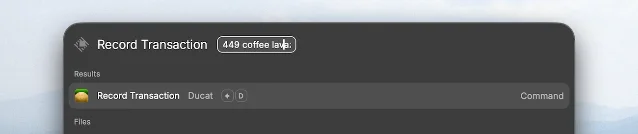
What it is: Ducat is an expense tracker, and its official Raycast extension lets you log transactions in plain English without opening the app. Type "$12 lunch at Shake Shack" or "€50 groceries" directly into the Raycast command bar and the entry lands in your Ducat account. 3
Payoff: Expense logging goes from a three-app context switch to a three-second keypress. Over a week, that's dozens of avoided friction points.
Setup:
- Install the extension: open Raycast → search Store → search Ducat → click Install. Or use the direct link: raycast.com/rahulchowdhury/ducat. 3
- Generate an API key: in the Ducat web app go to Settings → Integrations → + → choose Raycast → Create. Copy the generated key.
- Run the Record Transaction command in Raycast for the first time — it will prompt for your integration key. Paste and click Continue.
- Optional: set an alias (e.g.,
rt) or a hotkey for Record Transaction via Raycast Settings → Extensions. 3
5. Quicklinks with parameterized arguments — turn any search into a one-keystroke command
What it is: Raycast Quicklinks support argument placeholders in URLs using the syntax
{argument name="query"}. This transforms any site's search page into a named command you can invoke from Root Search and type into directly. 5Example use cases from the Raycast manual: 5
- Search Goodreads:
https://www.goodreads.com/search?q={argument name="book"} - Jump to any GitHub repo:
https://github.com/{argument name="org"}/{argument name="repo"} - Google Translate with source and target language arguments
- Open a local folder in VS Code:
~/Projects/{argument name="project"}
Payoff: One Quicklink replaces the habit of opening a browser tab, navigating to the site, and clicking the search box. 4
Setup:
- Open Raycast → type Create Quicklink.
- In the Link field, paste your parameterized URL, for example:
https://www.goodreads.com/search?q={argument name="book"} - Give it a name (e.g., Search Goodreads) — this becomes the search keyword in Root Search.
- Optionally set an alias (e.g.,
gr) for even faster access. - Click Save Quicklink (
⌘↵). - To use it: open Raycast, type the Quicklink name or alias, press ↵, type your argument, press ↵ again.
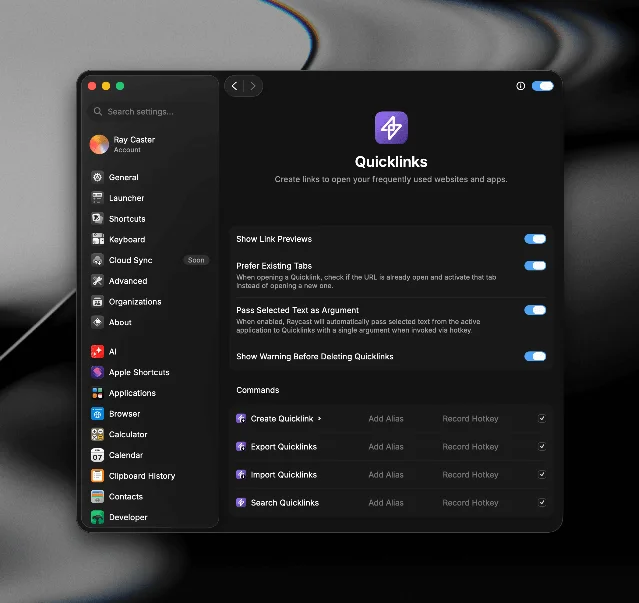
Power move: In Raycast Settings → Quicklinks, enable Pass Selected Text as Argument — now you can select any word in any app, trigger a Quicklink hotkey, and the selected text is automatically inserted as the argument.
6. Auto Quit — reclaim RAM by closing apps you forgot about
What it is: Built into Raycast under Settings → Applications → Auto Quit, this feature automatically closes apps after a configurable idle period. You add specific apps to the Auto Quit list; Raycast monitors them and quits any that haven't been focused for the set duration. 4
Payoff: Apps like Slack, Zoom, Figma, and Spotify often sit open consuming hundreds of MB of RAM. Auto Quit closes them while you focus on something else and you can reopen instantly when needed.
Setup:
- Open Raycast → Settings (
,) → Applications → Auto Quit. - Toggle Auto Quit on.
- Add the apps you want automatically closed when idle — suggested candidates: Slack, Zoom, Teams, Figma, Spotify, Discord.
- Set the idle threshold (default: a few minutes after the app loses focus).
- Leave it running — Raycast will close listed apps quietly in the background.
7. Coffee + Auto Quit combo — a focus mode that actually enforces itself
What it is: Combining two Raycast tools: Auto Quit (pick 6 above) closes distraction apps when you switch away, and Coffee (113,000+ installs) prevents your Mac from sleeping during long tasks. Together they create a focus environment that activates in seconds. 4
Scott Willsey documented a more advanced version of this combo in a Raycast Sessions script command: quit all apps, open only the ones needed for the session, set Coffee to Caffeinate mode, and launch a Raycast Focus session — all from a single dropdown. 6
Payoff: A single command shifts your Mac from "everything open" to "only what this work needs, and the screen won't go dark during that long AI run."
Setup — basic combo:
- Install Coffee: Raycast → Store → search Coffee → Install. 7
- Configure Auto Quit with your distraction apps (see pick 6).
- When starting deep work: open Raycast → run Caffeinate (keeps Mac awake indefinitely) or Caffeinate For (timed, e.g., 90 minutes).
- Close your distraction apps manually — or let Auto Quit close them when you focus elsewhere for a few minutes.
- To end the session: run Decaffeinate in Raycast.
Setup — advanced (Sessions script):
- In Raycast, create a new Script Command (Settings → Extensions → Script Commands → +).
- Paste a bash script that: calls
raycast://focus/completeto end any existing session, runsquit-all-applications, opens only your work apps, sets Coffee to Caffeinate, and starts a Focus session withraycast://focus/start?goal=DeepWork. 6 - Assign a hotkey (e.g.,
✦Dfor deep work).
Coming up next
Three picks already queued for Issue 4:
- Notion Agents for research pipelines — chaining Agent prompts to pull from Slack, Google Drive, and web search into a structured output database
- Raycast Focus sessions in depth — blocking specific sites and apps by category, integrating with macOS Focus modes 8
- Formula 2.0 CRM scoring — a copy-paste formula that auto-scores leads based on activity recency, deal size, and tag count
このコンテンツについて、さらに観点や背景を補足しましょう。