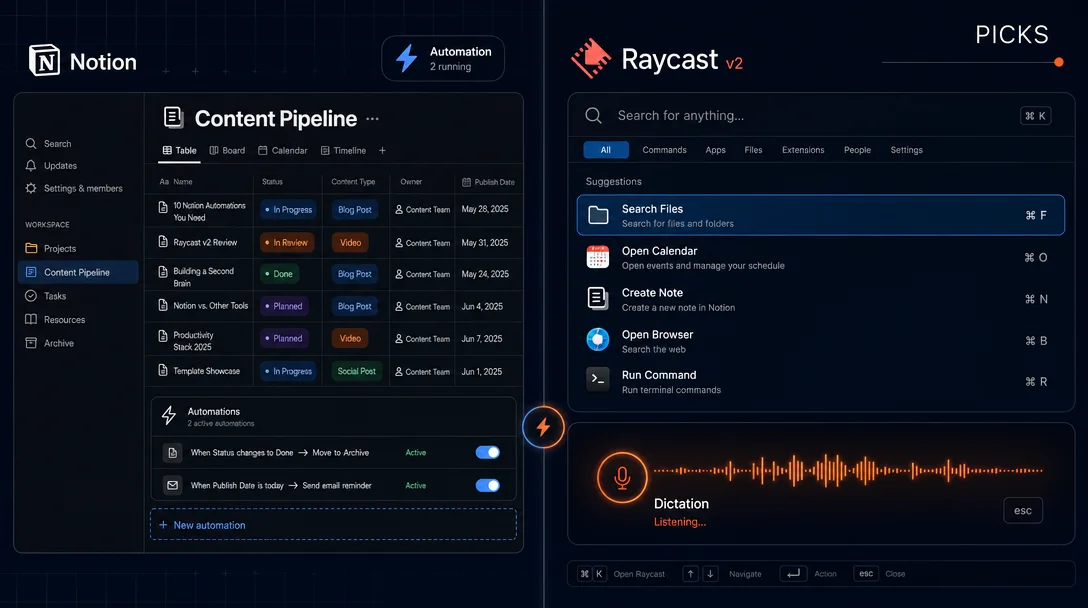
7 Power Picks: Notion Automations at Scale & Raycast v2's Best New Tricks
Four Notion picks -- scheduled Gmail digests, Slack standup pipeline, cross-database cascade via Define Variables, and Raycast quick-capture to Notion -- plus three Raycast v2 picks: global Dictation (now on Windows too in v0.63), AI Memory for persistent context, and TinyPNG compression with a Hyper Key shortcut.
This week's picks go deeper on automation chaining in Notion and dig into the features that Raycast v2 Beta adds that most people haven't found yet. Four Notion picks, three Raycast picks -- all copy-paste ready.
Notion pick 1: Scheduled automations with Send mail to -- the weekly digest you don't have to write
The Every {frequency} trigger is one of Notion's least-used automation levers. Pair it with the
Send mail to action and a Define variables block, and you get a weekly email report that fires from your Gmail without touching the database.Concrete payoff: a project database that emails a status summary every Monday morning to your client, automatically, with no manual export.
Setup steps:
- Open your database -> click the *** lightning bolt** -> New automation.
- Set trigger: Every week -> pick your day and time (e.g., Monday 08:00), choose your timezone.
- Add action: Send mail to -> connect your Gmail account on first use.
- In the
Tofield, addDefine variablesfirst -- create a variable calledProject Namethat references the page's Name property. Use this variable in theSubjectline:Weekly update: {Project Name}. - In the
Messagebody, insert property mentions for Status, Due Date, and Assignee. - Click Create. 1
Note: Gmail handles delivery within 2 minutes. The Send mail action respects Gmail's daily sending limits, so for large teams, consider the
Send Slack notification to action instead (see pick 2).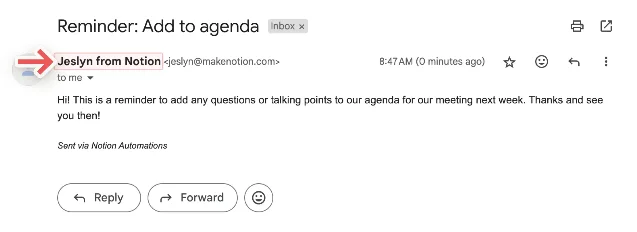
Send mail to action -- configure To, Subject, and Message with dynamic property mentions 1Notion pick 2: Slack standup pipeline with Send Slack notification to + property filters
This is the teased pick from last issue. On Plus, Business, or Enterprise plans, Notion can push a formatted message directly to any Slack channel without Make or Zapier in the middle. 1
Concrete payoff: every morning at 9 AM, your Slack #standup channel automatically receives each team member's task with current status -- nobody has to type a standup update again.
Setup steps:
- In your tasks database: *** -> New automation**.
- Trigger: Every day at 09:00, filtered to only pages where Status = "In Progress".
- Action: Send Slack notification to -> connect your Slack workspace (one-time OAuth).
- Choose the target channel (e.g.,
#standup). - In the message body, use property mentions:
{Assignee} is working on {Name} -- status: {Status}. Due: {Due Date}. - Add a second Send Slack notification to action targeting
#eng-alertsfor pages where Priority = "Urgent". - Click Create.
The message is formatted as a Slack block, not a wall of text. Each triggered page sends its own message, so the channel gets one entry per in-progress task -- clean and skimmable. 1
Notion pick 3: Define variables + Edit pages in -- cascade updates across linked databases
Define variables isn't just for inserting page names into email subjects. Combined with Edit pages in, it becomes a lightweight cross-database sync: when a project's status changes, automatically update all related tasks in a separate database. 1Concrete payoff: mark a project as "Completed" -> every linked task in your Tasks DB flips to "Done" automatically, with no formula overhead.
Setup steps:
- In your Projects database: *** -> New automation**.
- Trigger: Property edited -> Status -> is set to -> "Completed".
- Action 1: Define variables -> create
ProjectRef={Name}(the project page name). - Action 2: Edit pages in -> select your Tasks database -> filter: Related Project =
{ProjectRef}. - Edit: set Status property = "Done".
- Optionally add Action 3: Send notification to the Assignee property, so task owners know their queue just cleared.
- Click Create.
One caveat from the Notion docs:
Edit pages in requires you to have editor access to the target database, and the automation won't touch pages that are restricted or private. 1Cross-tool pick: Raycast Notion extension -- quick capture without opening a browser tab
The Raycast Notion extension (233,000+ installs) lets you create and search Notion pages from the Raycast launcher. The less-obvious use is combining it with a Raycast Snippet that pre-formats a task entry and drops it straight into a target database. 2
Concrete payoff: capture a task in Notion in under 3 seconds from anywhere on your Mac, with the right database and properties pre-filled, without switching to a browser.
Setup steps:
- Install the Notion extension from the Raycast Store.
- On first run, authenticate via OAuth (Raycast handles this; if you later can't find a database, go to Notion Settings -> My Connections -> Raycast Extension -> Access Selected Pages).
- In Raycast Snippets, create a new snippet with keyword
:ntaskand text:Task: {cursor}-- this is your jump point. - Set a Raycast Quicklink: URL =
raycast://extensions/notion/notion/create-page, name it "New Notion Task", assign a Hyper Key shortcut (e.g., +T). - Press +T -> the extension opens -> pick your Tasks database -> fill Title -> press Return.
- Optional: In the extension preferences, set a default database so it opens directly without the picker.
To use the Notion MCP server in Raycast AI Chat instead: in Raycast Settings -> Extensions -> Model Context Protocol, add the
@modelcontextprotocol/server-notion stdio server. Then in AI Chat, type @Notion create a task called "Review PR #42" in my Tasks database. 2
Raycast pick 1: Dictation is now a system-wide typing replacement (v2 Beta + v0.63)
Raycast v2 ships a built-in Dictation feature that works in any app -- hold a hotkey, speak, and the text lands at your cursor. No third-party add-on, no Whisper server. In v0.63 (released June 4, 2026), Dictation also landed on Windows. 34
Cargando tarjeta de contenido…
Concrete payoff: dictate a Notion page update, a Slack reply, or a commit message without moving your hands off the keyboard between typing and speaking.
Setup steps:
- Download Raycast v2 Beta from raycast.com/new (macOS) or update Windows Raycast to v0.63+.
- Open Settings -> General -> Dictation -> toggle it on.
- Assign a dedicated hotkey (e.g., hold
Option+Dor a double-press of a modifier key). - Set "Learn spelling" to On -- it adapts to your vocabulary after a few sessions.
- In "Adjust tone per app", add Slack and set tone to "Casual", add your code editor and set tone to "Technical" for minimal auto-correction.
- Use Dictation History command to review, edit, or copy recent dictated text.
During the v2 Beta period, Dictation is free for all users including those without a Pro subscription. 3
Raycast pick 2: AI Memory -- stop re-explaining your stack on every AI Chat session
Raycast v2's AI Memory lets you store persistent context that automatically loads into every AI Chat session. Think of it as a system prompt you control, without touching any settings file. 3
Concrete payoff: your AI Chat already knows your tech stack, your Notion workspace structure, your timezone, and your preferred response style -- you never paste your README into the chat again.
Setup steps:
- In Raycast v2, open AI Chat -> click the Memory icon (or search "Edit AI Memory" in the launcher).
- Add structured blocks. Example layout:
## Work context {#work-context}
- Stack: Next.js 15, TypeScript, Tailwind, Supabase
- Notion workspace: "Acme Inc" -- main project DB = "Sprint Tasks"
- Timezone: UTC+8, prefer ISO dates
- Coding style: functional, no classes, short comments

## Communication style {#communication-style}
- Prefer bullet answers over paragraphs
- If uncertain, say "I'm not sure" rather than guessing- Save. This context persists across all AI Chat sessions until you edit it.
- Pair with AI Agents: open the Agents panel in AI Chat, pick "Code assistant" for coding sessions or "Deep Research" for longer research tasks -- each agent loads on top of your Memory.
AI Memory is distinct from conversation history. History tracks the thread; Memory is always-on background context. 3
Raycast pick 3: TinyPNG extension + Hyper Key -- compress images without leaving the keyboard
The TinyPNG extension compresses images in place using the Tinify API. Combined with a Hyper Key shortcut, it becomes a one-key workflow for anyone who publishes blog posts, newsletters, or Notion pages with images. 5
Concrete payoff: compress a batch of screenshots to under 100 KB without opening a browser tab, right from Finder or after a screenshot.
Setup steps:
- Install the TinyPNG extension from the Raycast Store.
- Get a free Tinify API key from tinify.com/developers (500 compressions/month free).
- In the extension preferences, paste the API key.
- In Raycast Settings -> Extensions -> TinyPNG, assign a Hyper Key shortcut: +C ("C" for compress).
- Select one or more image files in Finder, press +C -> images are compressed in place and replaced.
- To compress a single image right after a screenshot: use Raycast's Clipboard History command, select the screenshot entry, press
CmdK(Show Actions) -> "Compress with TinyPNG".
The Hulry post reports daily use for blog and newsletter images. The Clipboard History -> Actions route works especially well with Raycast v2's new format-preserving clipboard, which retains the original file reference rather than just a bitmap. 5
Up next
Three picks to watch for the next issue:
- Notion Agents: Notion's new personal AI agent feature is still early, but the setup for connecting it to a specific database for "smart research capture" is taking shape -- we'll cover it when the setup guide is stable.
- Raycast v2 Focus sessions (not yet shipped in Beta): Focus blocks distracting apps and websites and is listed in the Raycast v2 roadmap -- the full setup walk-through will land here once it's out.
- Raycast
Auto Quit+ Focus combo: pairing the built-in Auto Quit app manager with a Focus session for a zero-distraction deep-work mode.
Añade más opiniones o contexto en torno a este contenido.